
August 7, 2026
Service Overview
An overview of the Scientific Computing (SciC) Linux Clusters with information relating to the service can be found in the Computational Resources section of our website. The cluster webpage also contains links to the account sign-up form, request forms for applications or storage and the support and feedback forms. Review the typical uses for each of the computational resources offered by ERIS to determine the most suitable platform.
Information about using the cluster is found in the Computational Resources and Analyze Data sections of our KnowledgeBase.
Details of our introductory training courses for Linux and SciC Linux Clusters are in the Scientific Computing section of our Training Page
Obtaining an account
Users can sign-up for an ERIS Cluster Account from here: SciC Linux Clusters account request form. Accounts are usually processed by the next working day.
If you wish to use your group's Lab storage (called a briefcase) on the Cluster then locate one of your group's 2 keygivers and request that they add you to the associated PAS group which controls access to the briefcase storage. If the keygivers are unknown then seek this information from the PI or admin of the group, they can obtain the relevant keygiver list from workspace.partners.org as described here.
Please note hpcsupport has no role in the administration of PAS groups.
Connecting to the SciC Linux Clusters
Before connecting to the ERIS cluster with any of the methods described below please ensure you have VPN switched on if you are located offsite.
Command-line SSH
Opening a command-line terminal session using an SSH client is the most common way to connect to the SciC Linux Clusters. This method requires some familiarity with the Linux operating system.
The following platform is available to all users following eris cluster registration.
ERIS2-NUCLEUS: login nodes - eris2n7.research.partners.org, eris2n8.research.partners.org
and where users submit jobs to the approximately 75 CPU compute nodes using the Slurm job scheduler.
Separately, groups can sign up to access GPU resources on the ERISXdl platform and where subsequently group members can access this node at:
ERISXdl: login node - erisxdl6.research.partners.org
Users submit compute jobs to the 4 x DGX compute nodes (each with 8 x V100 GPUS) using the ERISXdl/Slurm job scheduler.
Connect from a PC running Microsoft Windows:
- (Recommended) Use the MobaXterm application to connect.
For more information on the features of MobaXterm, reference their documentation.
- Download the Free Home Edition of MobaXterm here and extract the files from the download to your preferred location. Run the installer and then application if you downloaded the Installer edition, or run the .exe file if you downloaded the Portable edition.
- Once the application is open, select "Session" from the top toolbar. This will open a new pop-up window.
- Select "SSH" as the session type, and fill in the specified fields as followed. Once done, click "OK"
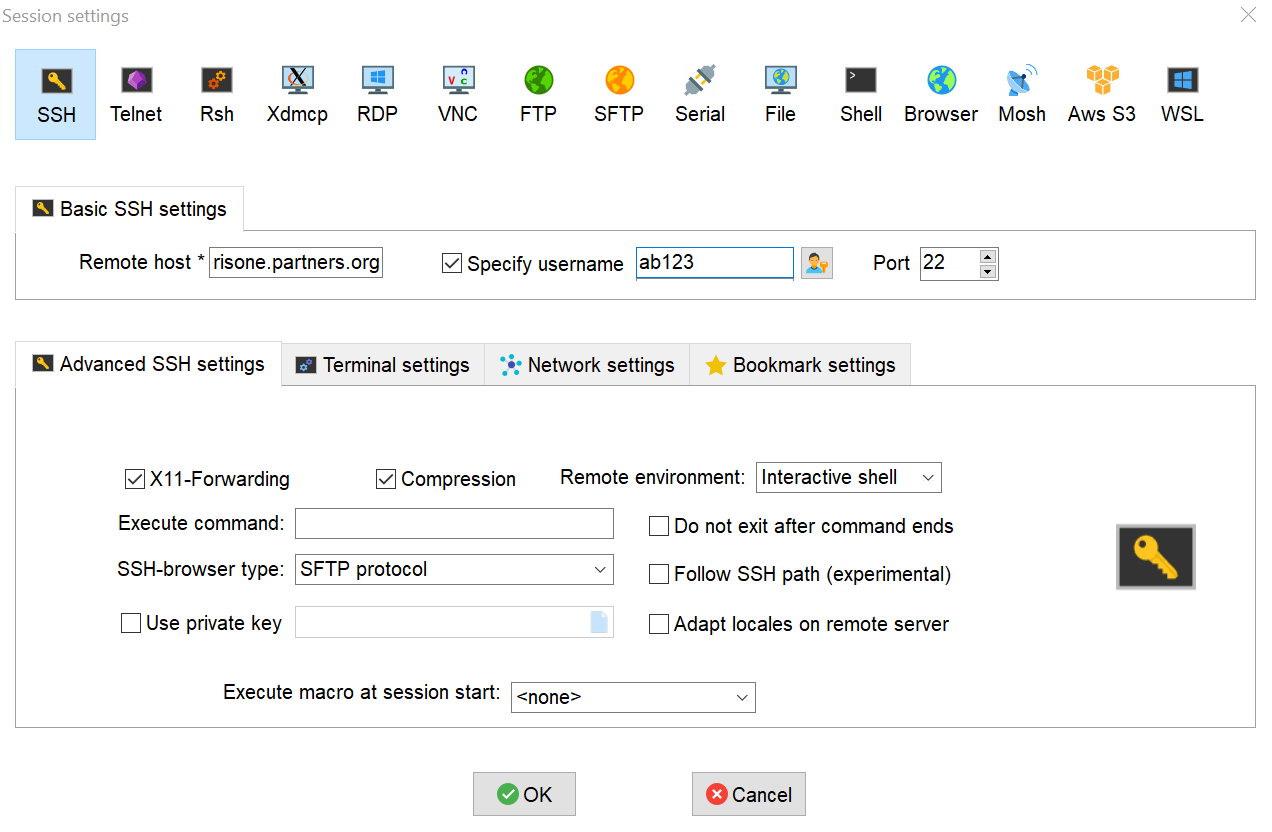
- Remote host: use the host chosen above
- Specify username (make sure it's checked off): your Mass General Brigham user ID
- Port: 22
- A new terminal tab should open in the MobaXterm window, prompting for your password. Enter your Mass General Brigham password to continue.
- Once logged in, you will also be able to view your home directory files and folders in the "Sftp" tab on the left toolbar in MobaXterm
- Use the PuTTY ssh client to connect
- Download the PuTTY ssh client (putty.exe)
- Double click the downloaded file
- Enter the following connection information and press "Open"
- Host Name (or IP address): use the host chosen above
- Port: 22
- Protocol: SSH
- Enter your Mass General Brigham user ID in lowercase and password when prompted
Connect from a Mac or Linux computer
- Open the "Terminal" application
- replace "abc123" with your Mass General Brigham user ID in lowercase and "yourhost" with the host chosen above, and type this line followed by your Mass General Brigham password:
ssh abc123@yourhost.partners.org
The first time you connect to SciC Linux Clusters, a message will appear showing the rsa2 key fingerprint. Select "Yes" to proceed. Following a reboot the fingerprint may change in which case you will have to clear the entry for the login node in ~/.ssh/known_hosts on your pc.
Remote Desktop
A remote desktop is ideal for using graphical applications with data stored on the cluster, and for a persistent workspace. On the webpage linked below, you may toggle between available servers.
Web Applications
Web applications allow running jobs, analytics and visualization using only a web-browser. Sections of the quick-start guide below may not apply if you exclusively use to the cluster through a web-browser.
Applications supported by the ERIS Scientific Computing team include
- RStudio
- JupyterHub
Submit a feature request for other web applications.
Transferring Data
Compute nodes, login nodes and remote desktops...
Within the SciC Linux Clusters, computers are referred to as "nodes".
Login nodes
In order not to overload the front end operations on the eris2-nucleus login nodes (eris2n7 and eris2n8) should be limited to job submission, file editing and small-scale file copying. Please note that users are resource-restricted on the login nodes to prevent their overloading.
Users can view the associated limits with the following:
ulimit -a
Compute nodes
Computational and data-intensive work should be submitted to the compute nodes by use of the slurm job scheduler.
To use applications and software provided by the cluster during your jobs, you can take advantage of the cluster's module system. Learn more about loading ready-to-go applications in Loading Applications.
Help and support for SciC Linux Clusters Services
For questions related to the use of SciC Linux Clusters the following resources are available:
- Knowledge Base articles
- Virtual Office hour sessions which are held every second and fourth Monday of a month between 2-3pm. All registered cluster users will receive a broadcast notification during the week before the next scheduled Virtual Office hours, users will be able to book a 20min slot as explained in the notification.
- contact Scientific Computing Support with further queries.
Note that email correspondence from the Scientific Computing support team includes a message header inviting you to check the status of the support requests at Service Now.
Using SciC Linux Clusters for Research Purposes
If you are applying for a grant and need to reference these resources, you can use the link below. This is to help researchers copy and paste general, high-level, descriptions of infrastructure into their grants, IRB proposals, contracts, etc.
http://rc.partners.org/boilerplates
It would be very much appreciated if the Enterprise Research IS group and/or individual Research Computing members receive acknowledgement in publications if you feel our service and facilities have helped your projects. You can find a guideline for such acknowledgement at:
https://rc.partners.org/research-apps-and-services/boilerplates-templates/it-infrastructure#citing-eris
Please let us know how ERIS helped your research!
https://rc.partners.org/research-apps-services/boilerplates-templates/research-thumbs