
Posted on
Updated on
March 27, 2026
Requirements
- MacOS: Supported Versions
- Computer must be enrolled into Intune*.
- If your computer is not enrolled in Intune, please see HOWTO: Intune - Enroll Your Personal Mac
Before You Begin (if applicable)
Older app version: The 'Citrix Workspace' application replaces the 'Citrix Receiver' application. If 'Citrix Receiver' is installed, then the app must be deleted before proceeding. How to Delete files and folders on Mac
Instructions
- Open your Applications folder
- Launch Intune Company Portal
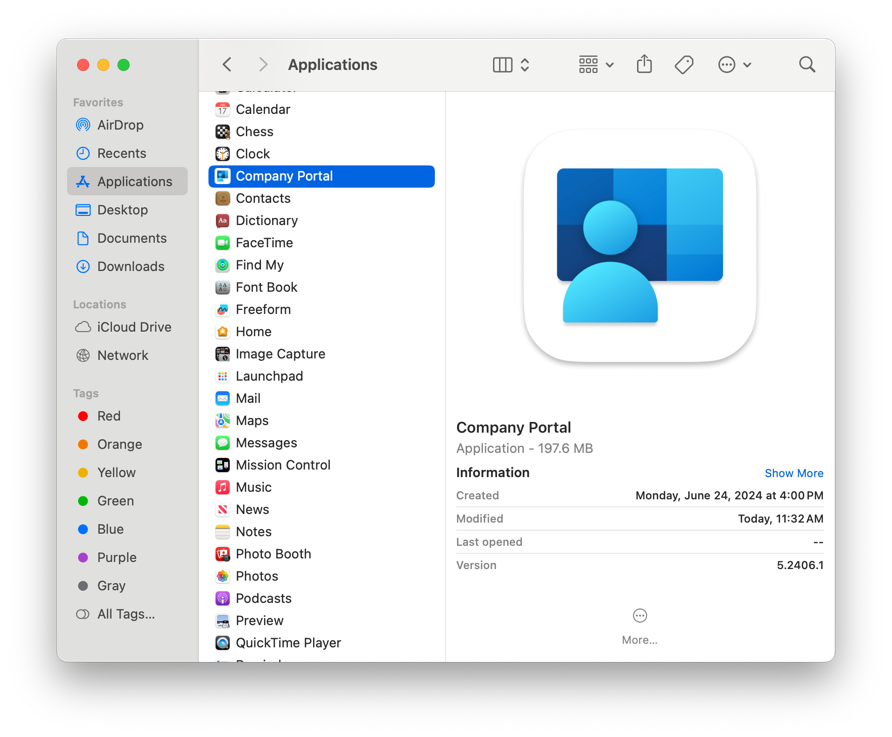
- Log in with your MGB credentials
- Locate the Citrix Workspace in apps section
- Click Install
- Follow the Workspace installation prompts
- If prompted to "add an account by typing an email address or server address", press Cancel. Entering an email address is not required.
- After the Citrix Workspace installation is complete, you will be able to launch applications directly from the MGB Citrix web address: https://workspace.partners.org
- (After logging into the website, if you encounter the page stating, 'Citrix wasn't detected', press Already Installed to proceed.)
- Note: Once Citrix is installed, you don't have to launch the actual Citrix Workspace app icon that appears on your Mac. The app will be used automatically when launching MGB applications through the Citrix website.