
Posted on
Updated on
August 28, 2025
Requirements:
- MacOS: Supported Versions
- Intune Enrollment.
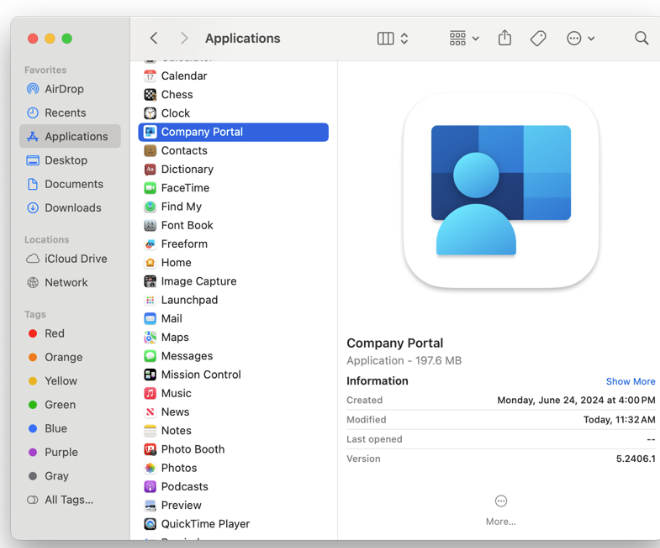
- Verify you are enrolled in Intune. You will have the Company Portal application installed in your Applications folder. Otherwise Review KB0041620 to enroll in Intune.
- SecureConnector. SecureConnector is required for VPN. Install via Company Portal
- A device registered for phone verification in MyProfile. Contact the Service Desk if you need assistance with MyProfile.MGB.org
- Ensure you are not connected to PHSWIFI3 to connect to VPN.
HOW TO: Configure and Connect to VPN on a Mac Via Intune
- Launch Company portal from your Applications Folder.
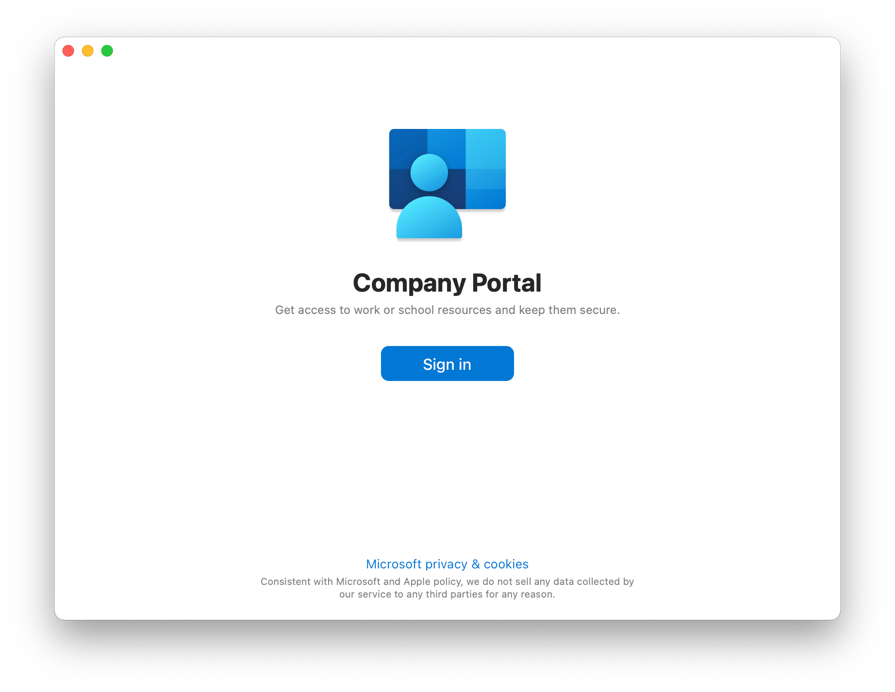
- Login with your MGB credentials (username/user ID and password).
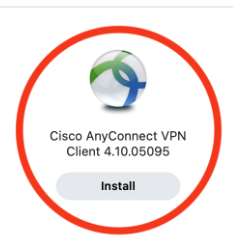
- Click Install under the Cisco AnyConnect VPN Client to install, or to upgrade if you have a prior version.
- Connect to VPN using the address pvc.partners.org/saml when it says "Ready to Connect". After entering that address, click on the Connect button.