
Posted on
Updated on
September 23, 2026
This guide will walk through selecting organization/department/unit level access for a user. This level of access will allow a user to access all records (related to the selected modules) within the selected department/unit.
| Note: if you are not a keygiver but need Insight access, click here for instructions on requesting access. |
Steps
- Locate the user:
- Use the name field to enter “last name, first name” or User ID to locate the user you need to review/update.
- Click Search.
- When results are returned, click on the user’s name to open their profile.
- Navigate to the Security page.
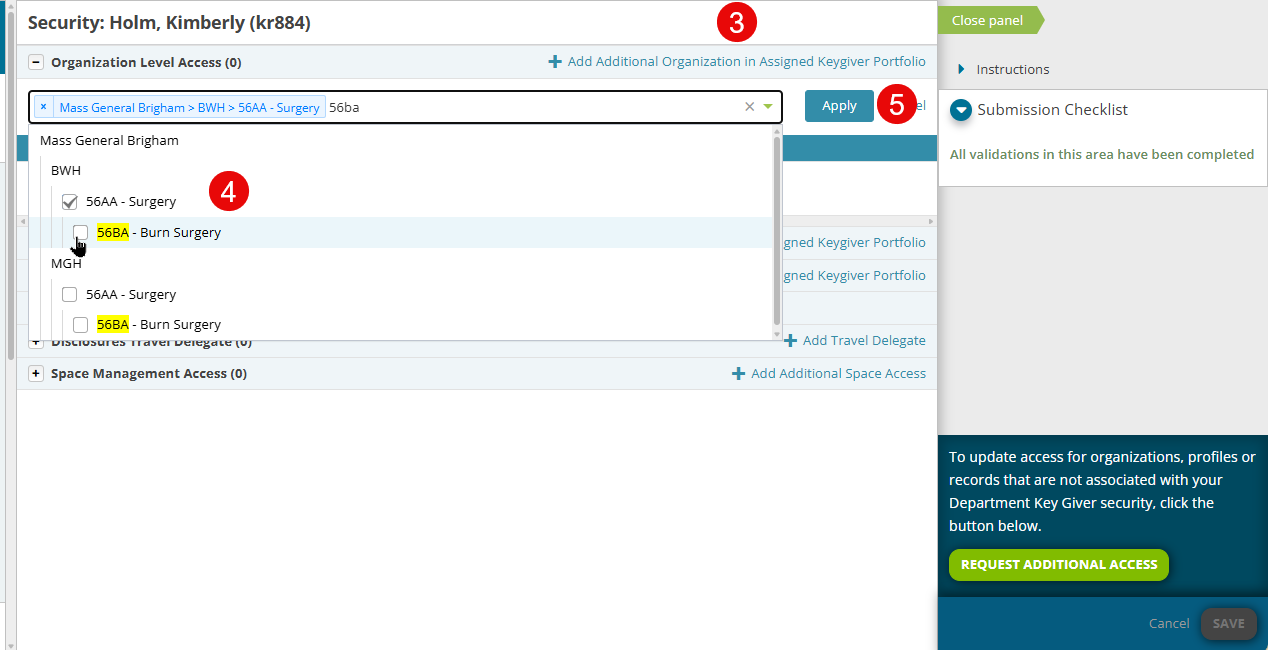
- To add a specific department/unit/chief code click “Add Additional Organization”.
- Select one or more organizations to add.
- Click the Apply button.
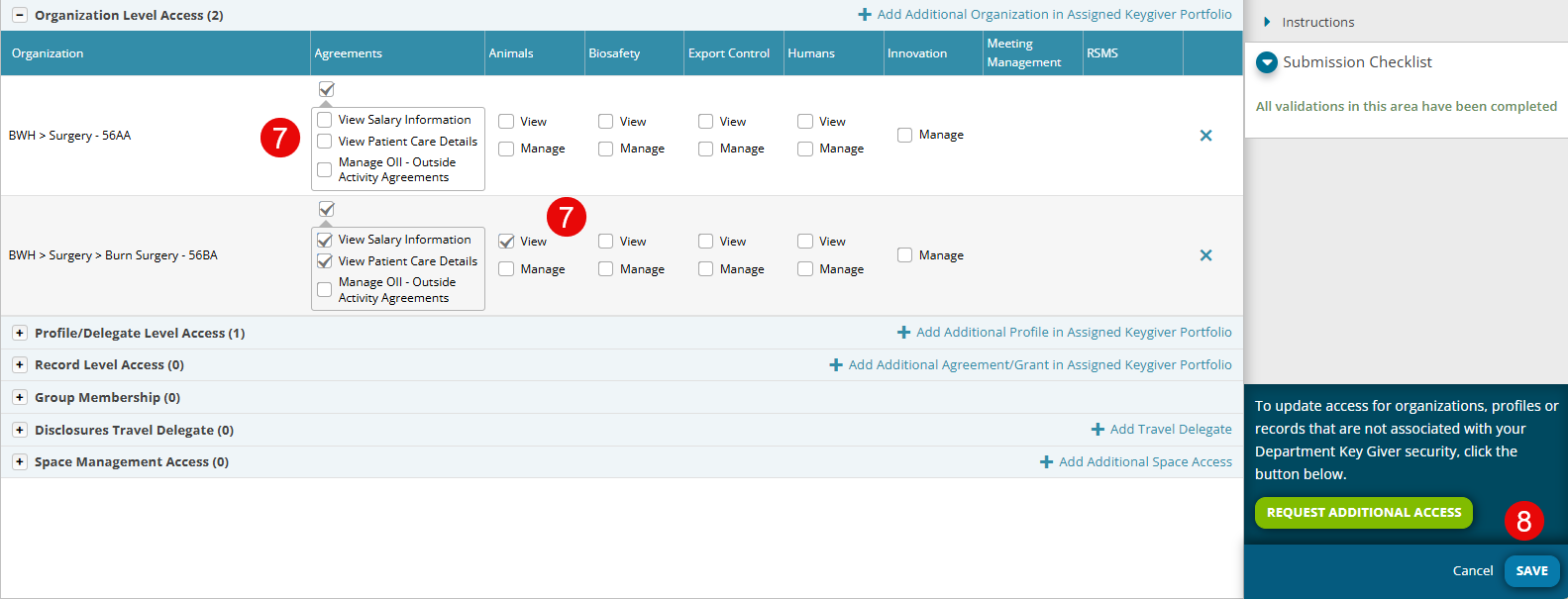
- Select the appropriate attributes for the organization.
- It is a pick and choose process under each module.
- When adding Agreement access you can include View Patient Care Details and/or View Salary Information.
- Manage access in a module allows the user to create transactions on the protocols.
- View access only allows users to view the protocols but not request edits.
- Click the Save button.
| Tip: To find the organization faster instead of scrolling through the dropdown, type the value into the field to jump right to it (Example: BWH 80AA or MGH 56AA). |
|
Important Notes:
|
Additional Guides
- Requesting Security
- Add/Update Profile/Delegate Level Access
- Add/Update Agreement/Grant Level Access
- Add Space Management Access
- Terminate Access
- Using Research Contacts
- Add New Research Contact
- Reassigning a Research Contact