Posted on
Updated on
September 23, 2026
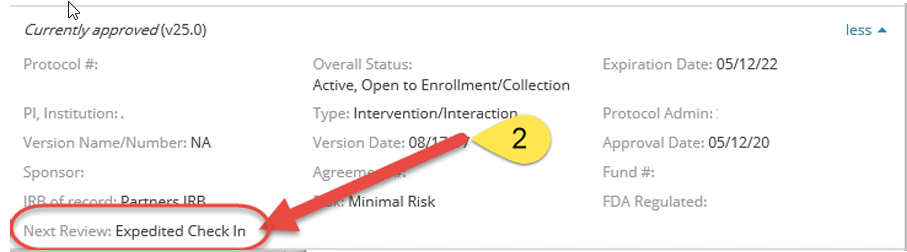
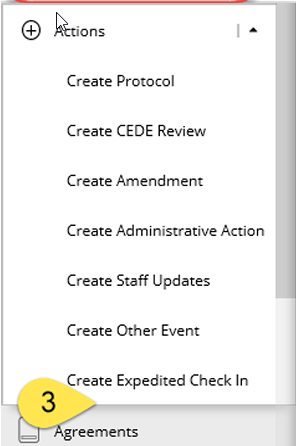
The “Create Expedited Check In” transaction in the Humans module is located under Actions menu in the left panel of your screen for protocols with Next review = Expedited check in. This transaction is used to submit a status update on active protocols to either remain active and assign a new expiration date or to close it. The Expedited Check-In is a brief form designed to collect a status update and oversee ongoing non-Exempt human subject research which no longer requires a regulatory Continuing Review.
STEPS
- Click Humans tab in the left navigation to access the module.
- Access protocol with next review value in protocol header = Expedited check in
- Select Create Expedited Check In under Actions menu on the left panel
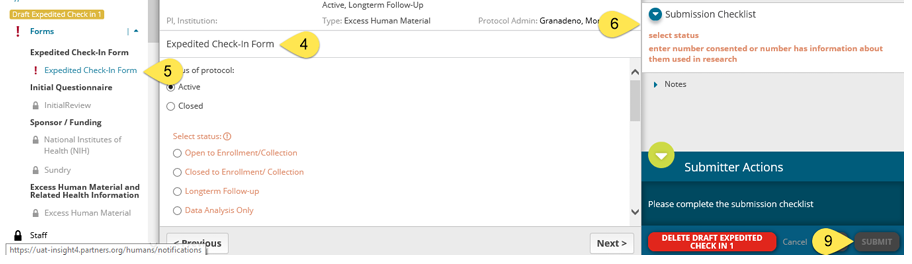
- The Expedited Check In form will be displayed in the center panel for you to complete. Note that the other areas of the protocol remain locked from changes (Forms, Staff, Attachments). Create a separate Amendment if you need submit a modification to your protocol
- If there are any incomplete required questions in the form, a red exclamation (!) will be displayed next to the form title on the left panel
- Submission Checklist on the right panel helps in identifying the incomplete questions within the form that need to be completed
- When all the mandatory questions are answered in a section, a green check mark (✔) appears next to the page title
- When all the sections are complete, submit button gets enabled at the bottom right corner of the screen
- Click Submit
- Upon submission, a transaction status bar is displayed which represents the workflow steps that need to be completed for the amendment to be approved. Note: Depending on the protocol type and protocol status, the process will need to be signed off by the PI only or by the PI and Administrative reviewer
- Once the Expedited check in transaction is approved, the status of the protocols will update according to the status update selected in the Expedited check in form.
- Active: Expiration date updated to +2 years of approval date
- Closed: Expiration date removed from protocol. Note: Closed protocols cannot be reactivated again
- Approval review letter and notification of approval is generated and posted to the Expedited check in transaction in Insight
- Consent form and recruitment material documents will be re-stamped and posted in the Protocol Published Documents grid
|