
Posted on
Updated on
September 23, 2026
Introduction
New team members for the central offices need to initially be flagged as a “Central User.” This allows the Central Keygivers to assign hospital-level security for the users, as department users are not typically assigned hospital-level access. This is a critical first step for new employees.
Steps
Prerequisite: user is selected from the search page of the MPS module.
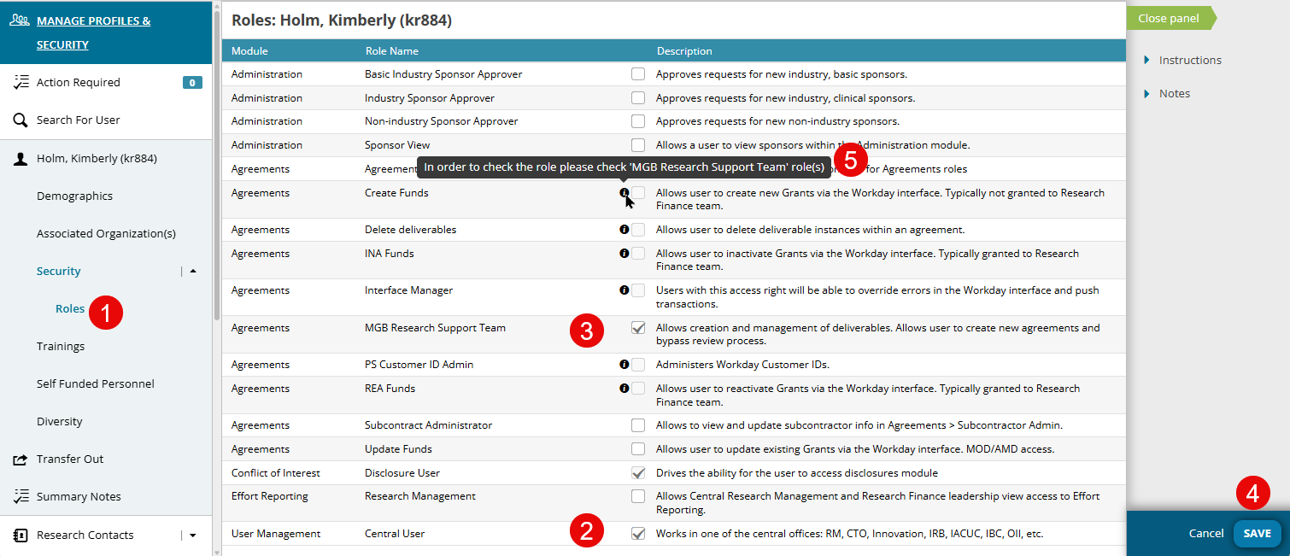
- Expand the Security page for the user and then select the Roles page.
- Select the “Central User” role.
- Add additional roles specific to the work the user will perform on your team.
- Click Save.
- You may need to select one role and click Save before the next role can be added, so repeat this select-then-save step as needed.
|
Important Notes:
|
Additional Guides