
Posted on
Updated on
September 23, 2026
Introduction
This guide will walk keygivers through providing a user access to a specific agreement/grant.
| Note: If you are not a keygiver but need Insight access, click here for instructions on requesting access. |
Steps
- Locate the user:
- Use the name field to enter “last name, first name” or User ID to locate the user you need to review/update.
- Click Search.
- When results are returned, click on the user’s name to open their profile.
- Navigate to the Security page.
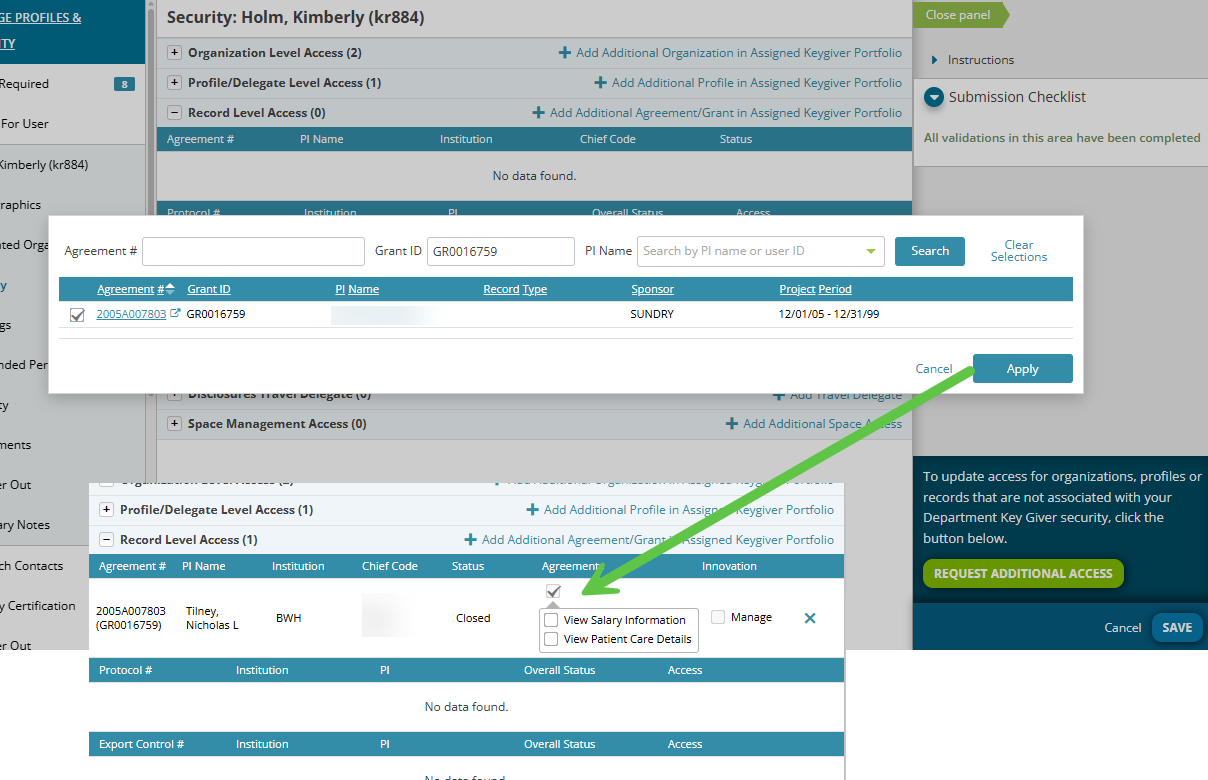
- Click “Add Additional Agreement/Grant”.
- Search by Agreement #, Grant ID or PI.
- Select the agreement(s) and click Apply.
- Agreement level access is automatically applied and additional View Patient Care and View Salary can be selected.
- Click Save.
| Note: If a user already has access to the agreement/fund based on existing department or profile security, the results will indicate that and you will not be able to add the record to the profile unless you are providing View Patient or View Salary just to that grant and not the whole department or profile. |
Additional Guides