
Posted on
Updated on
September 23, 2026
The “Create Amendment” in the Humans module is located under Actions menu. This is used to initiate an update to the existing approved protocol and submit to Mass General Brigham Institutional Review Board (IRB) for review and approval.
STEPS
- Click Humans tab in the left navigation to access the module.
- Select an existing protocol from the landing page for which you would like to create an Amendment
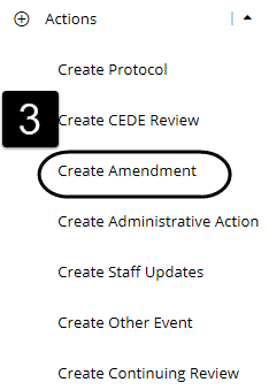
- Select Create Amendment under Actions menu on the left navigation panel
- The entire protocol gets unlocked for modifications
- You can make necessary changes to the Staff, Forms and Attachments sections as a part of this amendment (different kinds of Amendments are explained in detail below)
- Click Staff section on the left navigation panel
- You can add new staff or remove existing staff members from this page, click here to learn
more
- You can add new staff or remove existing staff members from this page, click here to learn
- Click Forms section on the left navigation panel
- You can add new forms or make changes to existing forms, click here to learn more
- Click Attachments section on the left navigation panel
- You can add new attachments or remove existing ones from this section, click here to learn more
- Change a study’s Overall Status: The Amendment form contains the section:
Change in Protocol Status.- You will be able to change the Overall Status for:
- Intervention/Interaction
- Non Intervention/Interaction protocols
- You will NOT be able to change Overall Status for:
- Exempt
- Not Humans Subjects Research
- Cede review protocols
- To select the new overall status, answer “Yes” to the first question in this section to get the option to select the new overall status. See example below. Note if you are selecting Closed to Enrollment/Collection please clearly indicate why the study enrollment has ended (e.g., enrollment target reached; business decision/funding ended; insufficient efficacy; safety issue; etc.) and identify if enrollment has closed early due to a change in risk/benefit. See example below.
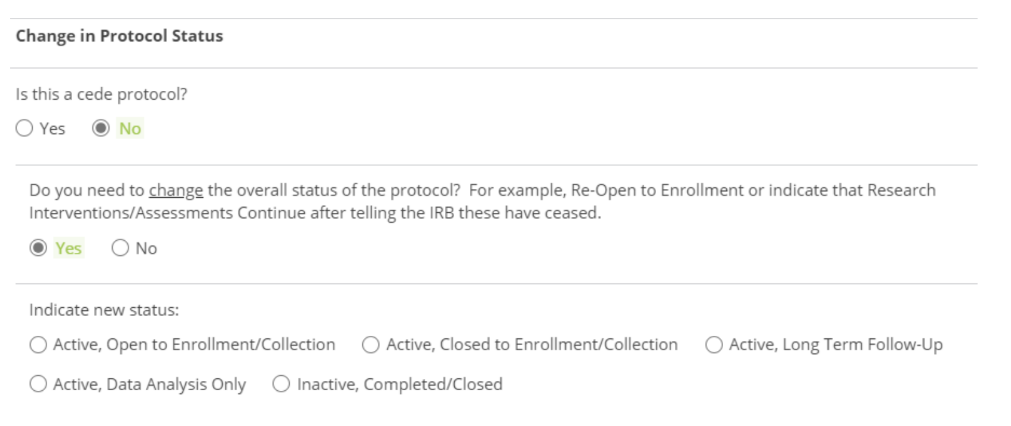
- You will be able to change the Overall Status for:
- Complete all the updates to your protocol. Any incomplete section can be identified by a red exclamation (!) next to the page title on the left navigation panel
- Submission Checklist on the right panel helps in identifying the incomplete information within the page that needs to be completed
- When all the mandatory fields are answered in a section, a green check mark (✔) appears next to the page title
- When a modification is made to any section, a yellow MOD icon appears next to the page title
- When all the sections are complete, Submit button gets enabled at the bottom right corner of the screen
- Click Submit
- Upon submission, a transaction status bar is displayed which represents the workflow steps that need to be completed for the amendment to be approved.
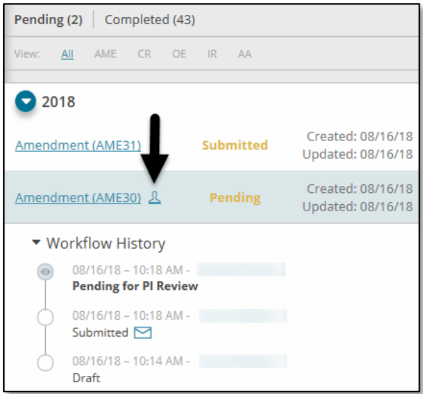
- All the Study Staff Amendments can be identified by icon next to the amendment version on the right panel
- The track changes functionality button is displayed in the project header when track changes are on.

- Fields added or modified as part of the amendment are highlighted in green. These changes are tracked throughout the transaction workflow.
- At any time, you can disable the track changes by clicking the button mentioned in step To activate this feature again, you can click
 button displayed on the project header
| Tip: All modified forms/pages have a yellow label displayed next to them and newly added forms have a green label displayed next to them |
Types of Amendments
There are two types of Amendments:
- Study Staff Amendment is triggered when changes to protocol are made on the Staff page in Study Staff and Non-study Staff grids by adding/modifying/removing staff members and
changing the Principal Investigator or Site Responsible Investigator. - Protocol Amendment is triggered when changes to protocol are made in Forms, Attachments and PI/Site PI
If both study staff and Protocol changes are made as part of the amendment transaction at the same time, the request splits into two separate amendments. One amendment includes the study staff changes (Staff page) the other amendment includes the information related to Protocol changes (Attachments, Forms and PI/Site PI)
 |
When an Amendment transaction is created in which changes to protocol are made in Staff and Attachments/Forms sections, two independent amendment transations get created, one with Staff changes and the other with changes in Attachments and/or Forms section.
|