September 23, 2026
The Staff section of the Humans module presents a list of study staff members. It allows users to add new staff members to the protocol or remove existing staff when creating a Protocol, Amendment, Staff Update, or Continuing Review/Amendment. Before making changes to the Staff section, it is important to understand when an Amendment is needed and when a Staff Update is needed.
When to submit an Amendment to change staff:
- When the Principal Investigator is changed or added
- When a Site Responsible Investigator is changed or added
When to submit a Staff Update:
- Adding/Removing Study Staff
- Adding Extended Workers
- Updating Study Staff Permissions
- Updating Staff Organization
- Removing Non-Study Staff
- Moving Non-Study Staff to the Study Staff Grid
- Updating Financial Delegate
- Sign-Off Process
The Create Staff Updates action is limited to staff changes and cannot be used to update protocol documents or forms. The Staff page consists of two grids: one listing study staff members and the other listing non-study staff members. When applicable, the list of Financial Delegates is also displayed at the end of the page. Financial Delegates are individuals designated within a research study who are responsible for maintaining charges related to research protocols in Epic.
The option to add non-study staff to existing protocols has been disabled. Everyone involved in a research project must be listed in the Study Staff grid. Users creating a new protocol will be automatically added to the Study Staff grid by default.
Study Staff Degrees update automatically from the user’s profile in Manage Profiles & Security once the profile is updated.
The Staff page validates the following:
- Adding Extended Workers (EWs) and employee status changes from regular employee to EW
- Expired/Expiring Human Research Training
- Inactive Users
- Users added via External Record (no MGB username)
- Study staff added under MGB organization
- Users added to the Non-Study Staff grid
- Create a Staff Update
- Complete the form and navigate to the Staff page
- Use the “+New Study Staff” option in the Staff grid located on the right side of the center panel
- Use the search bar to find the employee you want to add
- You may search and add multiple users
- Click “Add,” then complete the Staff grid for new staff as applicable: Role, Permissions, DRC, and Contact
- Select the role
- Select the appropriate permission (Manage/View)
- Check the DRC box if applicable (person responsible for Design, Conduct, and Reporting of the research)
- Select the Contact box if applicable
- Additions will be highlighted in green



- To remove staff, navigate to the right side of the center panel and click the “X”
- Deletions will appear in red strikethrough
- Staff deletions can be reverted by clicking the Undo icon on the right side

- Create a Staff Update
- Complete the form and navigate to the Staff page
- Click “+New Study Staff” in the Staff grid and search for the EW you are adding
- Click “Add,” then complete the Staff grid for new staff as applicable: Role, Permissions, DRC, and Contact
- EWs will appear with a green P icon next to their name

- Extended Workers are onboarded through Beeline and the hospital process. Once approved, they can be added as study staff.
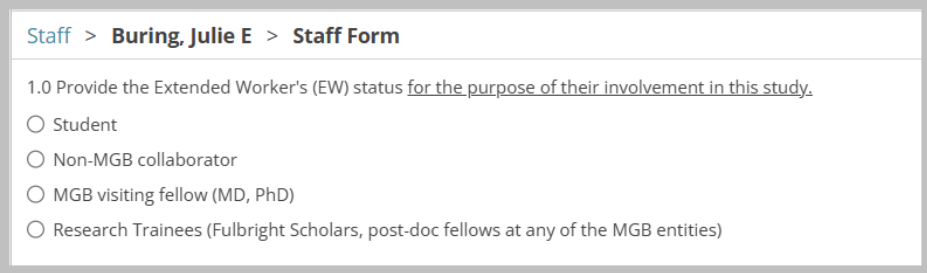
- Upon role assignment, a required Extended Worker Form will be triggered for completion
- A link to the EW form will appear under the “Staff Form” column next to their name
- Completion of the EW form is required
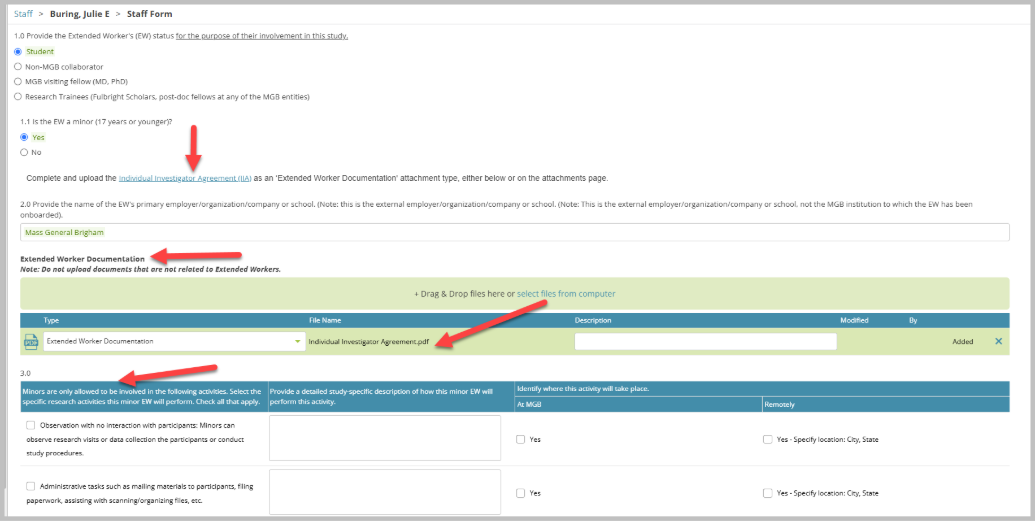
- Click the link to the form and complete it with the EW’s information
- Based on your answers, you may be required to upload supporting documentation
- Individual Student Investigator Agreement (ISIA)
- Individual Investigator Agreement (IIA)
- A table will need to be completed after uploading the required documentation
- Use the links provided within the EW form to download and complete the requested document
- Upload the document using the attachment section titled “Extended Worker Documentation”
- Save the form and go back to the Staff page
- Submit if ready
- EWs will appear with a green P icon next to their name



- Create a Staff Update
- Complete the form and navigate to the Staff page
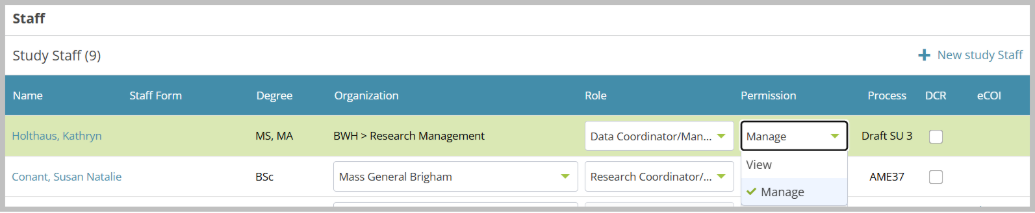
- Update the permissions for existing staff under the “Permission” column in the staff grid
- “View” permission does not allow users to make changes to the protocol
- “Manage” permission allows users to make changes to the protocol
- Submit
- Create a Staff Update
- Complete the form and navigate to the Staff page
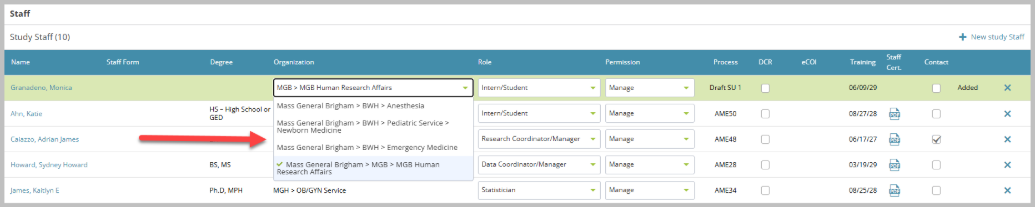
- Update the organization for existing staff under the “Organization” column in the Staff grid
- Users listed only under Mass General Brigham must be updated to reflect their organization, department, and unit, if applicable
- If MGB is the only organization listed in the user’s Insight profile, this must be updated
- Click here for instructions to update the organization in your profile
- Once your profile is updated, go back to your submission and select your organization from the drop-down menu
- Submit
- Create a Staff Update
- Complete the form and navigate to the Staff page
- The Non-Study staff grid is located below the Study Staff grid
- Click the “X” for the non-study staff that needs to be removed
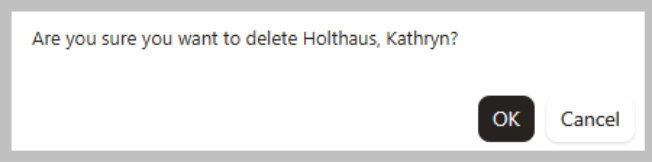
- You will get a pop-up message to confirm the deletion of the non-study staff
- Click OK to confirm deletion


- Create a Staff Update
- Complete the form and navigate to the Staff page
- Click the “+New Study Staff” option in the Staff grid located on the right side of the center panel
- Use the search bar to find the Non-Study Staff you need to add
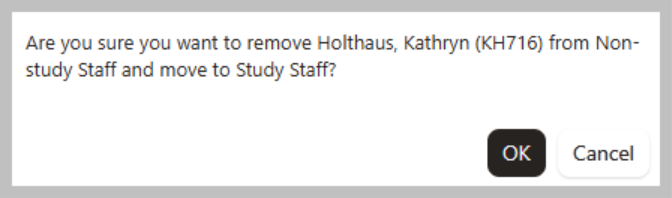
- You will get a pop-up message to confirm the change from Non-Study Staff to Study Staff
- Click OK to confirm the change
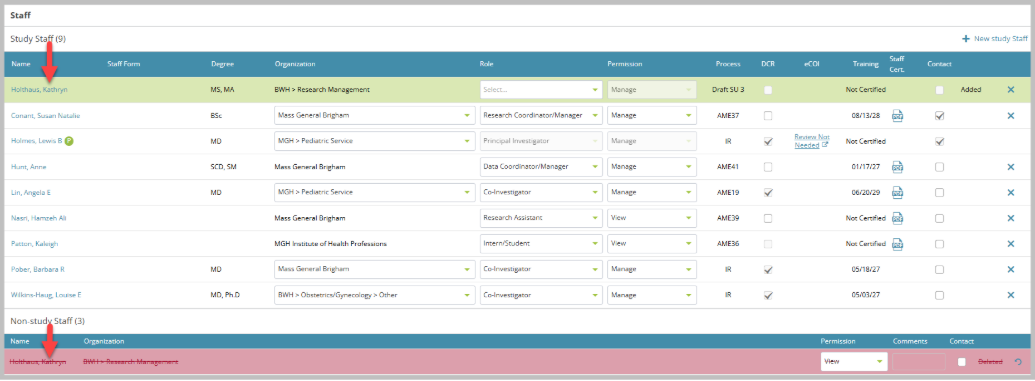
- The change will be reflected in green in the Staff grid and as red strikethrough in the Non-Study Staff grid
- Once added to the Study Staff grid, the user will need to comply with human research training and organization requirements
- Inactive non-study staff will not be available to add to the Study Staff grid and will need to be removed from the Non-Study Staff grid instead
- Create a Staff Update
- Complete the form and navigate to the Staff page
- Each funding source on the protocol needs to have a Financial Delegate assigned
- Click the drop-down menu for the funding you will be updating and select the appropriate person

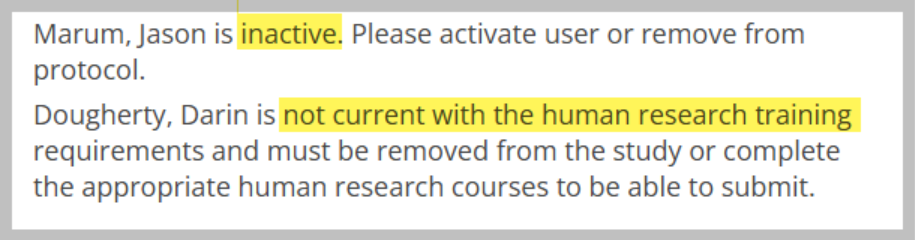
- A validation message will appear in the right panel under Submission Checklist and must be addressed before the submission can be submitted in the following cases:
- Staff listed with Mass General Brigham as the Organization
- Inactive staff
- Staff with expiring/expired human research training

-
- Submit once all changes have been made and all validations have been addressed
- The PI will need to sign off on the submission
- For Intervention/Interaction protocols, changes to the PI or Site Responsible Investigator require Department Chair sign-off on the submission
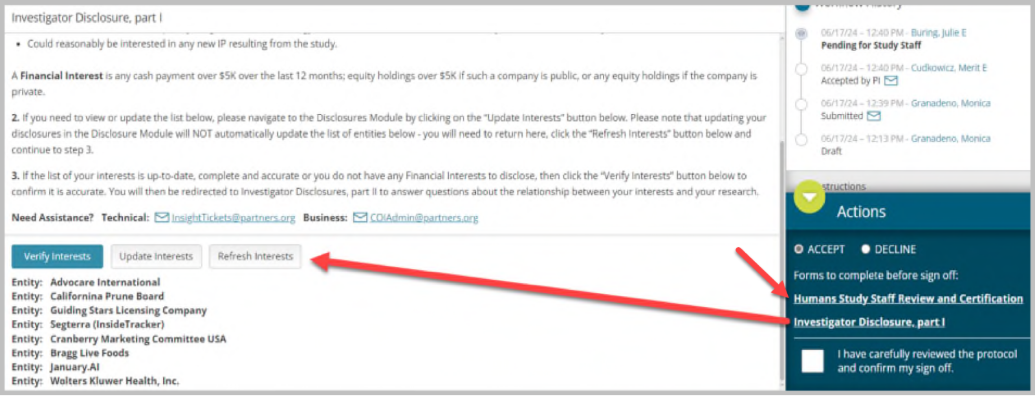
- Staff who are added will have 15 days to complete the study staff certification process. After 15 days of no activity, they will be automatically removed from the submission, and the submission will move to the next step in the process: auto approval or IRB review.
- If the DCR box was selected, the staff will need to complete the Investigator Disclosure to verify, update or refresh interests as an added step in the staff certification process