September 21, 2026
Introduction
The Create Annual Review function in the Biosafety module, under the Actions menu, lets users request an extension of their Clinical Trial or Laboratory expiration date.
STEPS
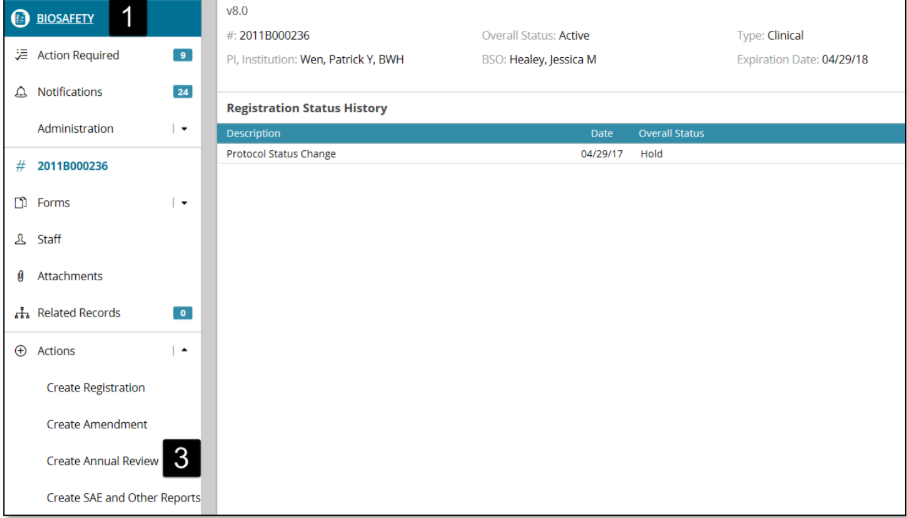
1. Click Biosafety.
2. Select an existing registration from the landing page for which you would like to create an annual review.
3. Select Create Annual Review under the Actions menu on the left navigation panel.
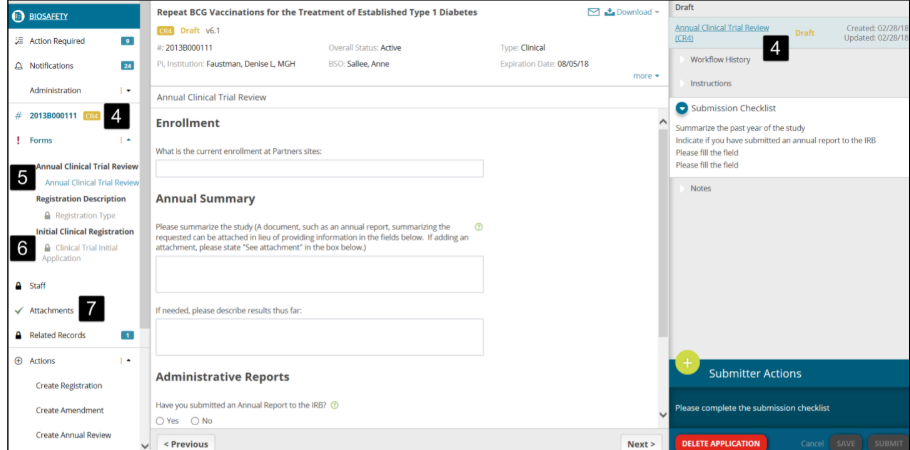
4. You can see that the Annual Clinical Trial Review (CR) is initiated.
5. Complete the new Annual Clinical Trial Review form created on the left navigation panel.
6. You can find the lock symbol next to all other forms, meaning no change/update can be made to these forms.
7. You can also add a new attachment if required; the Attachments section is not locked.
8. When the Annual Clinical Trial Review form is completed and saved, the Submit button will be enabled.
9. Click the Submit button from the Submitter Actions section in the bottom-right corner.
10. Upon submission, a transaction status bar is displayed, which represents the progress of the annual clinical trial review process.
TIP
When the Annual Clinical Trial Review is approved, the Expiration Date would be extended by just one year, even if the current expiration date is in the past or in the future