
Posted on
Updated on
September 18, 2026
To update your Time Study and submit it to Finance, please follow the steps outlined below after logging into the Insight application.
Steps
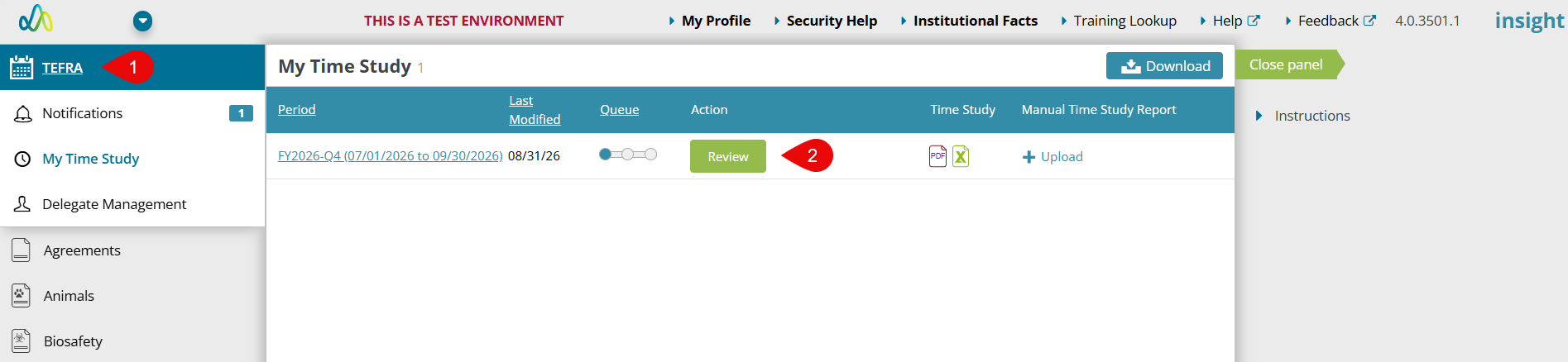
- Click TEFRA
- From the page My Time Study select and click the Review button under the Action column for the appropriate Time Study.
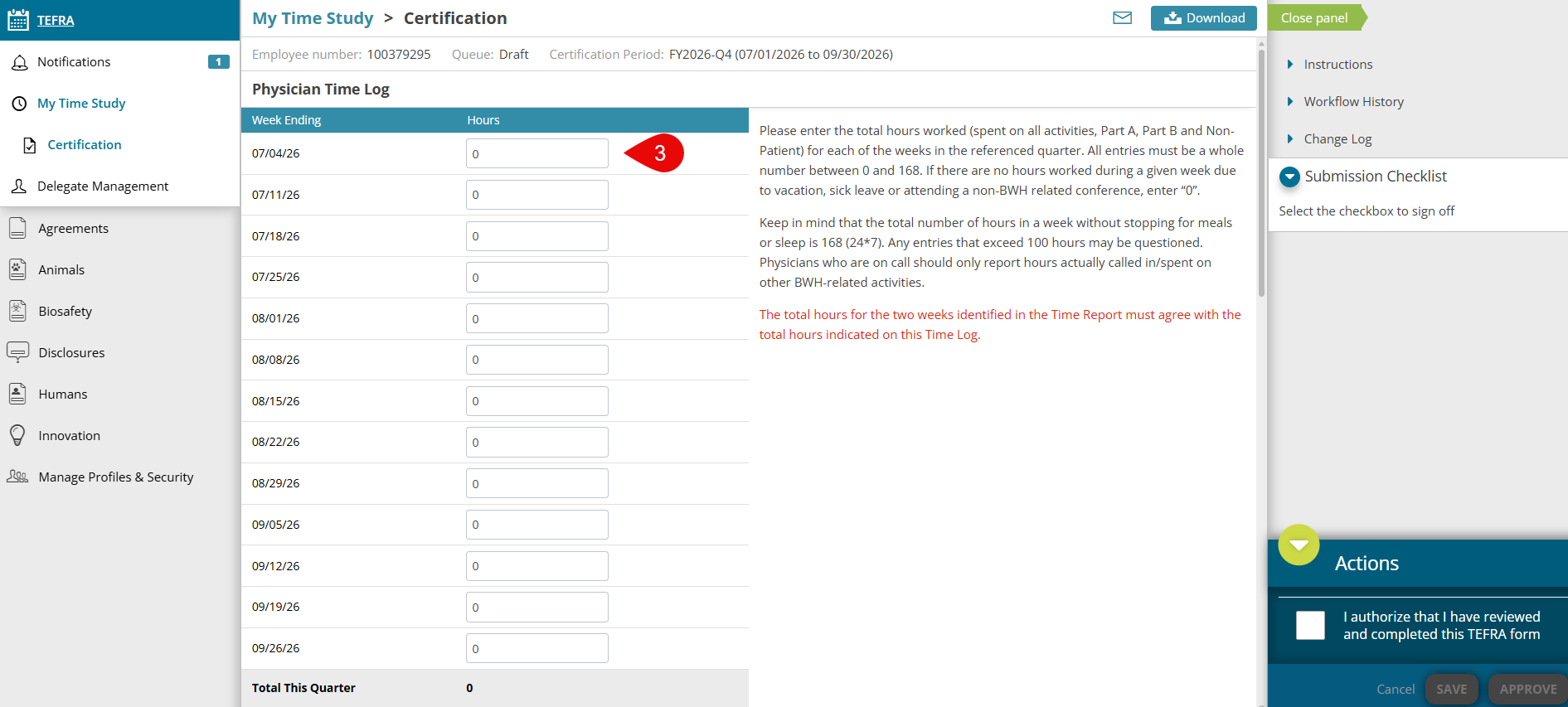
- Fill in the Physician Time Log with the appropriate hours for each week in the given period.
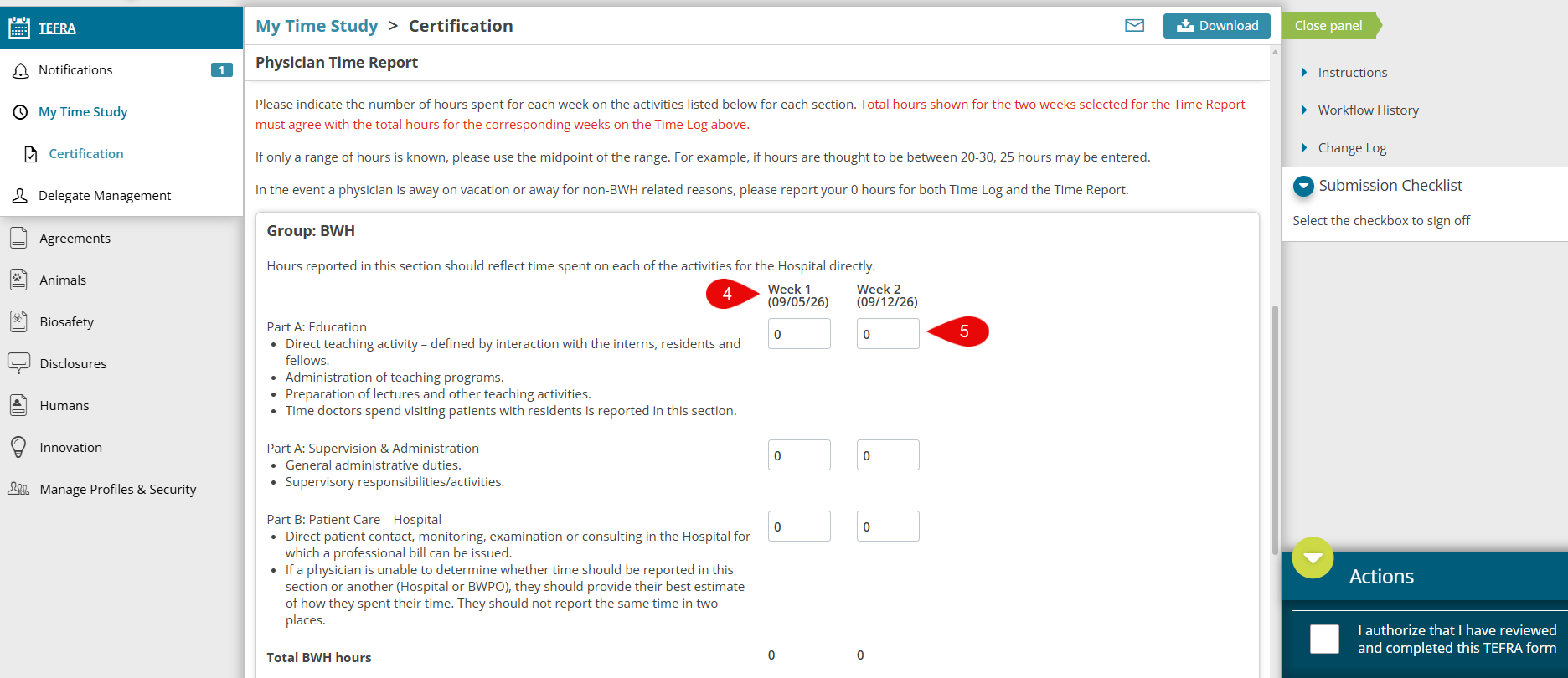
- Fill in the Physician Time Report for week 1 for each area.
- Fill in the Physician Time Report for week 2 for each area.
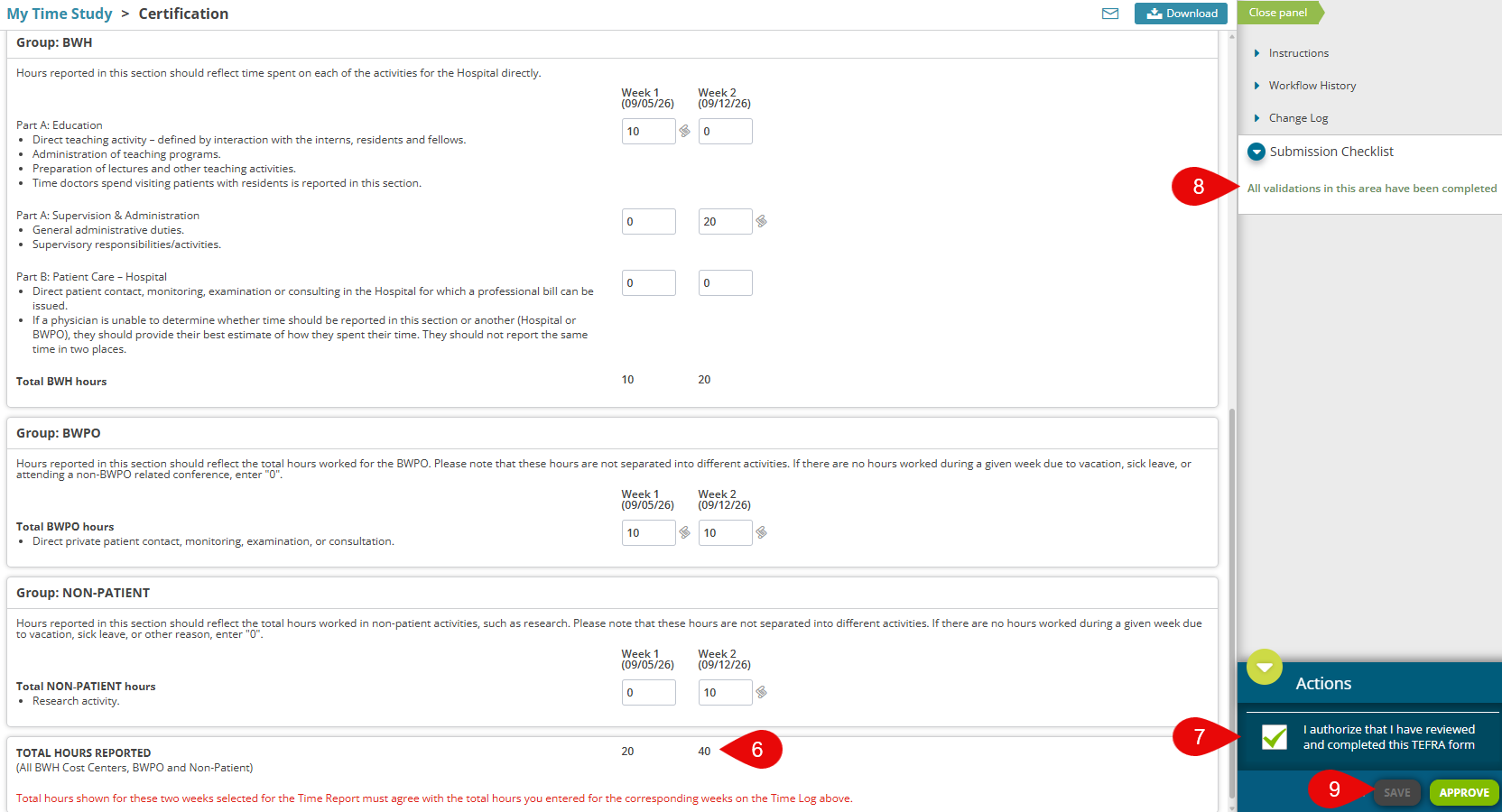
- Ensure the Total Hours Reported match what was entered the Physician Time Log for each week.
- Under Actions in the right bottom of the page, check the box “I authorize that I have reviewed and completed this TEFRA form”.
- Verify the Submission Checklist now displays “All validations in this area have been completed”. If it doesn’t, make sure the Time Study is filled correctly.
- Click Save and then Approve.
| Note: 'Submit' button is disabled until all validations pass in all sections of the transaction. |
To assign a delegate to complete your time study on your behalf:

- Click Delegate Management.
- Click + Add Delegate Button; a search box will drop down.
- Search for the person you want to designate as your delegate and select. You will see a pop-up window confirming your selected delegate. Click “OK.”
- You should now see the delegate listed as “Clinical Provider Delegate.”
- Notify your delegate that the time study is available for completion. The delegate can follow the instructions above in Page 1 for Steps 1-6.
- Once the form is complete, you (the physician) will need to review and approve (Steps 7-9).
| Note: You can only have one delegate at a time. Should you need to remove or change your delegate, simply click the “x” next the delegate’s record to remove. Then you can search for another delegate and add. |