
September 18, 2026
Introduction
Users can update their own or other user’s email addresses if listed incorrectly.
Steps
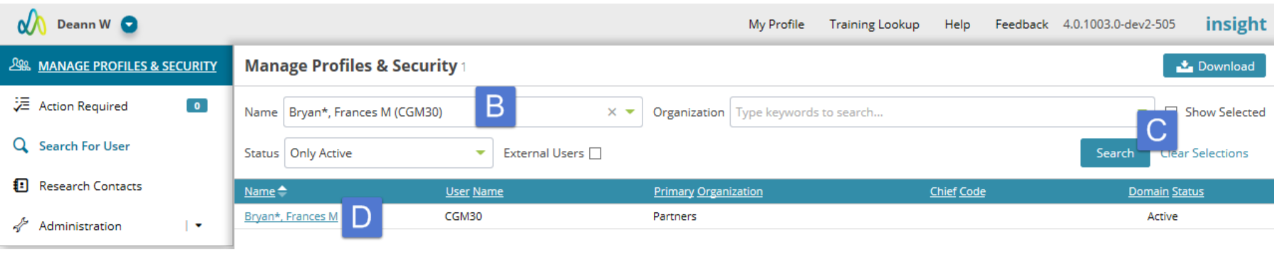
1. Go to Manage Profiles & Security module.
2. Locate the user
a. The search will default to the user logged in.
b. Use the name field to enter “last name, first name” or NT login to locate the user you need to review/update.
c. Click Search.
d. When results are returned, click on the user’s name to open their profile.
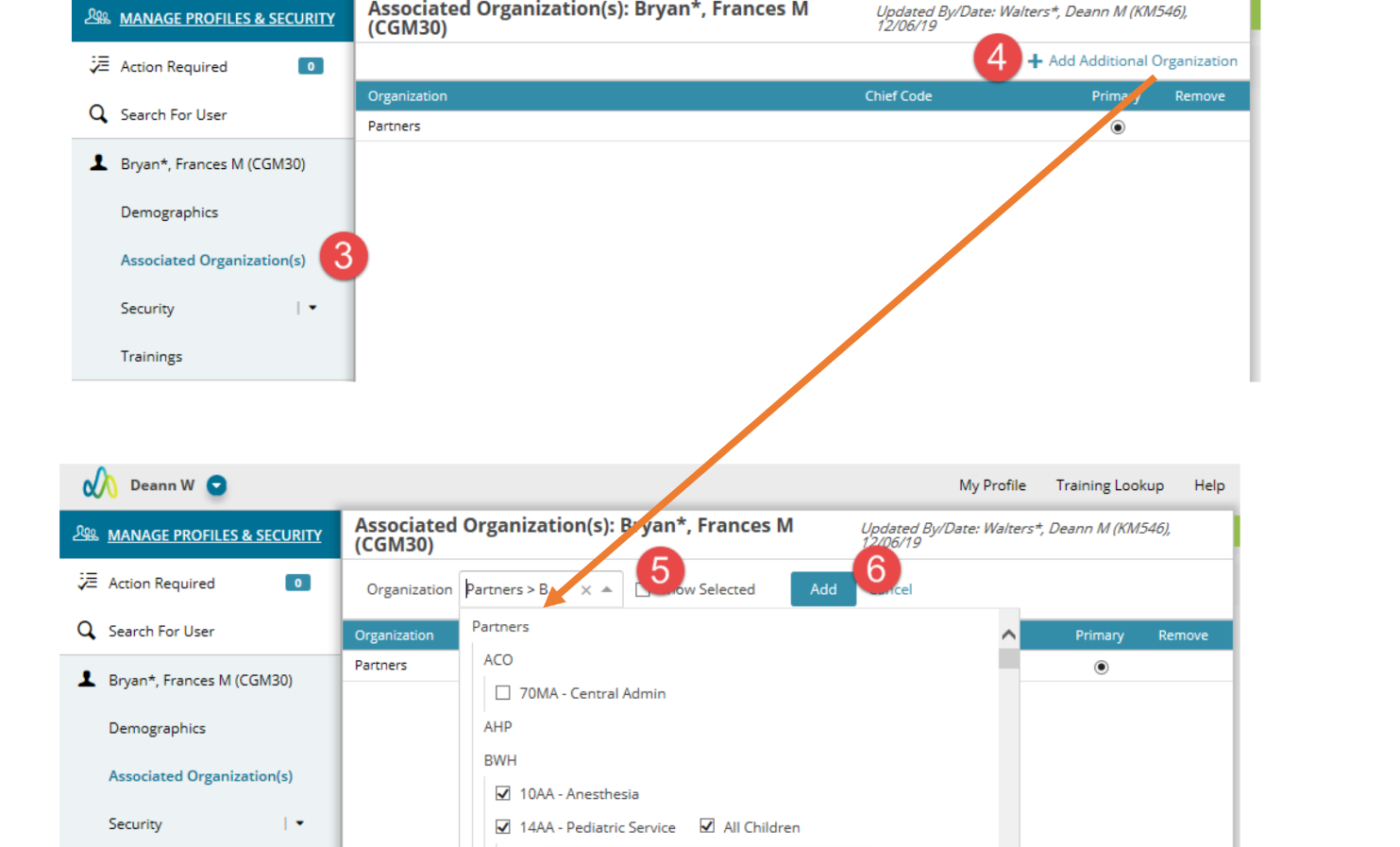
3. Click on the Associated Organization(s) page.
4. Click “+Add Additional Organization”
5. Select one or more organizations to add to the user’s profile.
6. Click Add.
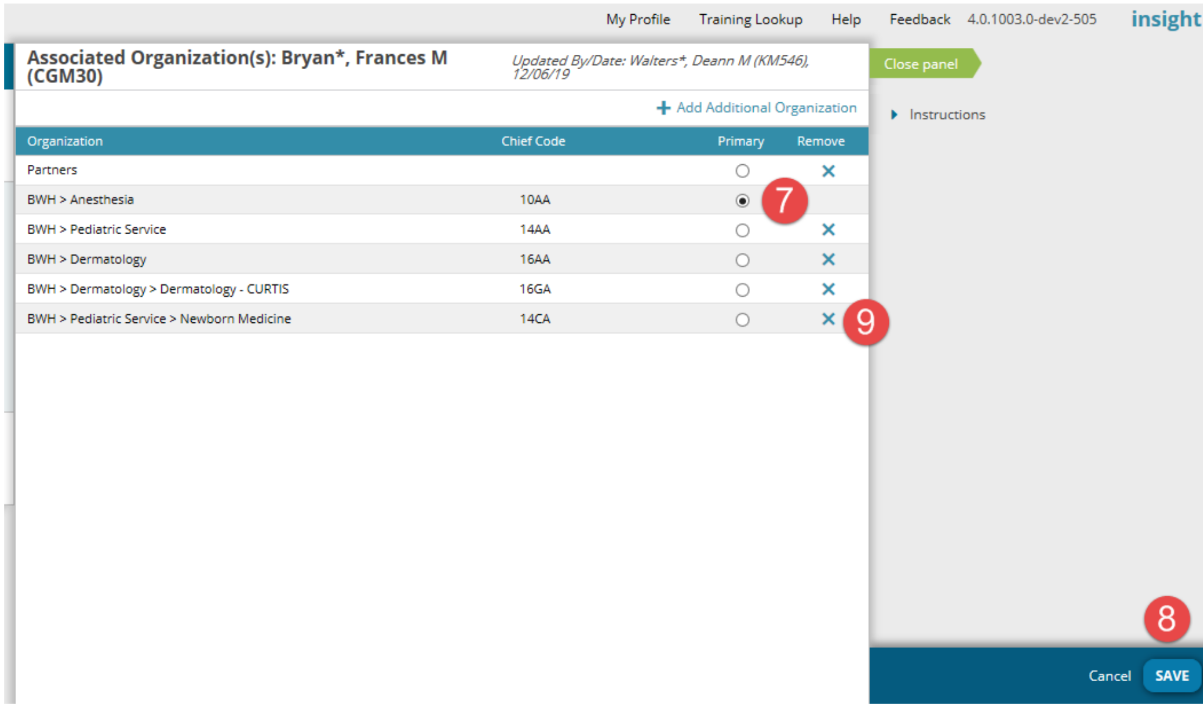
7. Update Primary organization as needed. This is the organization which will be associated with the user in all personnel lookups throughout Insight.
8. Click Save.
9. To remove an organization from a profile, click the X option. There must be at least one associated organization in a profile.
Additional Information
- For department users only, actual chief codes can be added to be associated to their profile. They cannot be associated at the Mass General Brigham or Hospital levels.
- To find the hospital or organization faster instead of scrolling through the dropdown, type the value into the field to jump right to it.
- Although updates to associated organizations no longer require PI approval, the Department Keygivers associated with the added/removed/primary change organization will be notified of the update.
- If a user has a funded agreement related to an organization it cannot be removed from their profile.

Additional Guides