
September 18, 2026
Introduction
The Research Contacts section contains all contacts across the hospitals. These contacts are used in various workflows and contact pages throughout the modules. These contacts are maintained by the Department Keygivers and Central offices. Contacts are assigned by Organization or by PI/Person.
By Organization
- Go to Manage Profiles & Security module.
- Expand on Research Contacts and select “By Organization”.
- Contacts can be located through a search by Contact Person, Contact Role or Organization.
- To see a list of your department contacts or approvers, search by your organization(s) and filter the Show Type by Department Approvers or Department Contacts. Department Approvers are used in various workflows throughout Insight.
- Click the Search button. Related results will be returned.
- Results can be downloaded and will include email address and User ID for users.
- The returned names can also be clicked to view the Contact Card.
|
Tip: To find the organization faster instead of scrolling through the dropdown, type the value into the field to jump right to it (Example: BWH 80AA or MGH 56AA). |
By PI/Person
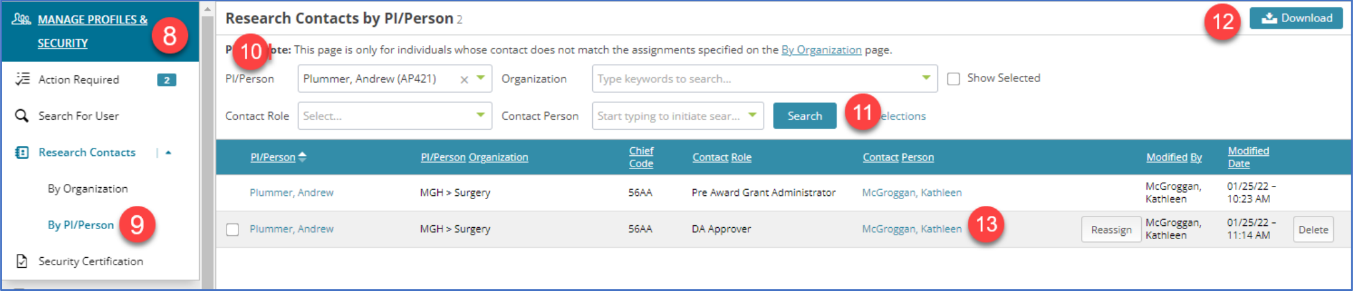
8. Go to Manage Profiles & Security module.
9. Expand on Research Contacts and select “By PI/Person”.
10. Contacts can be located through a search by PI/Person, Organization, Contact Role or Contact Person.
11. Make a selection and click the Search button. Related results will be returned.
12. Results can be downloaded.
13. The returned names can also be clicked to view the Contact Card.
| Note: This page will only show contacts added by a PI/Person. If you search by a person and no contact is returned, use the By Organization page to locate the appropriate contact |

Additional Guides