
Posted on
Updated on
September 18, 2026
Introduction
Keygivers can reassign contacts that they manage based on their role and associated organization assignment.
Steps
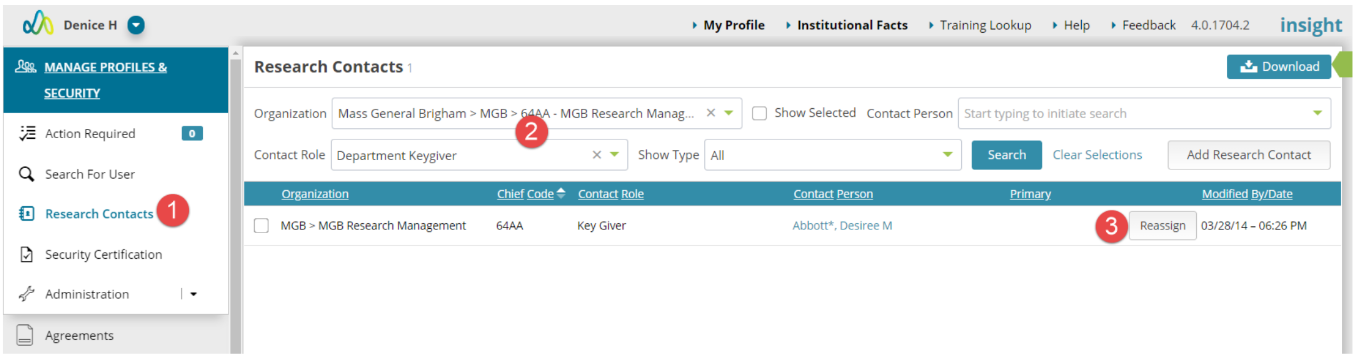
- Navigation to Manage Profiles & Security and click Research Contacts.
- Search by the user or role you need to replace.
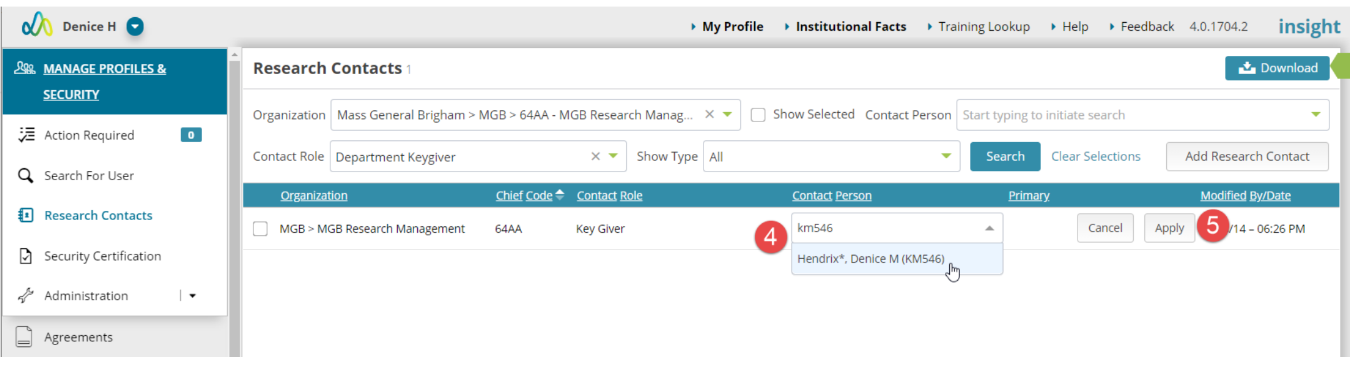
- Once you have located an individual, click the “Reassign” button to change the contact for a role/chief code to another team member.
- Locate the user in the dropdown by name and/or User ID.
- Click the Apply button.
Reminders
- If you have two team members assigned to the same role/chief code and one needs to be removed, reassign that user role to the other existing user and the rows will merge so only one contact will remain.
- If there are outstanding actions related to certain roles, it will reassign those actions to the new user. Roles include: DA Approver, Chief Approver and Department Keygiver.
- Reassignment of a Dept Administrator will replace the user on any Agreements where they are listed on the Contacts page.
- Keygivers can only add/update contacts that are related to the department roles and to the hierarchy they manage.
- Department Space Keygivers can only be reassigned by a user already in that role for the department. If your Department Space Keygiver has left and was not replaced, please contact the Insight Help Desk for assistance.
- Users must have access to the department before being assigned to a role.
Additional Guides
- Using Research Contacts
- Add New Research Contact
- Add Contacts by PI
- Requesting Security
- Add/Update Organization Level Access
- Add/Update Profile/Delegate Level Access