
Posted on
Updated on
September 23, 2026
This guide will orient you to the Manage Profiles & Security module and how to request security updates for yourself or another individual.
Types of Security
- Organization Level Access: a user has access to all records (related to the selected modules) within the selected chief code. Users with this access inherently get access to all records under the chief code, regardless of the PI. It is the highest level of access.
- Profile Level Access: a user has access to all records (related to the selected modules) for a particular person. This also allows a person to act as a delegate except for PI specific compliance functions, for example Agreement approvals and Conflict of Interest submissions. Users with this access inherently get access to all records for the PI, even if the PI has submitted records under various chief codes. It is the second highest level of access.
- Agreement/Grant Level Access: a user has direct access to a single agreement/grant and may also have View Salary and/or View Patient Care access for the agreement/fund. Users with this access will see only the agreement/grant listed and no other records for the same PI or Organization. This is the lowest level of access.
Learn more with these guides:
- Add/Update Organization Level Access
- Add/Update Profile/Delegate Level Access
- Add/Update Agreement/Grant Level Access
Requesting Access
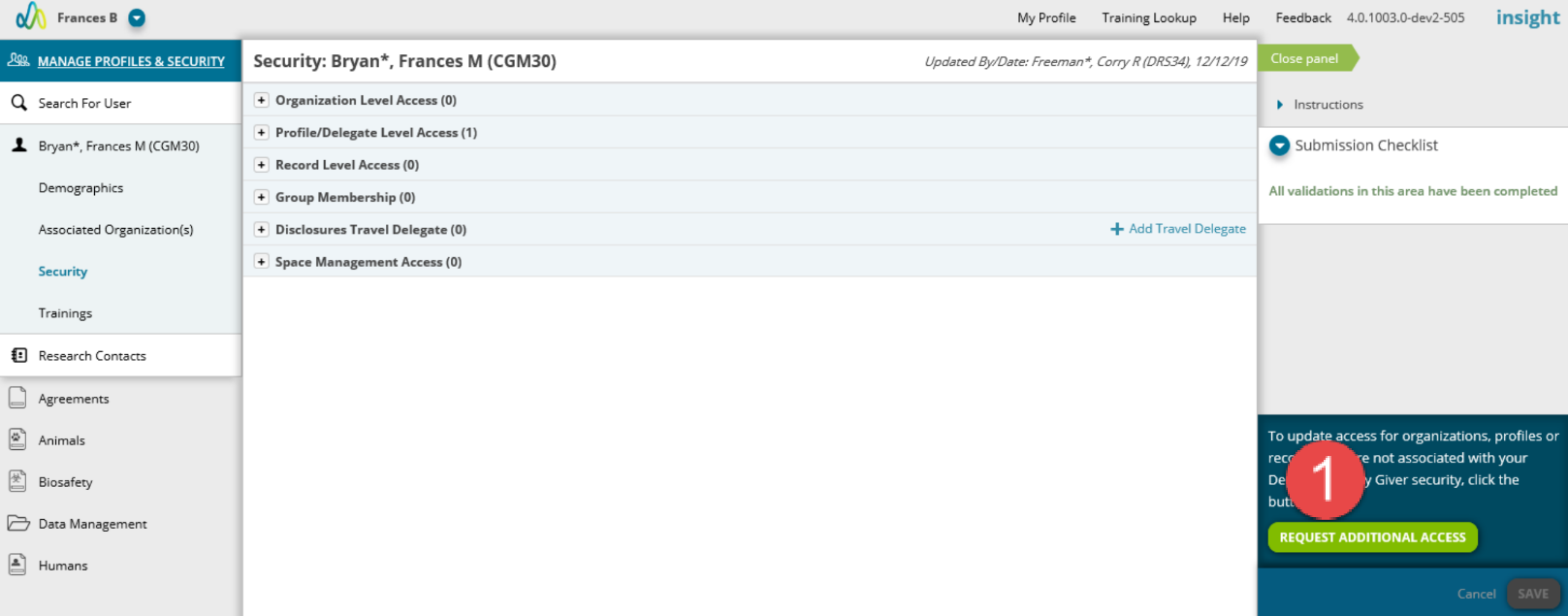
- To request additional access, click Request Additional Access.
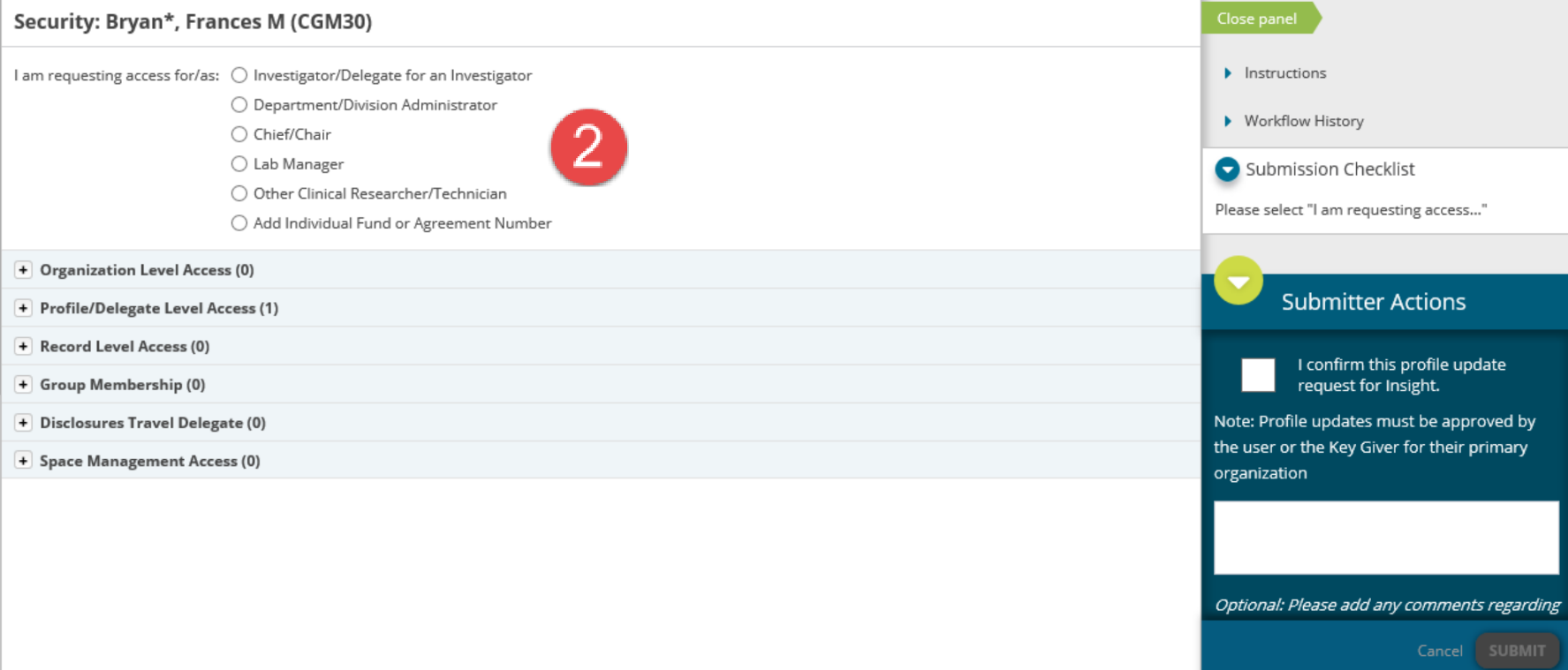
- Complete the type of initial role question This is to assist the keygivers in the review of your request as they are not always familiar with new employees.
Submitting the Request
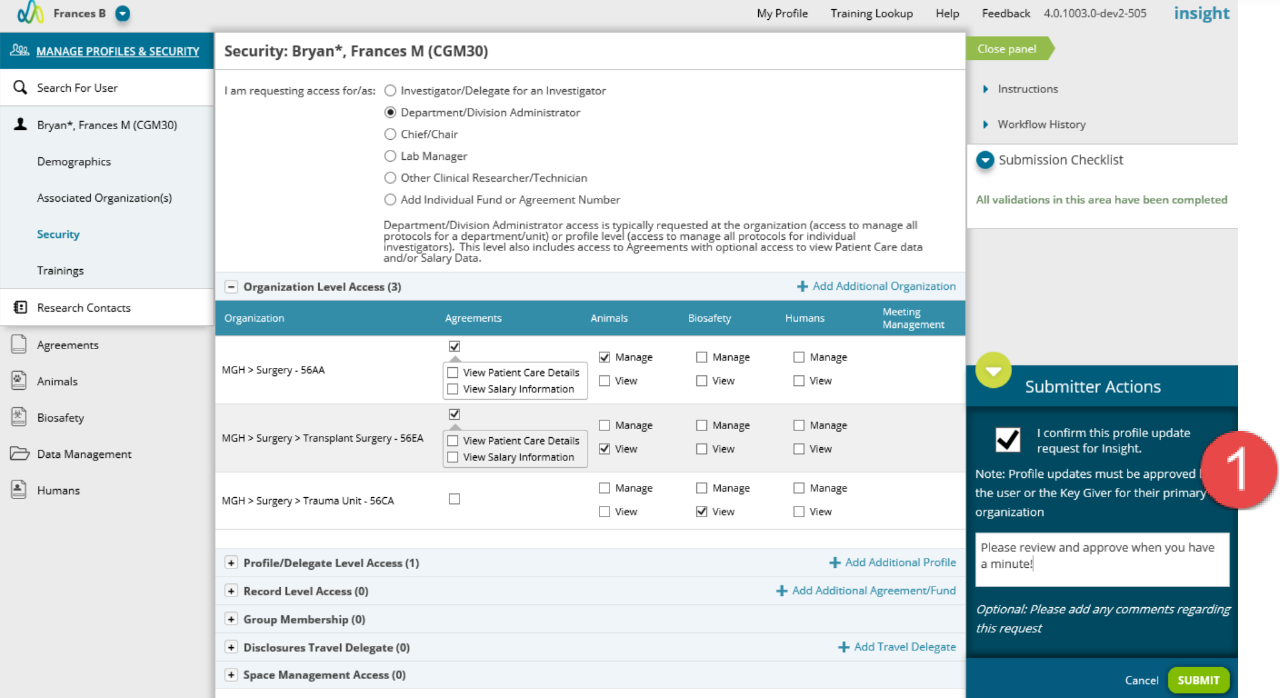
When you have completed all updates to the user’s profile, you can submit the request for review by the keygiver(s).
- Confirm your request, add any comments (not required) and click Submit.
- Once submitted, the keygiver(s) receive an email and action requesting that they review your security request.
- Workflow for Department Keygivers requires each separate request to be reviewed and a decision made.
- This is ensure that if requests are made to different organizations, each keygiver is provided an action and email.
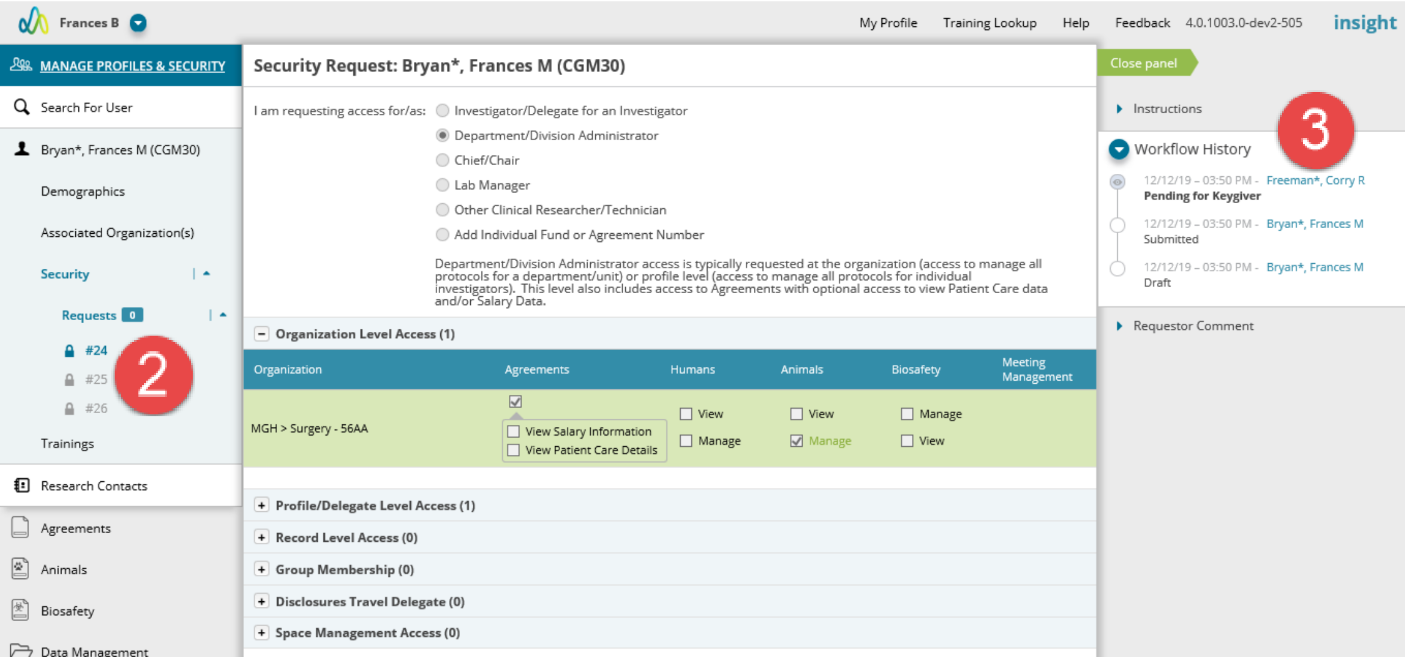
- Each request is listed in the left navigation under the security page.
- By clicking on a request ID, you can view the details and workflow history.
Completion of Request
Until your request is approved by the keygiver(s), security will not be in place for the user and you will not be able to request additional updates to the profile. Once the request is complete you will receive an email with the decision made by the keygiver(s). For each request the decision will be listed and any comments included.

Additional Guides