September 21, 2026
The Procedure Picker houses charge code rates updated each fiscal year for all Institutions. The following outlines how to use Strategy Procedure Picker.
Using Procedure Picker Filters
Use the 7 different filters to generate the charge codes and rates.
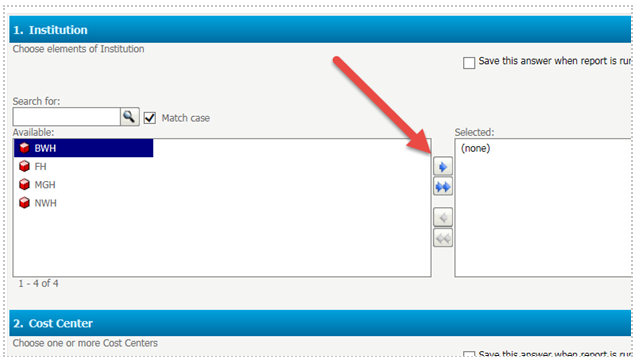
1. Institution: Use the institution filters to filter charge codes based on institution. For example, if BWH charge codes are the only charge codes needed; highlight BWH and click the right arrow (displayed below). Once clicked, the BWH will remove from “Available” and display on the right under “Selected”. To remove an institution from the “Selected”, highlight institution and select left arrow. This is an optional filter.
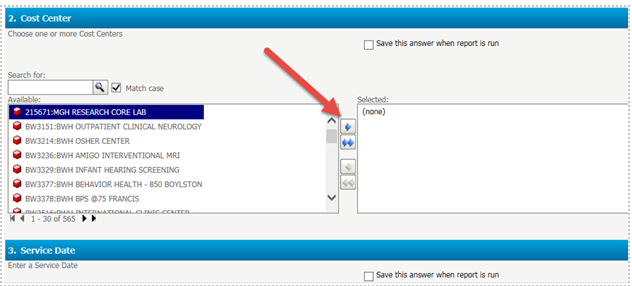
2. Cost Center filters allow charge codes to be filtered based on associated cost centers. When this filter is used, all charge codes associated with the cost center will display. To filter by cost center, click the right arrow. To remove selected cost centers, click the left arrow. This is an optional filter (not selecting any locations will display the full output of various locations). Users do not need to pull all cost centers into the “Selected” box if all cost centers need to be viewed. The system automatically assumes this. Please note that different cost centers may have different research discount rates for the same CPT code so users are recommended to budget accordingly.
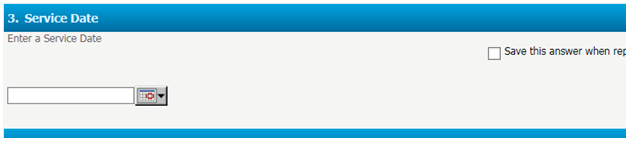
3. The Service Date filter gives the ability to view previous fiscal year rates based on the dates of service. Click the calendar icon and choose a date to view a previous rate. This is an optional filter that does not need to be used if viewing current rates. The system defaults to the current fiscal year’s rate automatically. Please keep in mind that services are charged based on date of service provided. Procedure picker rates default to current fiscal year rates so users are recommended to budget for inflation accordingly.
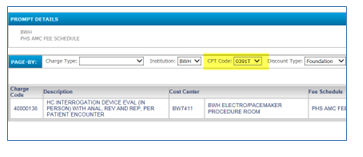
4. Use the CPT code to filter charge codes associated to the CPT. This is typically used to view all charge codes with the same CPT. To perform a wildcard search add the % sign. I.e. enter 408% to search for CPT code starting with 408. Enter %408% to search for CPT code containing 408. Then click Run report to execute. This is a free text field and is optional.
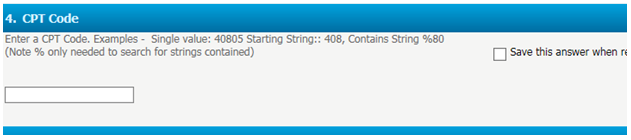
5. Use the Charge Code filter to filter by charge code. This can be used to filter a charge code to see all associated cost centers to the charge code. To perform a wildcard search, add the % sign. I.e. Enter 1001% to search for charge code starting with 1001. Enter %1001% to search for charge code containing 1001. Then click the Run report to execute. This is a free text field and is optional.

6. Use the Charge Description filter search charge codes by description. To perform a wildcard search, add the %sign. I.e. enter Blood% to search for charge code description starting with Blood. Enter %Blood% to search for charge code description containing Blood. Then click Run Report to execute. This is a free text field and is optional.

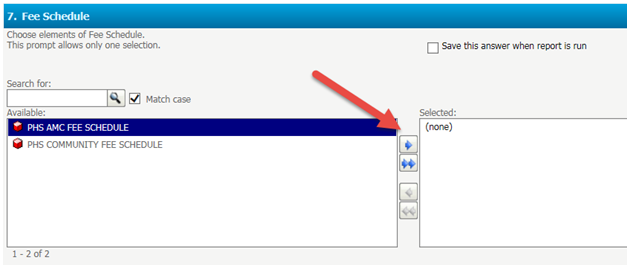
7. The Fee Schedule filter has been introduced to allow users to filter charge rates based on AMC or Community Fee Schedule. Click the right arrow to filter based on selected fee schedule. This is optional. If no fee schedule is selected, the report will display both types of rates.
After the filters are selected, click “Run Report” at the bottom left to generate the report.
Viewing Procedure Picker Output
Once the report is generated, users will have the ability to view the different rates associated with the CPT or charge codes. Here is a sample screenshot view:
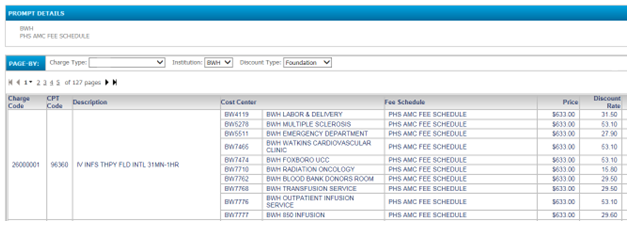
The Procedure Picker grid displays multiple outputs based on filter selection. These columns can be customized (added/deleted) based on the user’s discretion. For example, if the Non Facility Global Fee is not needed, simply right click the header grid to remove the column. Below list the different columns
-
Charge Code
-
CPT Code
-
Description
-
Cost Center
-
Fee Schedule
-
Price
-
Discount Rate
-
Research Charge
-
Global Fee
-
Non Facility Global Fee
-
Pro Fee
-
PO Tech Fee
-
Non Facility PO Tech Fee
-
PO Pro Fee
-
NF PO Pro Fee
Quick Tips for Data Manipulation
-
The Procedure Picker grid can be exported to an Excel spreadsheet by clicking Export icon
-
For BWH, users can sort by rate types of Foundation, Government, or Industry.
- Columns can be utilized to filter within the report by clicking on the column header and dragging it to the Page By:
Before:
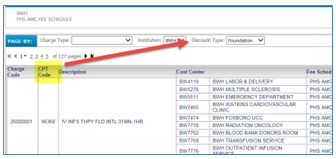
After: