Posted on
Updated on
September 16, 2026
Introduction
The Initial review, Amendment and Continuing review transaction in Humans module under Actions menu is used to add funding source to a protocol and submit to the Mass General Brigham Institutional Review Board (IRB) for review.
STEPS
* Prerequisites: must be working within a Draft transaction on the protocol. Learn more about creating protocols or amendments.
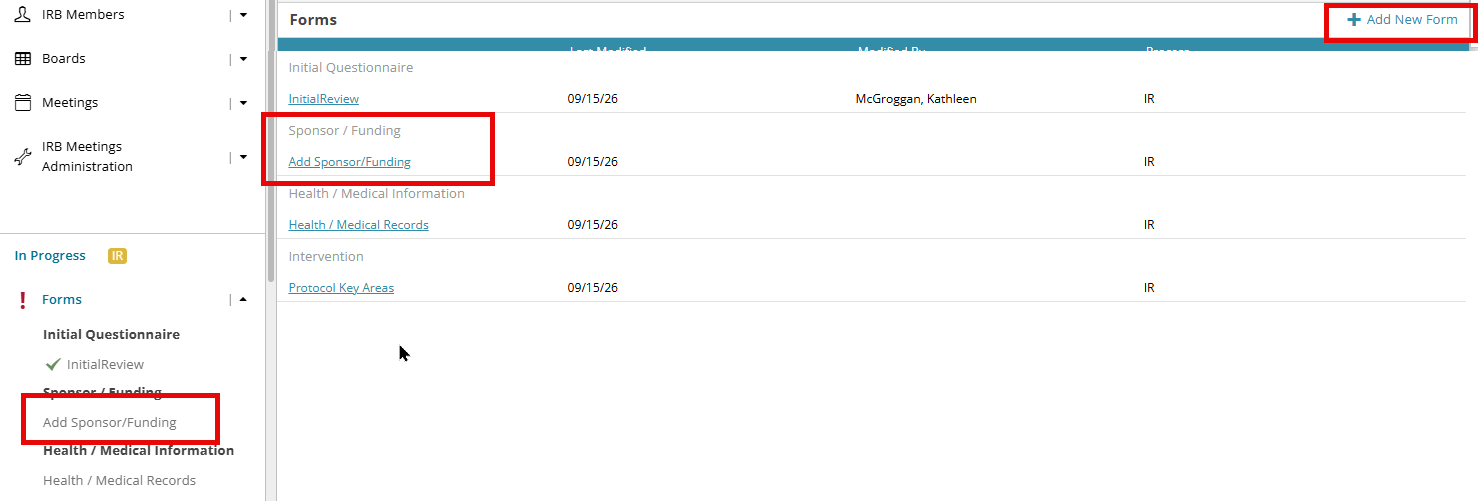
- Navigate to "Add Sponsor/Funding" form in the left navigation bar.
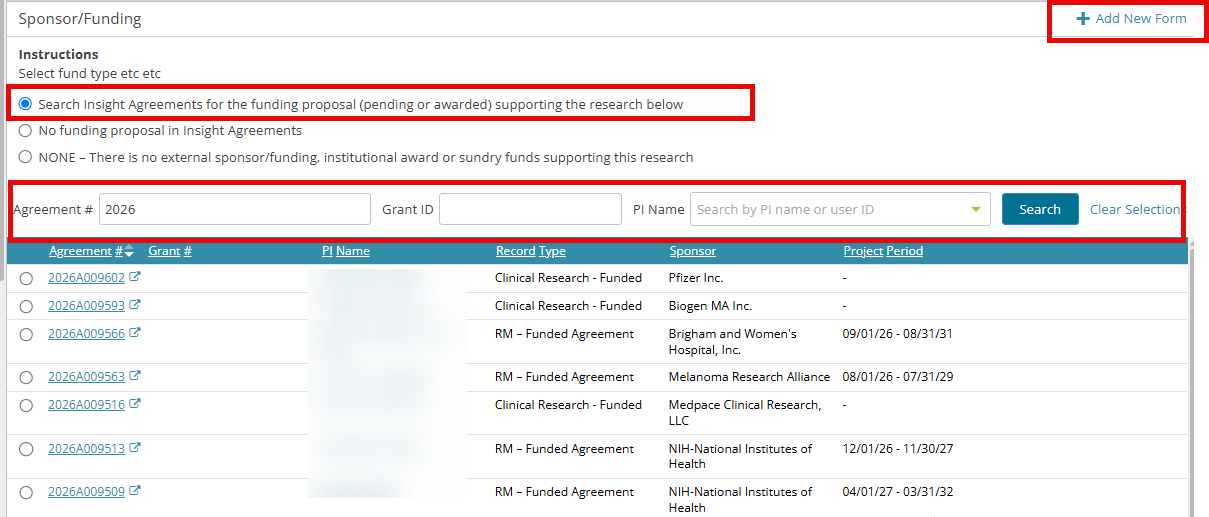
- Select an option. The "Search Insight Agreements..." option will allow you to link to existing Agreement records.
- Search for an Agreement by Agreement Number, Fund Number or PI Name. Click the Search button. Note that only funded record types are returned as part of this search.
- Select a returned result by clicking the radio button. Note that you will not be able to select an Agreement already linked to the record.
- Click the Save button.
- Complete all the sponsor funding form. Submission Checklist on the right panel helps in identifying the incomplete information within the page that needs to be completed
- When all the mandatory fields are answered in a section, a green check mark (✔) appears next to the page title.
- When all the sections are complete, you can click Submit to trigger workflow/review.
- The Related Records page will show the status of the link until the Amendment is approved. For more on the Related Records page click here.
- Once the Amendment is approved the protocol will be listed on the Compliance page of the select Agreement record.
To add additional funding sources:
- At the top of the Forms pages, click on + Add new form link on the right corner.
- Upon clicking on + Add new form link, a type ahead drop-down box is displayed. Type in “Add Sponsor/Funding” form, select and click the Add button.
- Navigate to the Add Sponsor/Funding form in the left navigation under Forms.
- Follow the same steps as above starting at #2.