
September 18, 2026
Certain individuals within the MGB hierarchy need full hospital access to do their jobs. Examples are compliance team members, VPs, ECOR, etc. These cannot be requested via the system but are handled directly by the Insight Help Desk.
It will need to be clear what access they need for each module, which may require confirmation from them before setup.
Steps
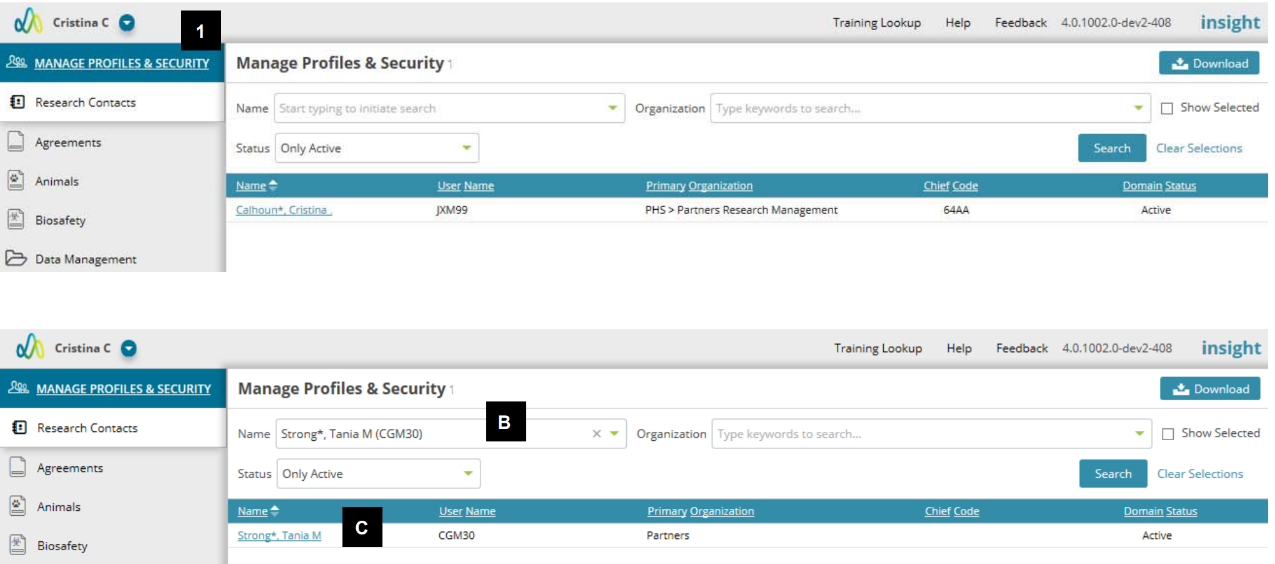
1. Go to the Manage Profiles & Security module.
2. Locate the user
a. The search will default to the logged-in user.
b. Use the name field to enter “last name, first name” or NT login to locate the user you need to review/update.
c. Click Search.
d. When results are returned, click on the user’s name to open their profile.
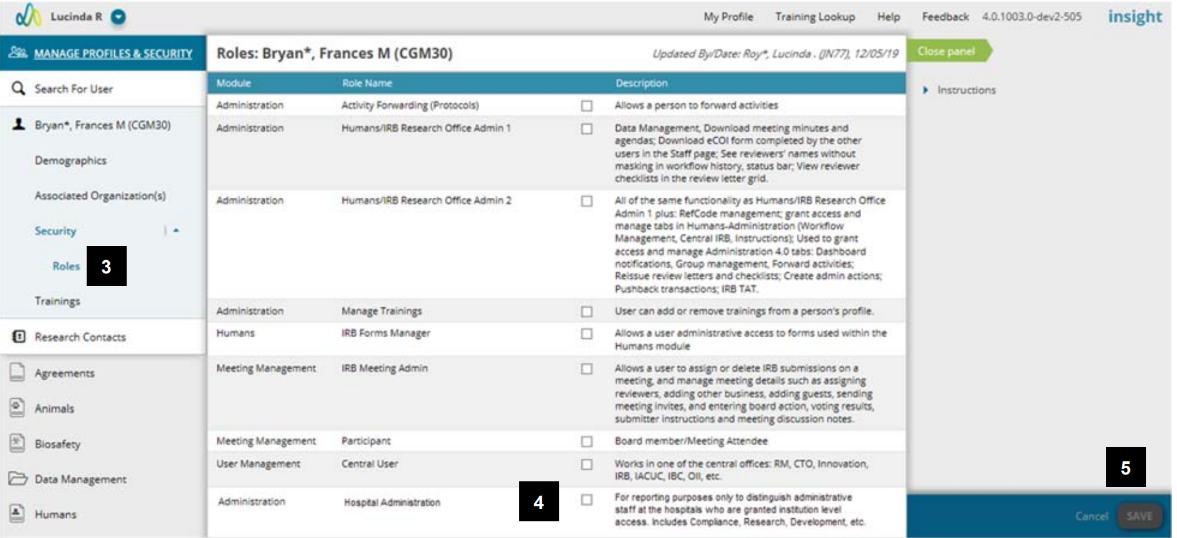
3. Click the Roles page under Security.
4. Select the “Hospital Administrator."
5. Click Save.
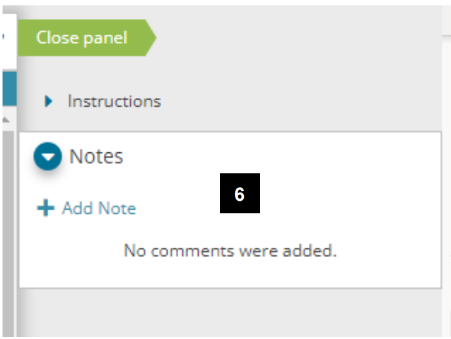
6. Add a Note in the right panel listing the user’s role at MGB and/or the SN ticket number.
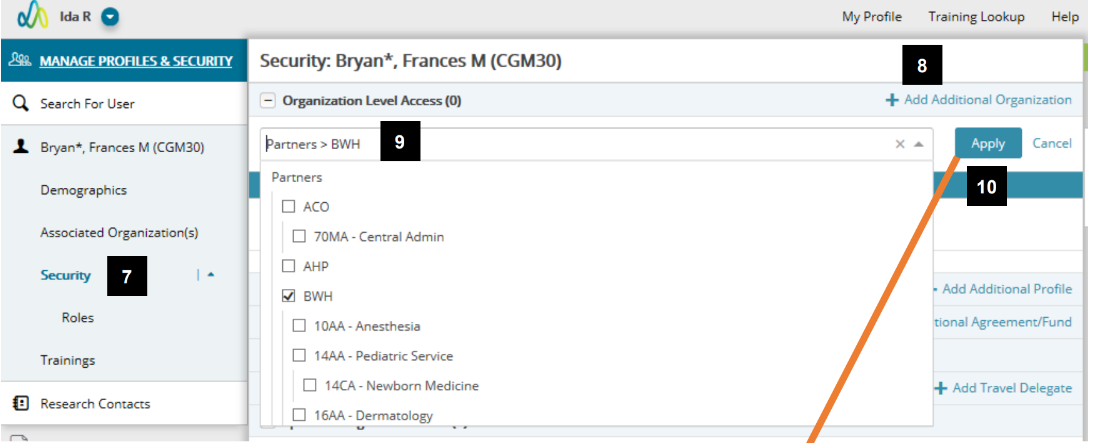
7. Go the Security page.
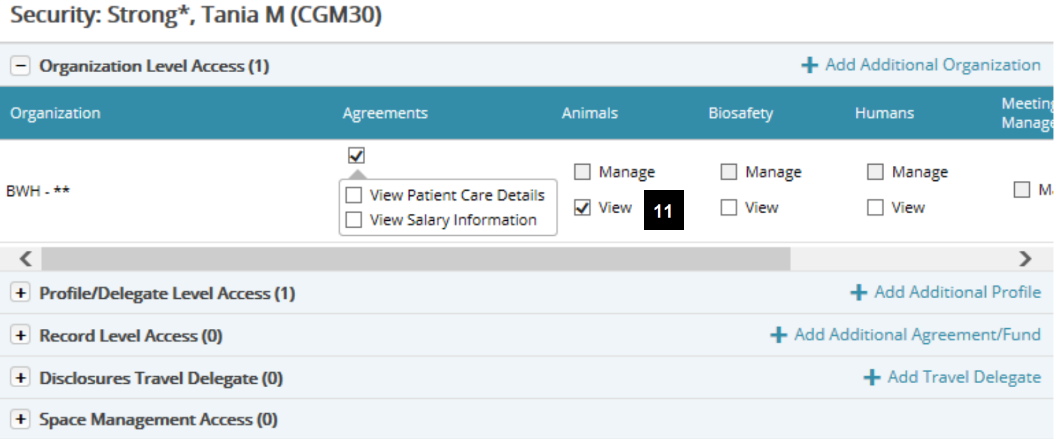
8. To add a hospital or specific chief code, click “Add Additional Organization."
9. Select the organization(s) to add. By selecting at the hospital level, you will be granting access to all chief codes at the hospital for the user.
10. Click the “Apply” button.
11. Select the appropriate attributes for the organization.
12. Click “Save” when complete.
Additional Guides