Posted on
Updated on
September 24, 2026
This guide provides instructions for creating and completing a Triennial Review for an ongoing animal protocol in Insight.
| NOTE: Before starting a Triennial Review, confirm that no other amendments are in draft or under review. Forms associated with those amendments will remain locked until the amendments are approved. |
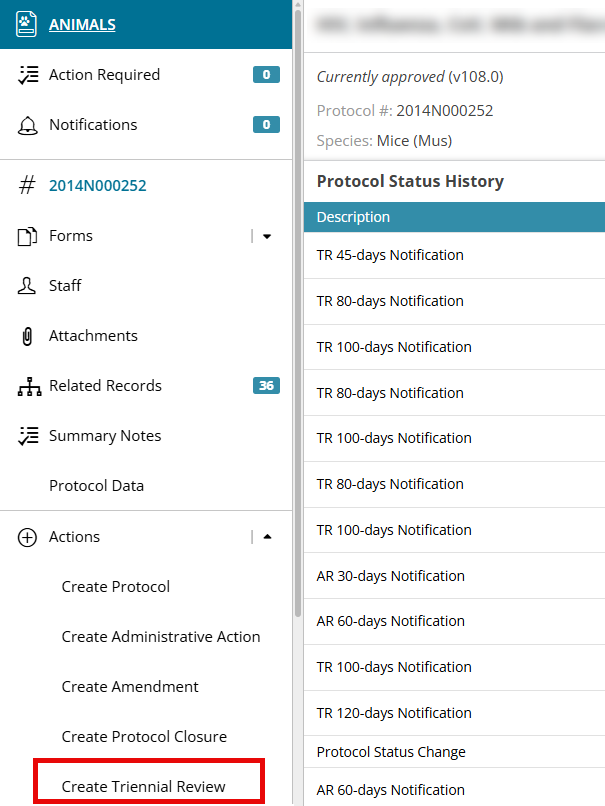
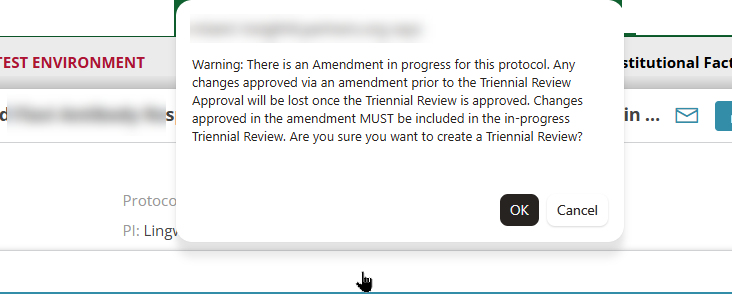
To create a Triennial Review for an ongoing protocol, select the protocol from the Animals tab and use the Action list in the left navigation to choose "Create Triennial Review." If an amendment is in progress, you will be prompted to confirm that you want to continue with the Triennial Review.
Completing your Triennial Review transaction:
- Complete all outstanding forms and required fields. To learn more about any of the functions/pages within a transaction, click the appropriate link:
- Pages with incomplete information display a red exclamation point. After you answer all required questions, the indicator changes to a green check mark.
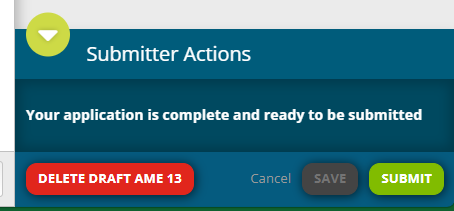
- When all forms are complete, submit the transaction by clicking the "Submit" button in the bottom right of your screen. This button will not be available until all sections of the protocol application are complete.
| TIP: If a form you need is locked during the Triennial review, it is being edited in another amendment. Either delete that amendment and include the information in the triennial review or wait until the amendment is approved before starting the triennial review. |