Posted on
Updated on
September 15, 2026
Introduction
This guide explains how to remove a draft or pending transaction from an Insight protocol. Because deleting an application is permanent and may notify the Principal Investigator (PI) and other contacts, carefully confirm the submission type and workflow history before proceeding.
Steps
Prerequisite: Log in to Insight and search for the applicable protocol.
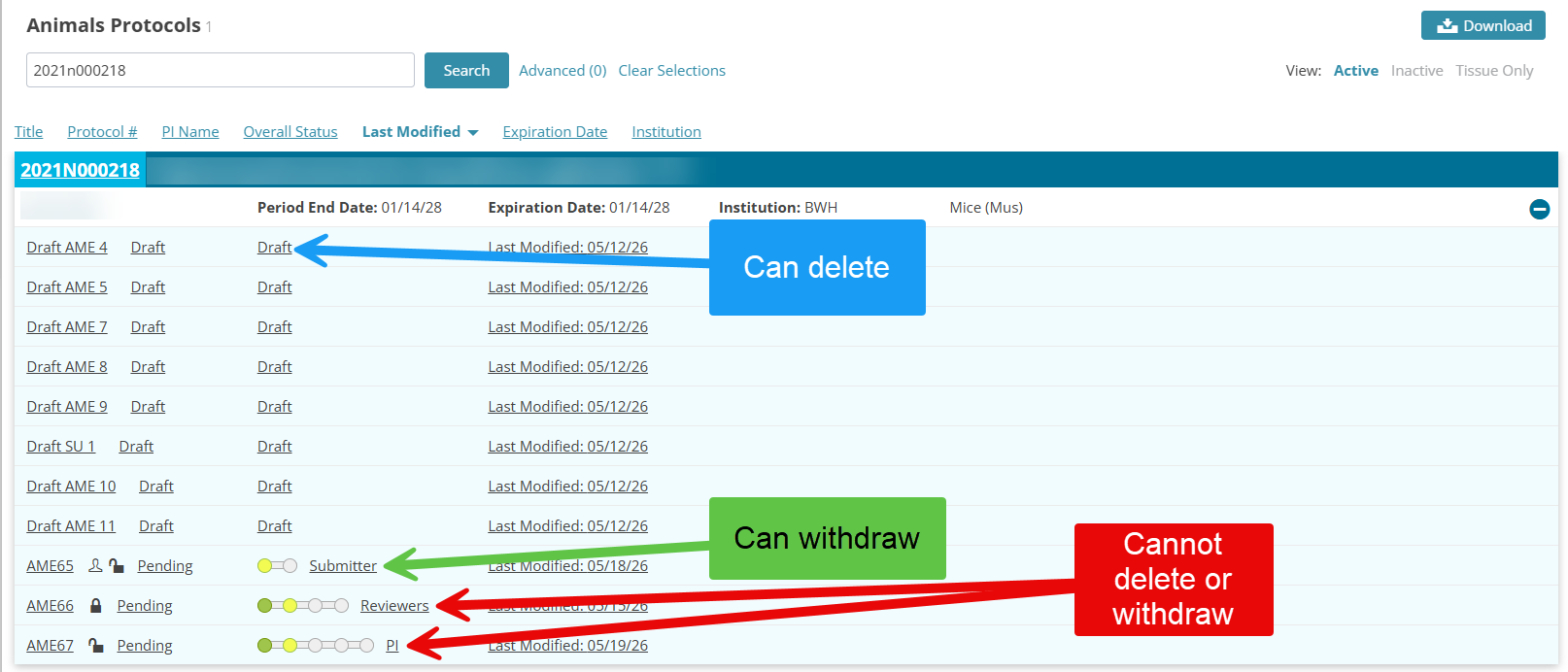
- Review the protocol list. The approved protocol title and number appear first, followed by all pending transactions and their current review stages.
- Confirm that the item is eligible for removal. Only items in the Submitter Review or Draft stage can be removed.
- Select the submission you want to remove.
- In the Submitter Actions section at the bottom-right of the page, identify the available option:
- Select Withdraw if the application has entered a review stage.
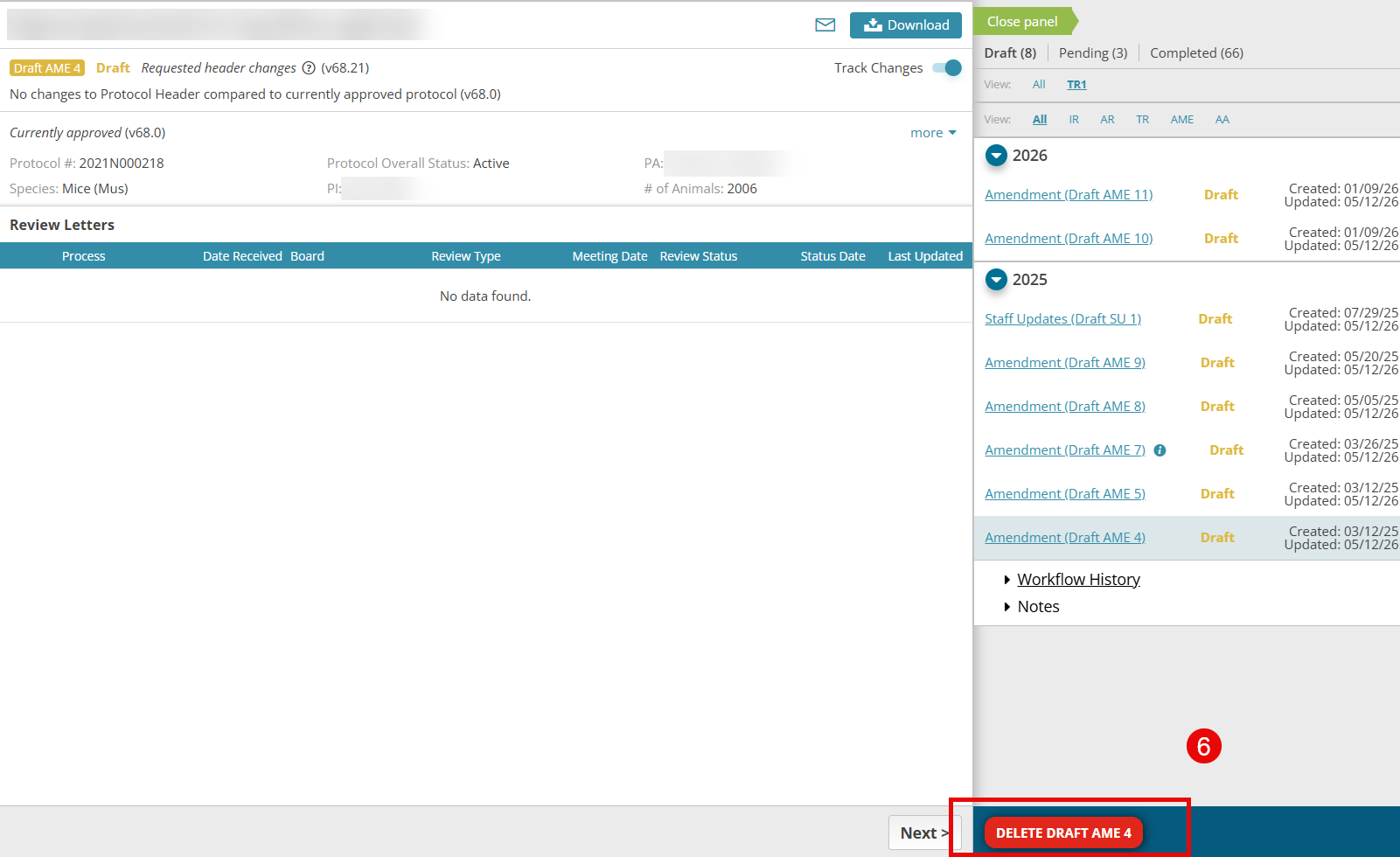
- Select Delete application if the application remains in the Draft stage and has not entered review.
- STOP! Before proceeding, complete the following checks:
- Verify the submission. The submission type appears in yellow at the top of the page, directly below the protocol title. Submission abbreviations are: SU = Staff Update, AME = Amendment, TR = Triennial Review, and AR = Annual Review.
- Review the Workflow History in the right-hand panel. It may list laboratory staff and reviewers, including veterinarians and protocol administrators. If the history contains many completed steps, the submission is unlikely to be the one you intend to remove. When in doubt, stop and confirm with your PI or lab manager.
- Select the appropriate Withdraw or Delete application button, review the confirmation message, and confirm the action. The application will be permanently deleted, and a notification will be sent to the PI and applicable contacts.