Posted on
Updated on
September 15, 2026
Introduction
The “Copy Existing Form” feature in the Forms section of the Animals module provides users with the ability to copy forms from an existing protocol, which can be helpful in avoiding multiple entries of the same form and saving time. You can also remove forms if they are added incorrectly.
STEPS
- Create a new protocol or create a transaction on an existing active protocol
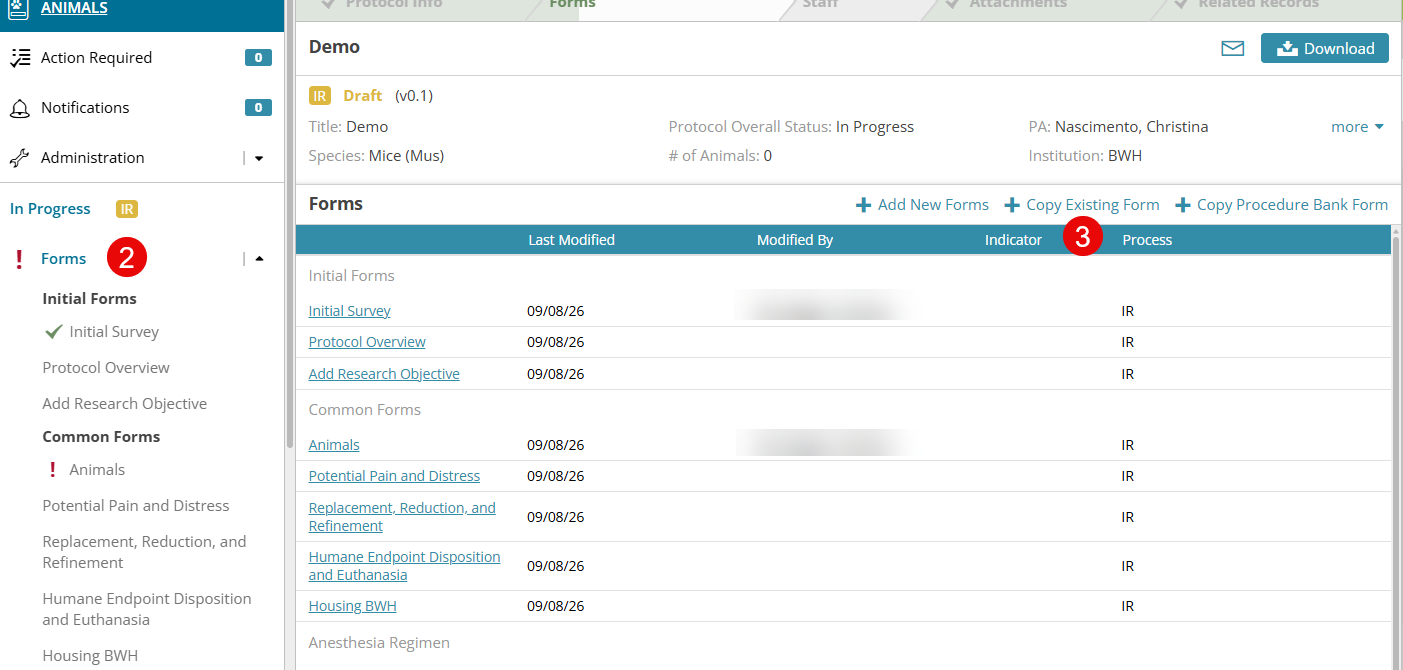
- Click the Forms section
- Add new forms by clicking "+ Copy Existing Form" in the right corner of the center panel on the forms page
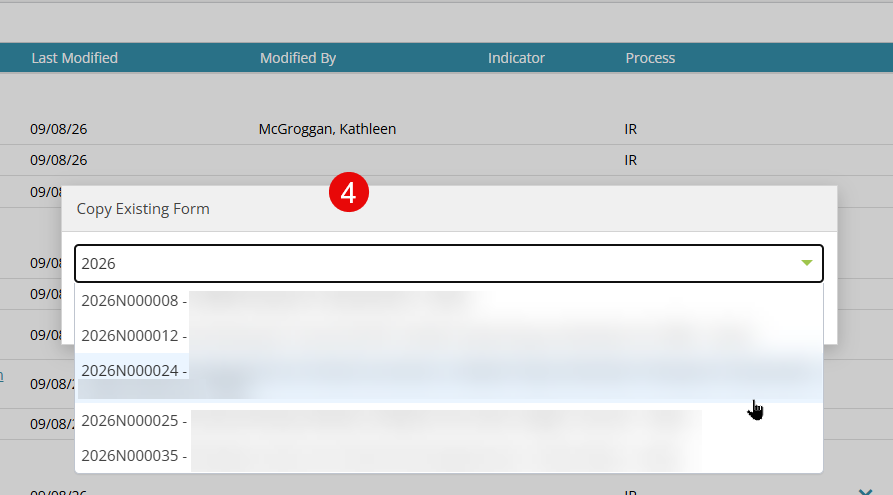
- A window will open, and a type-ahead drop-down field is displayed where the protocol number can be entered. Enter the protocol that has the form to be copied.
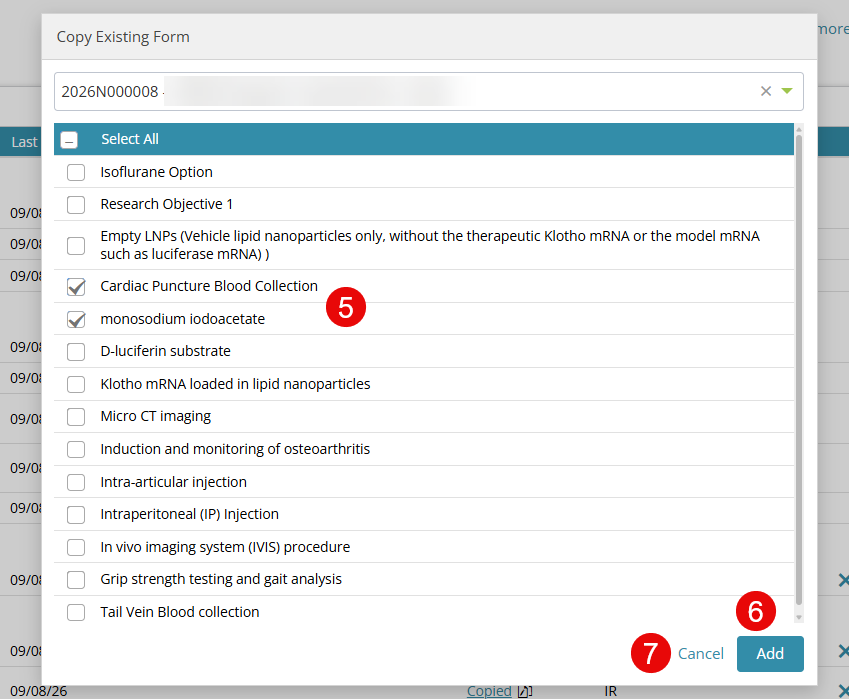
- All the forms corresponding to the selected protocol are listed. Select the form(s) to copy.
- Click "Add" to add all these forms to the protocol.
- Click "Cancel" if you no longer want to copy the form
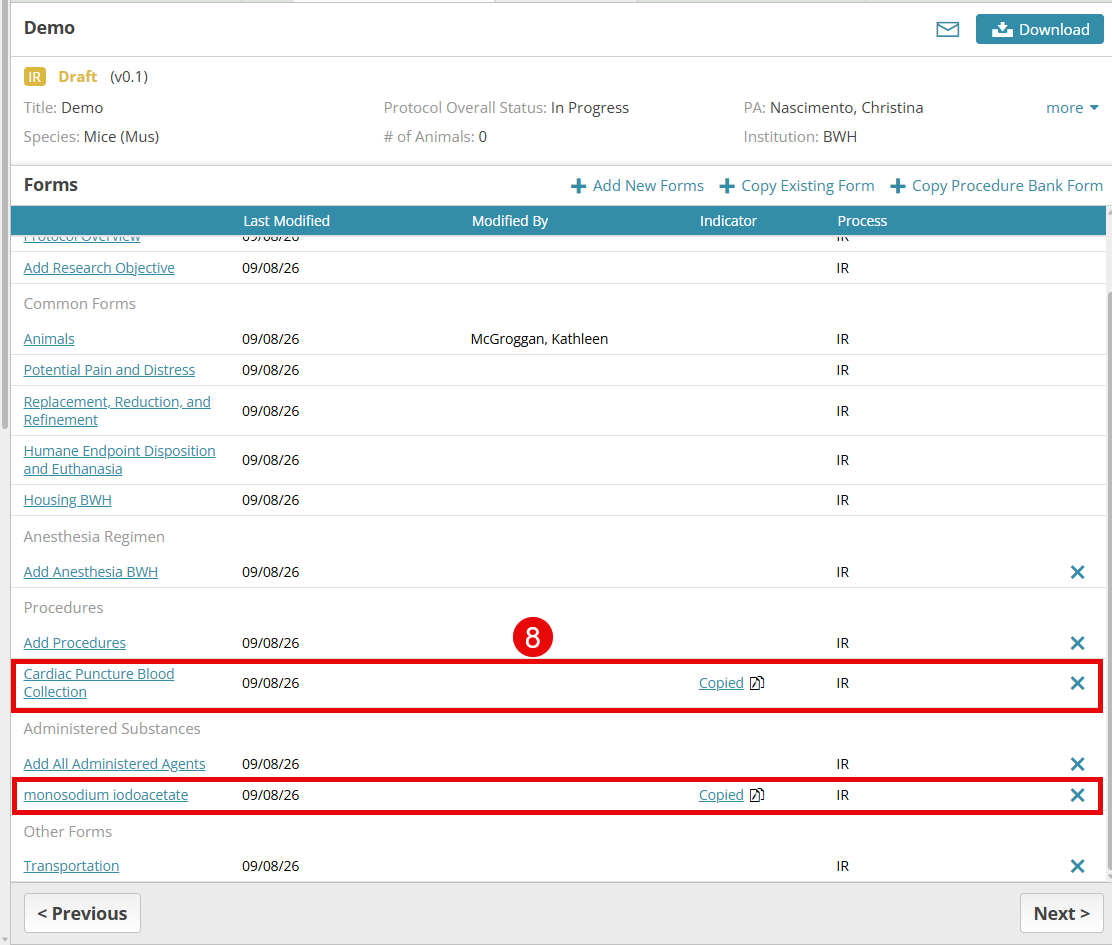
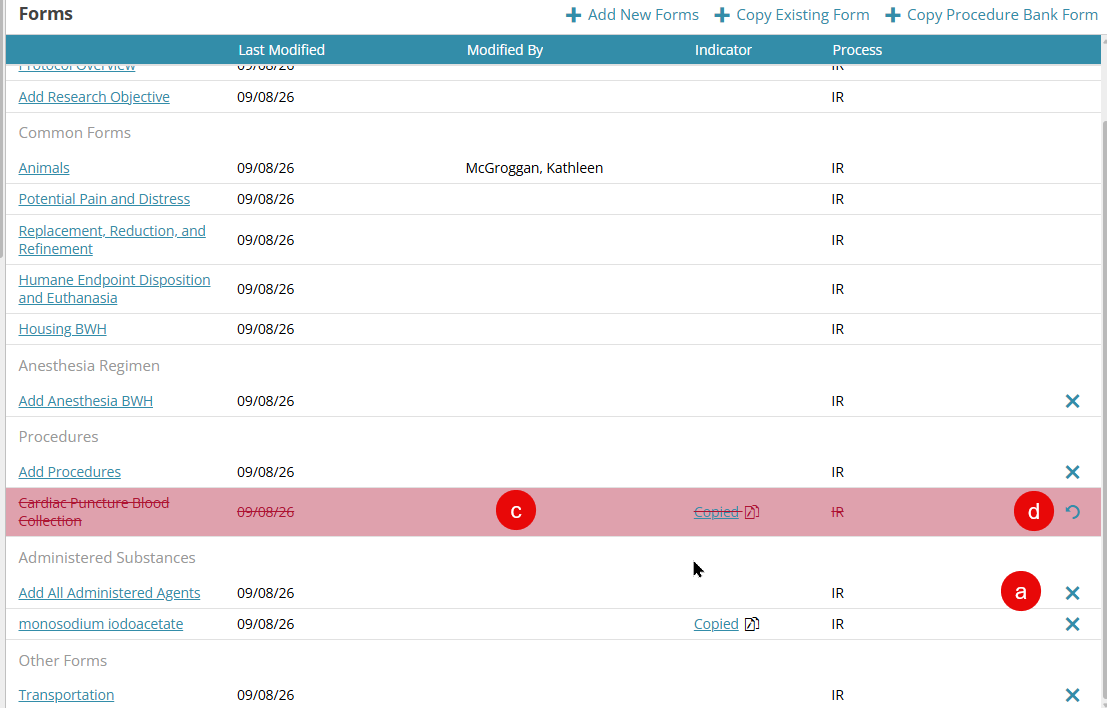
- All the selected forms are successfully added to the forms page and will have a "Copied" indicator in the row.
- Navigate to the new form added by clicking on the form name on the left navigation panel or the link on the Forms page
If you mistakenly add a form:
- Click on the X button
- Click OK to confirm form deletion
- After the form deletion, the deleted form is crossed out in red text, and a DEL label will be next to the deleted form on the left navigation panel
- Undo the form deletion by clicking on the Undo button