
September 15, 2026
Introduction
The Annual Review process is still needed for USDA species and protocols with DOD funding. For protocols with non-USDA species and those that do not have DOD funding, you will not need to create an Annual Review.
STEPS
1. Click Animals.
2. Open a protocol where the species is in the list of species requiring an Annual Review.
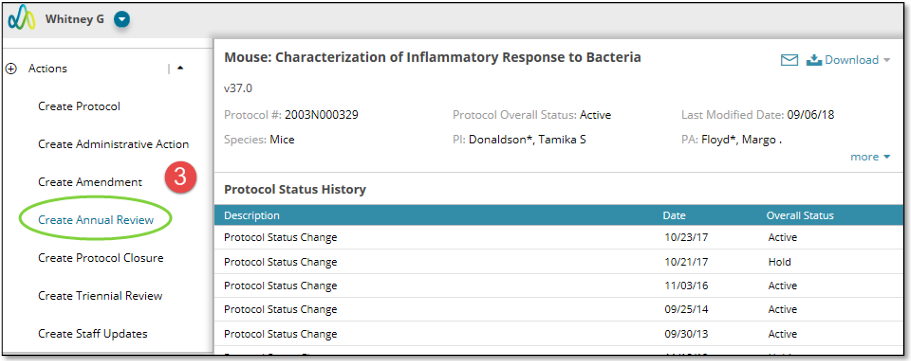
3. Select Create Annual Review under the Actions menu on the left navigation panel.
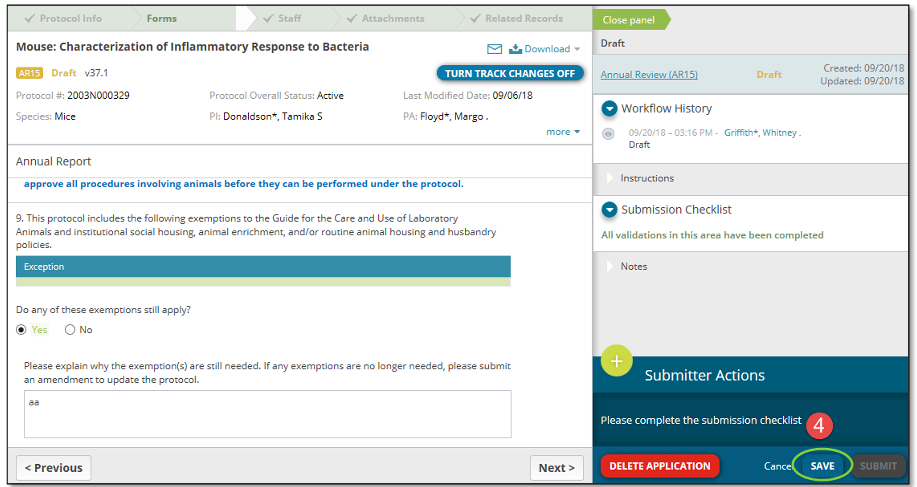
4. Complete the required fields within the Annual Review form. When the submission checklist says, ‘All validations in this area have been completed,' click Save. You may also save your progress at any point. To learn more about any of the functions/pages within a transaction click the appropriate link:
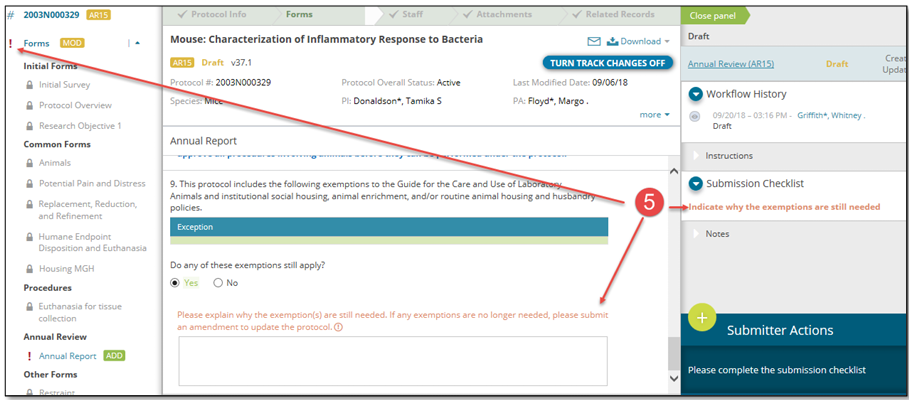
5. If you missed a required field, there will be a Red ! mark next to the form name in the left panel, and the submission checklist will indicate which field needs to be completed.
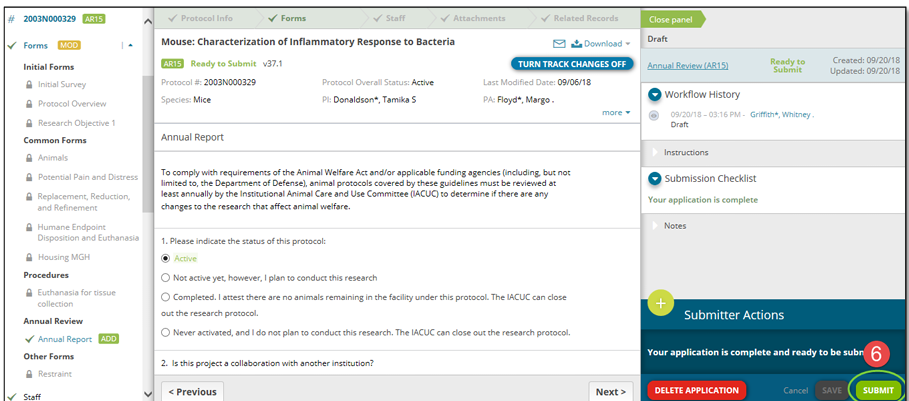
6. When all required items have been completed and saved, the Annual Review form is ready to submit. The submission checklist in the right panel will note this, with green checklists next to all forms in the left panel and a green ‘Submit’ button in the bottom right.
| Reminder: You can submit Annual Reviews only when the expiration date is 60 days or less away. |
Additional guides:
| Deleting transactions |
| Online review/comments |
| Completing an action |