September 16, 2026
Introduction
During the review of a transaction in a workflow, reviewers can add page level or field targeted comments to send back to the submitter to address and resolve. When returned to the submitter those comments will have to be marked as Reply or Resolved in order to resubmit the transaction to the workflow.
Steps
-
During review of the transaction, select the necessary page.
-
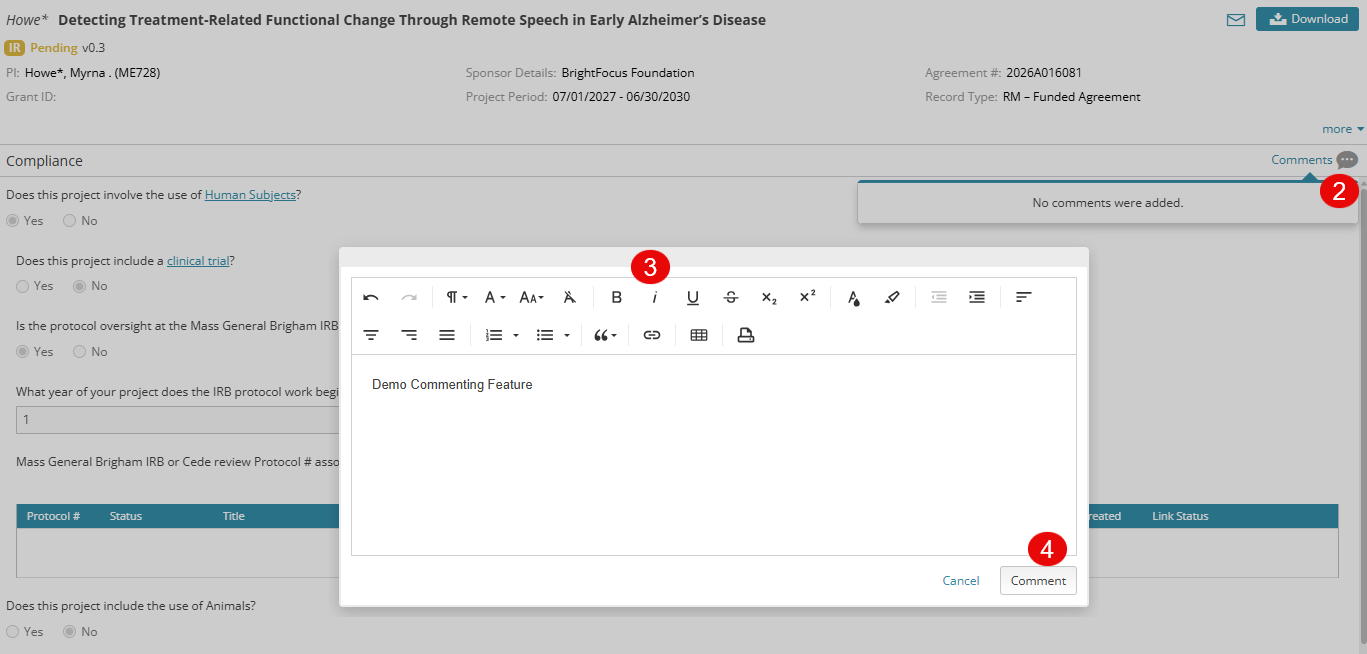
At the top of the page or for an individual question on a forms page, click the comment bubble.
-
A popup will open to allow you to enter a comment and format the text.
-
When complete click the Comment button in the bottom right.
-
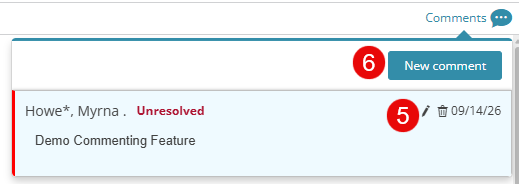
Added comments can be edited or deleted before submitting a decision on the transaction.
-
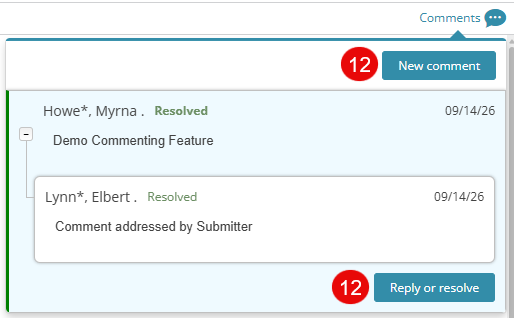
Additional comments can be added to the same page or question by clicking the “New Comment” button.
To respond to comments submitted during review:
-
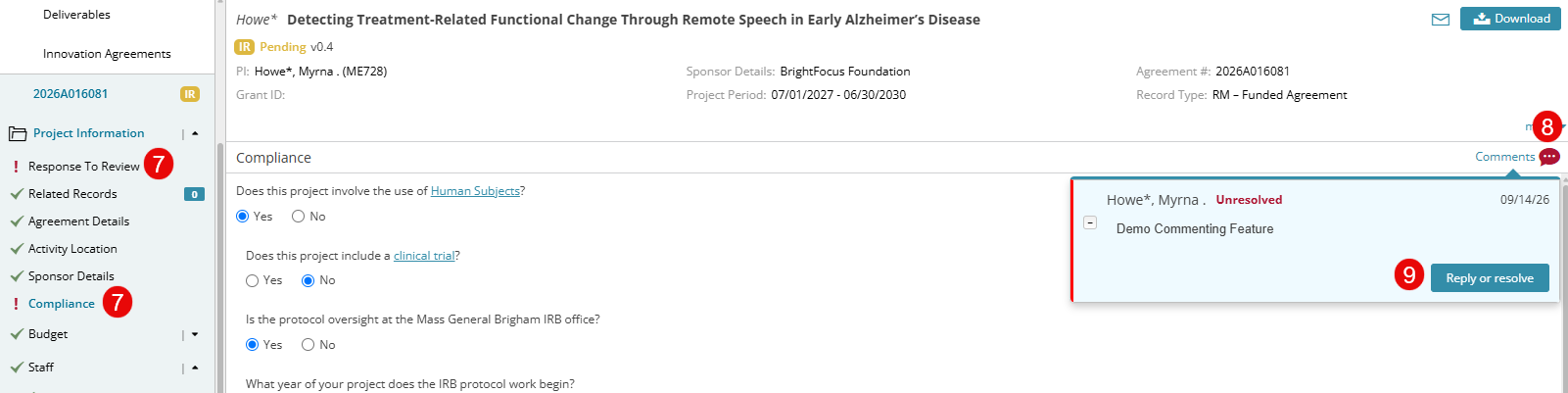
Navigate to the page where the comment has been added. This will be indicated in the left panel with a red ! mark. Added comments will also be summarized for all pages on the Response to Review page.
-
Click each red comment box presented on the page.
-
Click the Reply or resolve button.
-
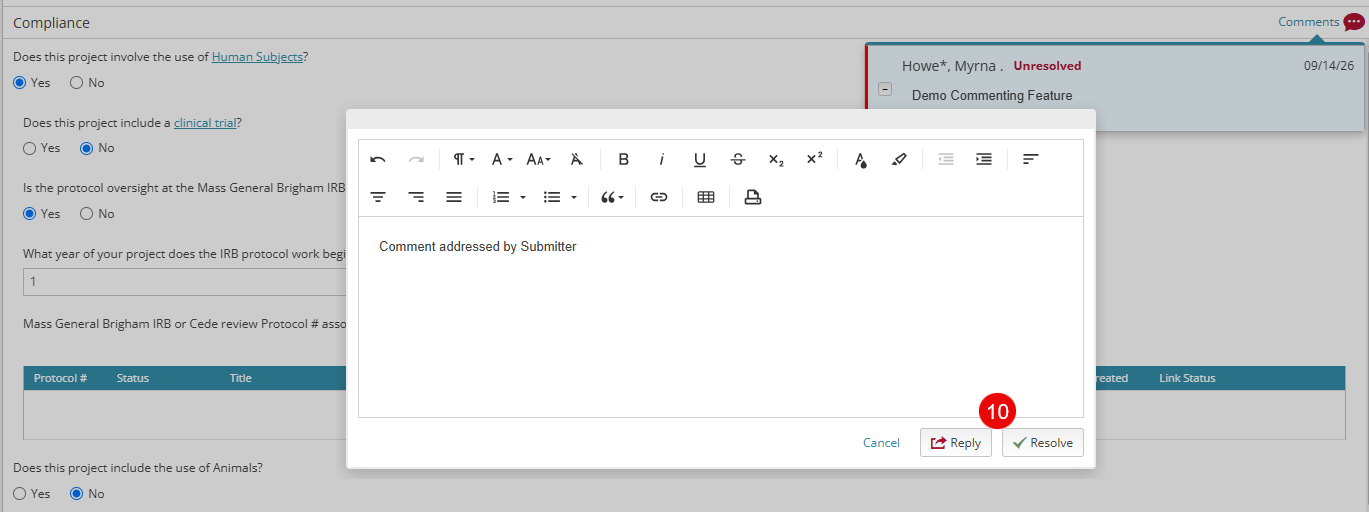
Enter any comments back to the reviewer and click Reply or Resolve.
-
Reply indicates to the reviewer that you disagree with some/all of the requested changes.
-
Resolve indicates that you have completed the requested changes.
-
-
All comments must be resolved before the record can be resubmitted for review.
-
Reviewers have the ability, when a transaction is returned to them, to respond to the submitter’s comments or add new comments.
| Note: When responding to a comment, all comments must either be replied to or resolved. If the change is minor, simply change the text in the form and click “resolve”. if the change requires both a response to the comment and a change to the record, then enter your text in the comment field, click “reply” and then change the text in the record. |