Posted on
Updated on
September 25, 2026
The Action Required page available under each module provides users with the ability to view the list of all pending activities. Each record upon selection navigates the user to a page from which the transaction can be signed off.
Steps
- Click the appropriate module
- Click Action Required section
- Alternatively, click the link from an email you received.
- Select the title link against the record you wish to open or the link in your email
- Complete the Reviewer Actions section on right panel
- Select the appropriate action. Examples but options will vary per module and transaction.
- To approve the transaction, select Approve
- To deny the transaction, select Deny.
- To send the request back to submitter for changes, select Send back for Modifications
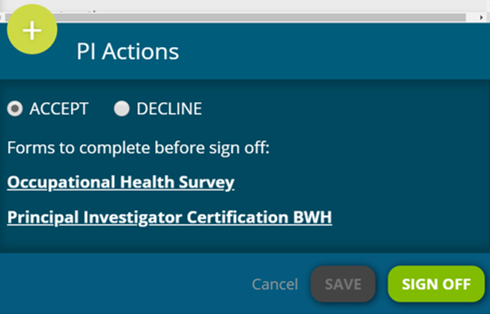
- Some actions may require additional forms or attestations be completed. You may also be required to enter comments to return the record in workflow to another user. These will vary per module. Example:
- After selecting Accept in an animal protocol, you will have to complete the following forms before signing off:
“Occupational Health Survey”
“Principal Investigator Certification” (For PIs only)
“Study Staff Review and Certification” (Staff Only) - After selecting Accept in an agreement, the PI will need to complete the PI Attestation.
- After selecting Accept in an animal protocol, you will have to complete the following forms before signing off:
- Click Signoff or Submit.
- The signoff process is now complete and the action is marked as completed.