Posted on
Updated on
September 15, 2026
Introduction
The “+Add new form” feature in the Forms section of a protocol or a registration provides users the ability to add a new form from the forms landing page while creating transactions like Initial Reviews, Amendments, Triennial Reviews, Five-Year Resubmissions etc. There is also an option to remove the forms if they are incorrectly added.
Steps
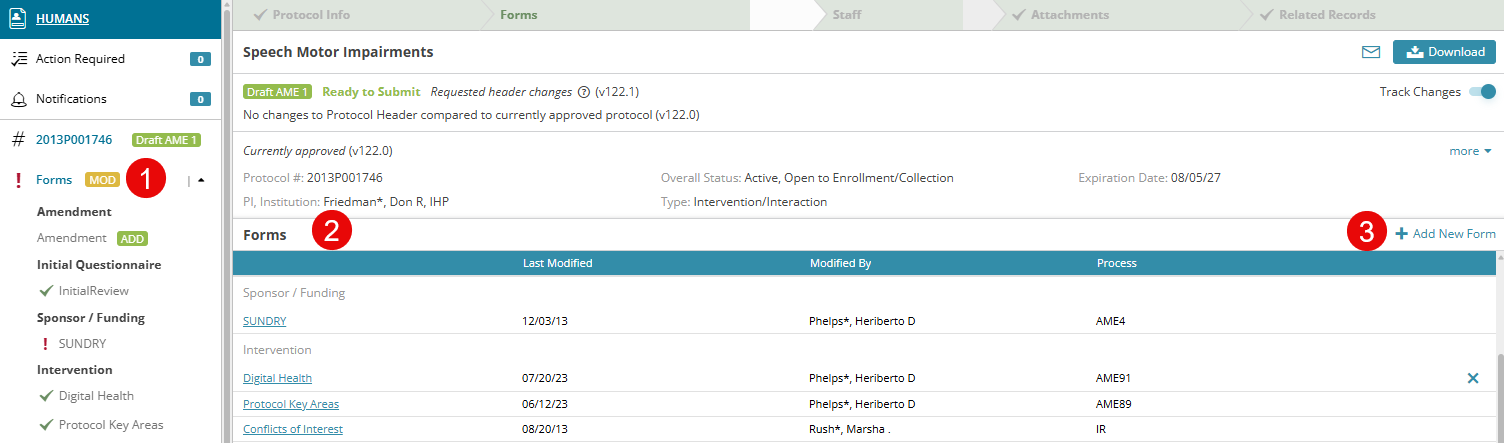
- Within a transaction (Initial Review, Amendment, Continuing Review, Triennial Reviews, Five-Year Resubmissions, etc.), click Forms section on the left navigation panel
- You will be navigated to Forms landing page
- You can add new forms by clicking on + Add new form link on the right corner of the forms page
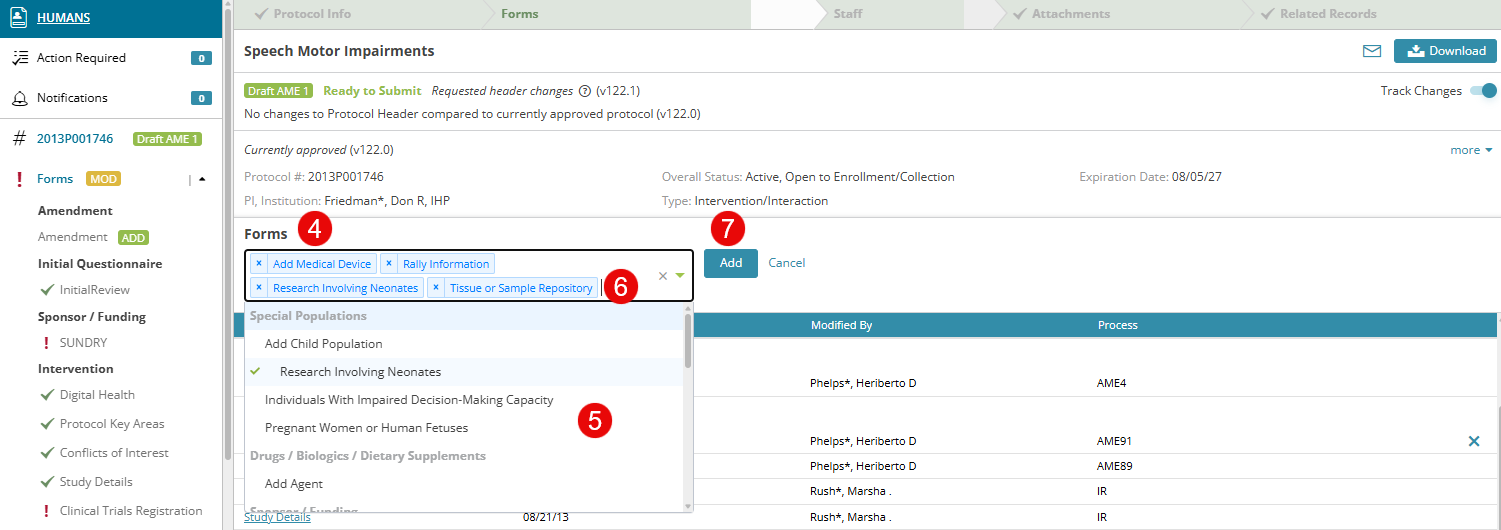
- Upon clicking on + Add new form link, a type ahead drop-down box is displayed
- You can type and search or scroll down and select the form(s) you would like to add
- After selecting each form from the drop down, it gets added to the selection box
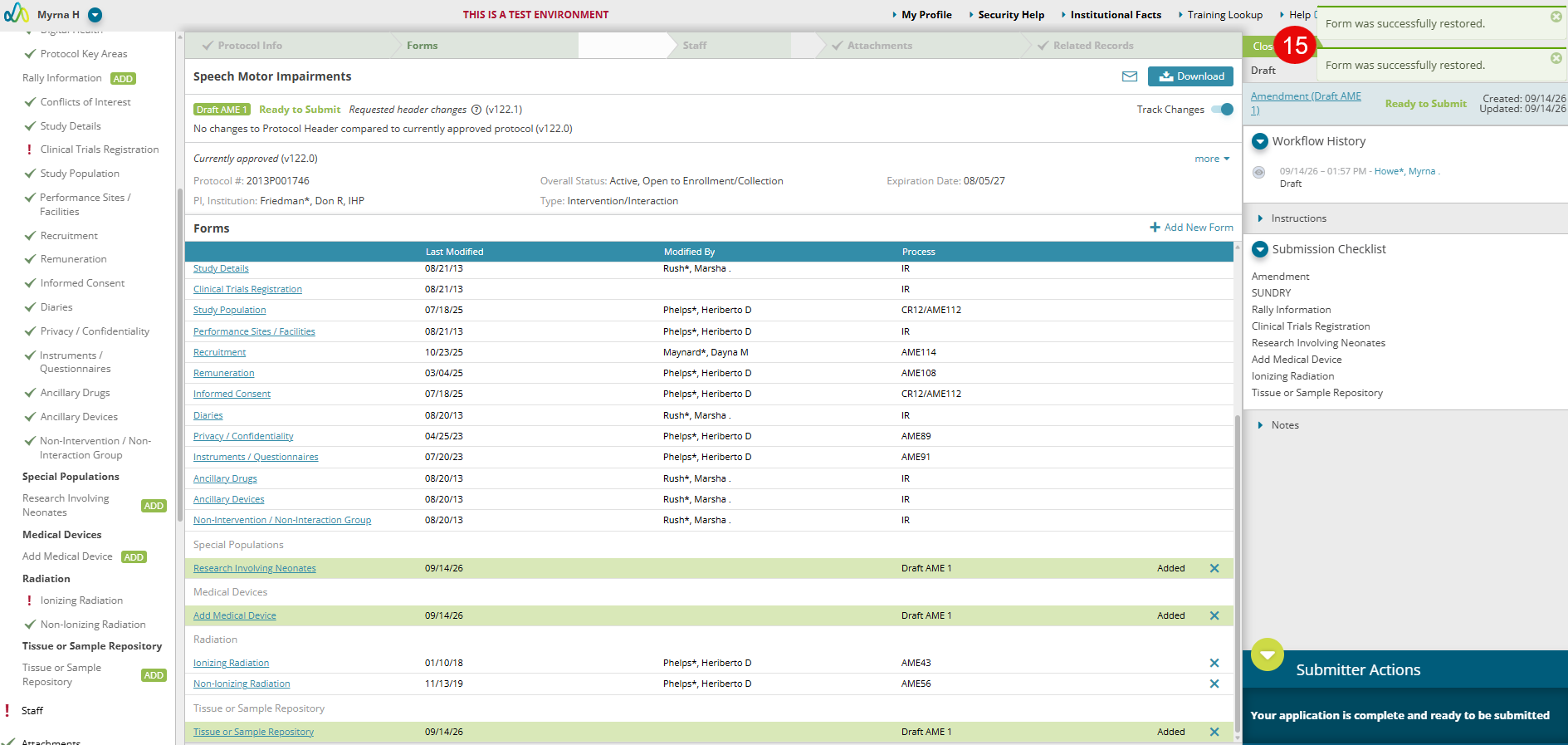
- Click Add to add all these forms to your record. You can see a confirmation message in green to the right corner of the page
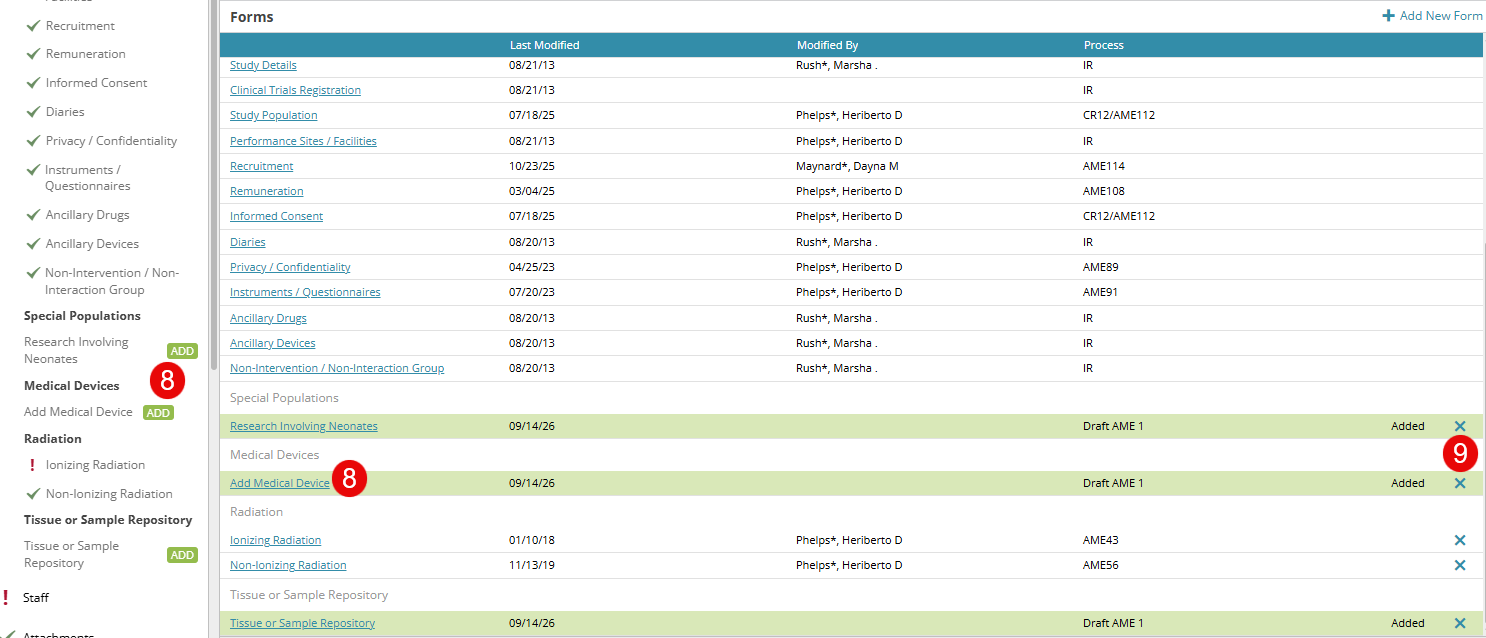
- All the selected forms are successfully added to the forms page, and you can navigate to the new form added by clicking on the form name on the left navigation panel or the link on the Forms page
- You can find the X button adjacent to the forms listed on the forms page
- You can remove the forms by clicking on X button
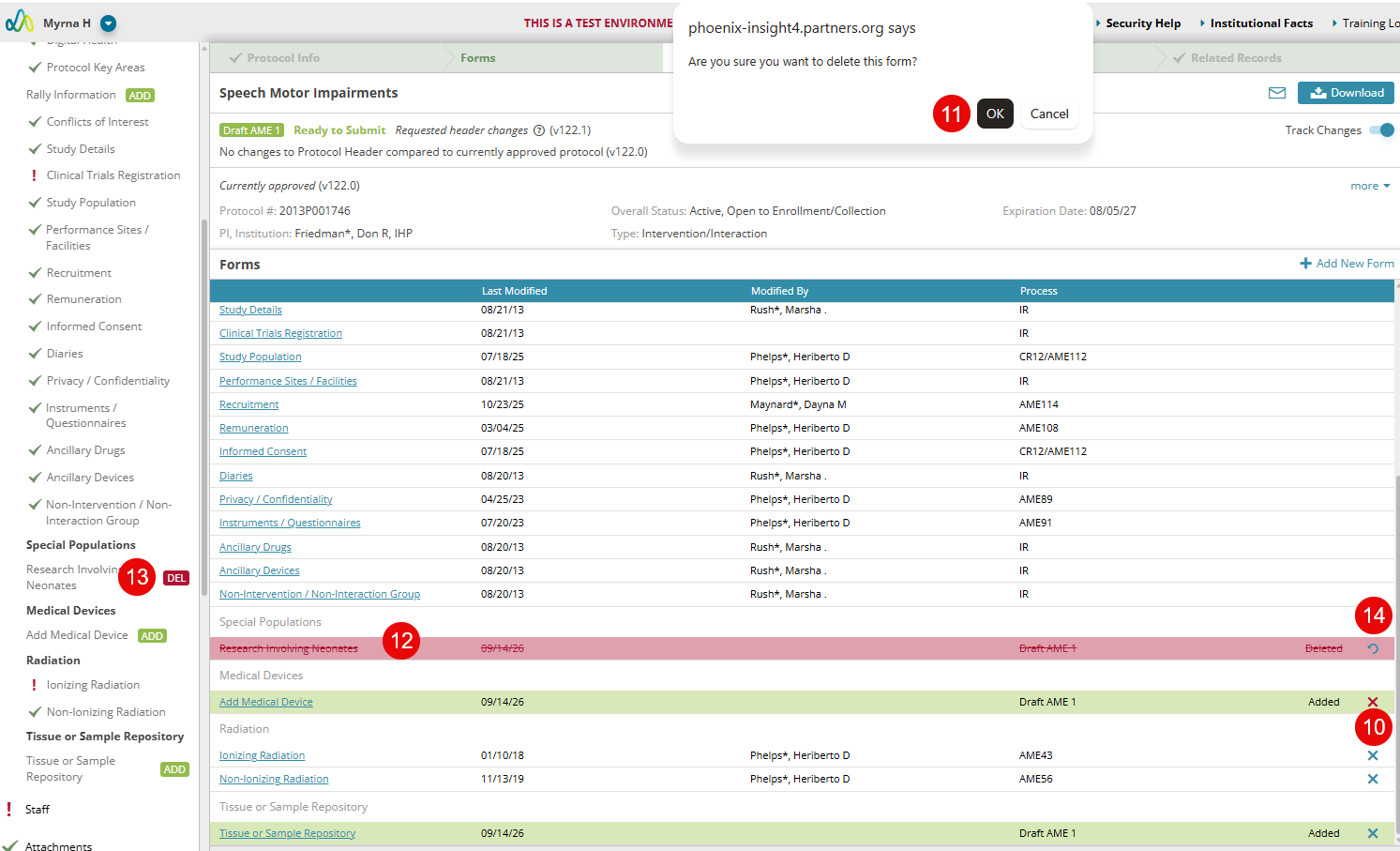
- Click OK to confirm form deletion
- After the form deletion, you can see the deleted form strikethrough in red text
- You can also find a DEL label next to the deleted form on the left navigation panel
- You can undo the form deletion by clicking on the Undo button.
- Form(s) can be successfully restored after clicking Undo, you can find a confirmation message to the right corner of the page.