September 14, 2026
Journal Submission
Introduction:
The Journal Submission page under Actions menu supports the ability to move costs/charges off of a project via upload process. This page displays historical Journal Submission records associated with logged in user based on their security.
Initiate Journal Submission from Actions menu:
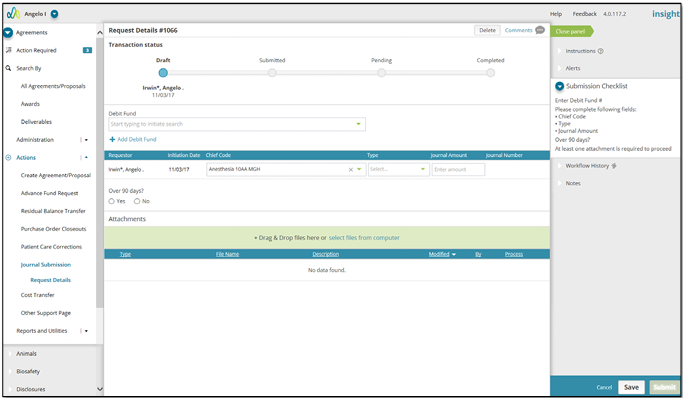
Click on the "Initiate Journal Submission" button from Journal Submission landing page to initiate a new request which navigates you to Request Details page to submit the form. The submission form must be completed with debit fund number, type of journal, journal amount information and can be submitted. If expense is over 90 days, justification should be provided by answering 4 additional questions. Multiple supporting documents can be uploaded during the submission process by the initial submitter and approvers. After the request is submitted, it is routed to RF Specialist or Core team based on the Chief Code associated with the request. You can also delete the record before submission by clicking on "Delete" button at the top.
Illustrative Screenshot
Search/View Request:
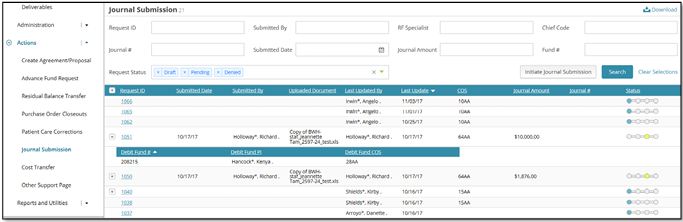
You can search existing records or view submitted request(s) with the help of the filters/search boxes displayed on the landing page. The result set on the grid also provides the ability to expand individual request on the landing page to view debit fund details. You can also download a report of all the data displayed on the grid in CSV format by clicking on the Download button at the top of the screen. You can drill into individual record by clicking on the corresponding Request ID and you will be navigated to the Request Details page for that request.
llustrative Screenshot
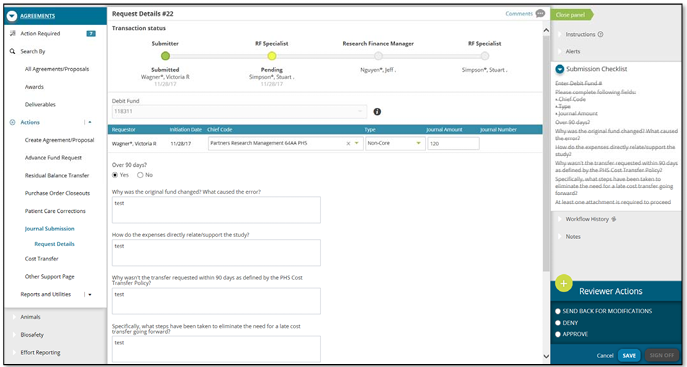
The Approvers throughout the workflow have the ability to Approve, Deny or Send the request back to the submitter for modifications based on their role. Submitter/Approver has the ability to enter comments via online review process. Status bar at the top displays current status with date/time stamp along with the approver the request is currently with. Note the Workflow History section on the right panel which displays the entire workflow corresponding to the selected request with date/time. As part of the approval process, the approver has to sign off on the request by providing their credentials.
Illustrative Screenshot