September 14, 2026
Purchase Order Closeout
Introduction:
The Open PO’s page supports the ability to close out unpaid Purchase Orders. Users can submit their Purchase Order (PO) Clearing Request form directly from the Open PO’s page. The steps below will lay out how this process is initiated and reviewed.
Initiating a Purchase Order Closeout:
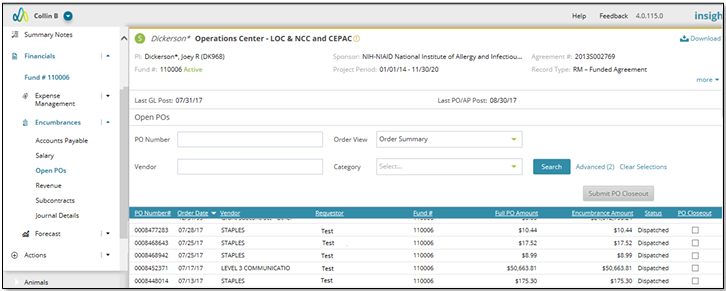
Choose a record from the Awards Search page that needs to be reviewed. Navigate to the Open PO’s page under the Encumbrances section of the Agreement Financials. Once on the Open PO’s page the unpaid PO/s is selected by checking the box associated with the PO line item(s). The user can then click the “Submit PO Closeout” button on the page. The checkbox will be grayed out once it’s been selected for closure. The form is then emailed to Research Management PO for further review. The requestor is cc’d on the email confirmation with a copy of the request form. Research Management will then forward the form to the Partners Materials Management Department. Once Materials Management clears these POs, they will send the user a follow-up email with updates. In addition to this the records submitted will now appear on the Purchase Order Closeout page giving the user the ability to review the status of the PO closeout.
Illustrative Screenshot
Reviewing PO Closeouts:
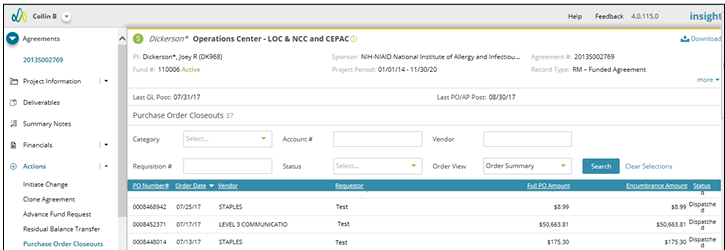
If you need to review the status of your PO closeouts navigate to the Purchase Order Closeouts page under the Actions menu. This is a page that contains all PO closeouts initiated from the record. The user can search and filter the records on this page and review the details of the given PO submitted for closeout. The last column in the result set provides a status column. This is the overall status of the PO as displayed in the PeopleSoft system. This can be used to check the status of a PO that has been summited. This page should give the user greater transparency and tracking on the PO closeout process.
Illustrative Screenshot