
September 14, 2026
Expense Management
Introduction:
The Expense Management section in Agreements has various pages displaying expenses which have hit the General Ledger. Select a Fund# from Awards search landing page which navigates you to Financial Report page under Expense Management which can be viewed on the left navigation bar. The Expense Management menu consists of various sections such as Financial Report, Monthly Expense Summary, Monthly Expense Detail, Accounts Payable, Journal Entries, Payroll, Salary, Revenue and Patient Care Charges. All these sections/pages can be accessed by clicking on the corresponding page name.
Illustrative Screenshot
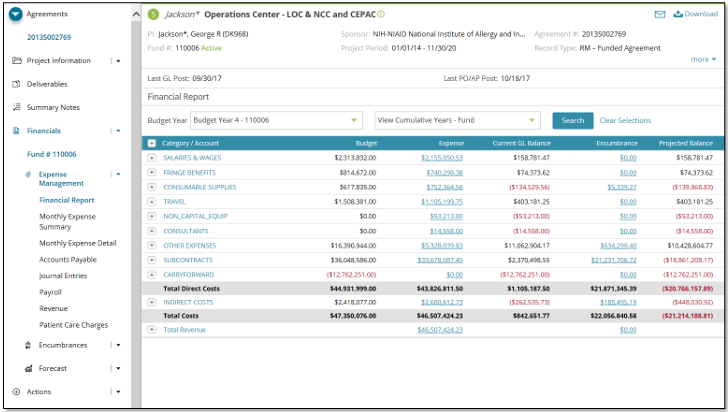
Expense Management Menu:
Financial Report – This page displays budget details (financial statement) for selected fund. It reflects current budget amount, expenses posted at the end of each month, current encumbered expenses, salary data, cash balances, categorical balances, direct/indirect costs, carry forwards and overall budget balances. This page also has drill down links which direct the user to detailed information around a specific fund.
Monthly Expense Summary – This page displays posted expenses for a project on a monthly basis for the last 6 months by default. Information is organized by expense category and account. The cumulative monthly totals for the selected time period is reflected in the Total column. This page also has drill down option which direct the user detailed information around a specific fund.
Monthly Expense Detail – The Monthly Expense Detail is a new view in Insight 4.0. This page is a detailed version of Monthly Expense Summary page displaying data with respect to each line item for every account on a monthly basis.
Accounts Payable – This page provides a list of all invoices that have been paid against the selected grant or fund. The order view defaults to 'Order Summary'. Order type can be modified to 'Order Details' in the search criteria for additional information corresponding to the records.
Journal Entries – This page provides a list of all journal entries that have been paid against the selected grant or fund. The order view defaults to 'Order Summary'. Order type can be modified to 'Order Details' in the search criteria for additional information corresponding to the entries. The 'Initiate Cost Transfer' button lets you initiate a cost transfer request for selected records corresponding to the fund you are currently in.
Payroll – This page displays the salary expenses for a specific fund based on the last GL Post Date. It shows the people who are paid from the fund and how much they are paid. It also allows you to search details such as name, pay-date and retro-adjustment date.
Revenue – This page details revenue deposits to the research funds. Revenue source reports can be generated based on time periods such as budget, project or fiscal year. The data on this screen is organized by account number and then by clicking on the “+” the revenue transaction details are listed.
Patient Care Charges – This page displays the detailed inpatient clinical expenses and discounts for funds with data coming from nightly feeds. This screen provides the ability to effectively review patient charges applied to research funds. The data will be displayed from a selected fund on a patient by patient basis with detailed information of charges
Accessing Data:
When you are on any of the above pages, you can go back and forth between other pages under Expense Management, Encumbrances and Actions sections. You can find below features on all/most of the pages described above.
Project header – Project header is displayed at the top of the center workspace for all pages. Project/fund related information such as Investigator name, Sponsor, Agreement#, Fund#, Project & Budget periods, Institution/Organization, Award Number and Agreement status.
Download – There is an option to download the result set by clicking on Download button at the top of the screen.
Drill down capability – This feature lets the user know detailed information around a specific project or fund. You can identify this feature by clicking on any links displayed on the result set grid for a selected page.
Search – Necessary records can be displayed by filtering the search criteria accordingly.
Advanced – This feature helps in performing an advanced search on the result set displayed.
Right Navigation – Charts, Alerts and Notes are displayed on all the pages corresponding to the selected fund.