Posted on
Updated on
September 17, 2026
Introduction
Changes to the Project Information area of pending, awarded, or executed agreements are made using the Request Department Change (RDC) action. Each record type will allow only certain edits based on status. The RDC must be submitted when complete for the information to be reflected in reporting and to ensure that other users can make necessary updates to the record.
Steps
- Open the agreement you need to make edits for.
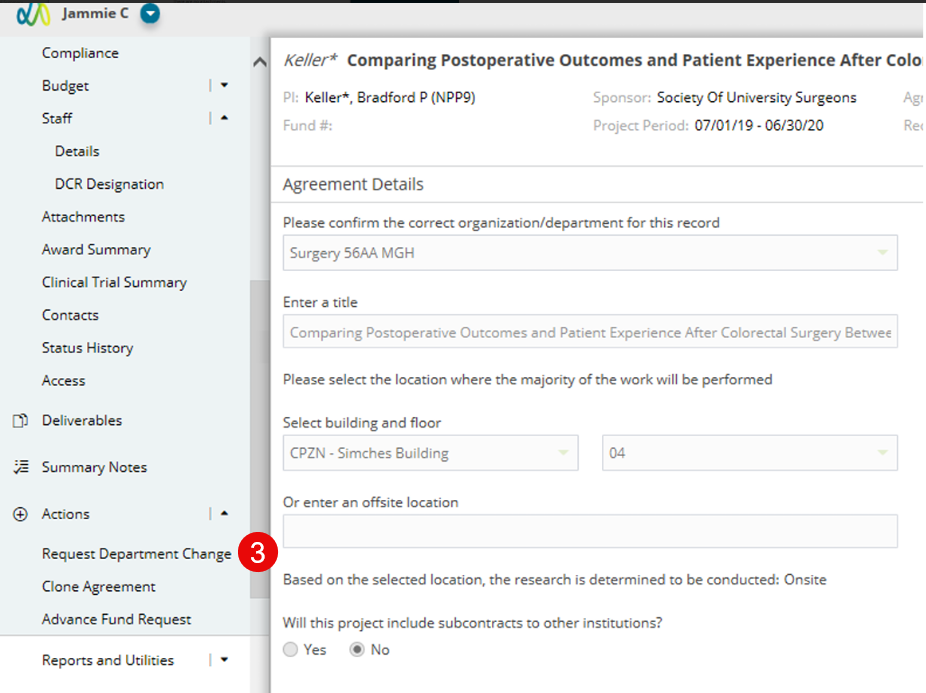
- Expand the Actions menu in the left panel.
- Select ‘Request Department Change’.
- Select OK.
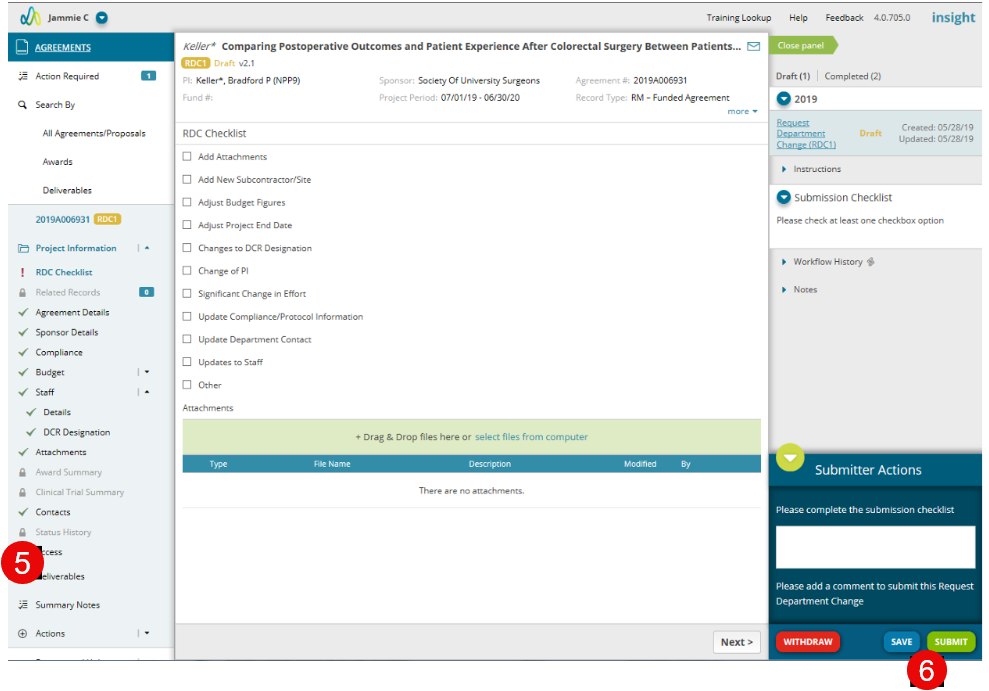
- Make changes to the Agreement as needed. Pages which do not allow edits will have a lock icon in the left navigation.
- The RDC Checklist page must be completed. Some updates will automatically set the RDC Checklist page.10. When all necessary updates are completed, add a comment and click the Submit button in the right panel.
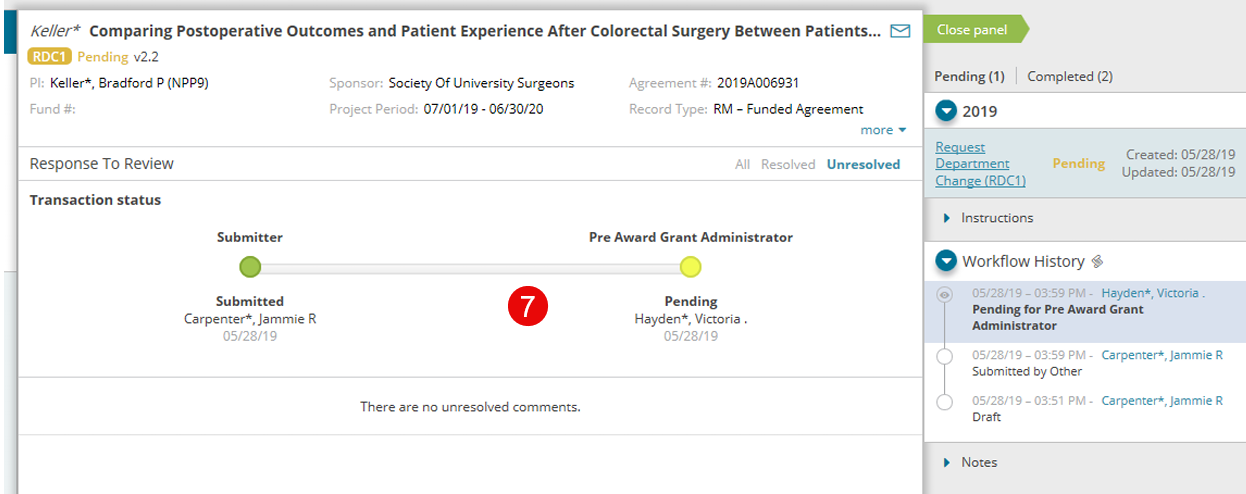
- Based on the record, status and/or updates, the RDC may require approval from central staff. The workflow indicator will let you know if a notification or action as generated for the central staff.
- Similar to the Initial Review (IR) transaction, the reviewer can send back the RDC with comments for additional edits.
|
Important notes:
|
|
Tips:
|
Illustrative Screenshots