September 21, 2026
The Related Records section under Agreements provides users the option to manage relationships between records by linking or unlinking during a transaction in the main record.
Steps
1. Select the Agreement for which you wish to add related records from the landing page.
2. If the agreement does not have an open transaction, create one a by navigating to Actions and selecting Initiate Change or Request Department Change.
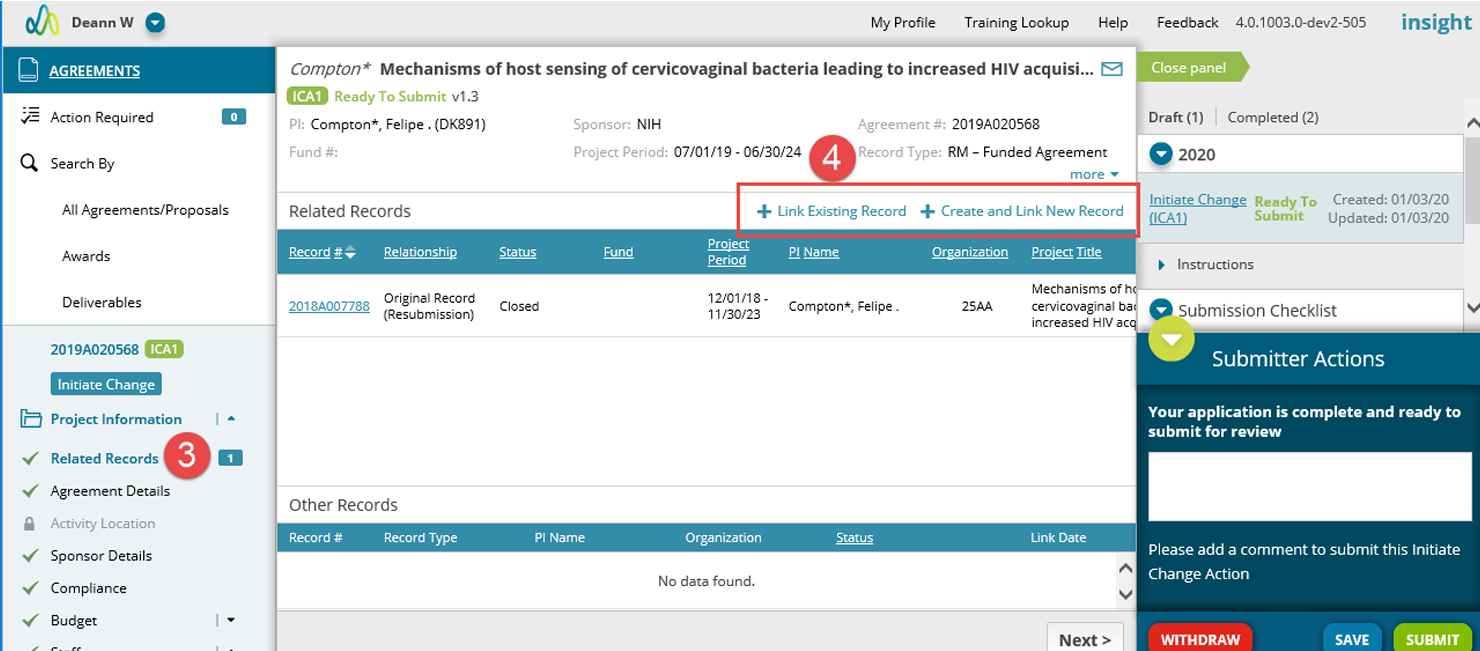
3. Go to the Related Records page
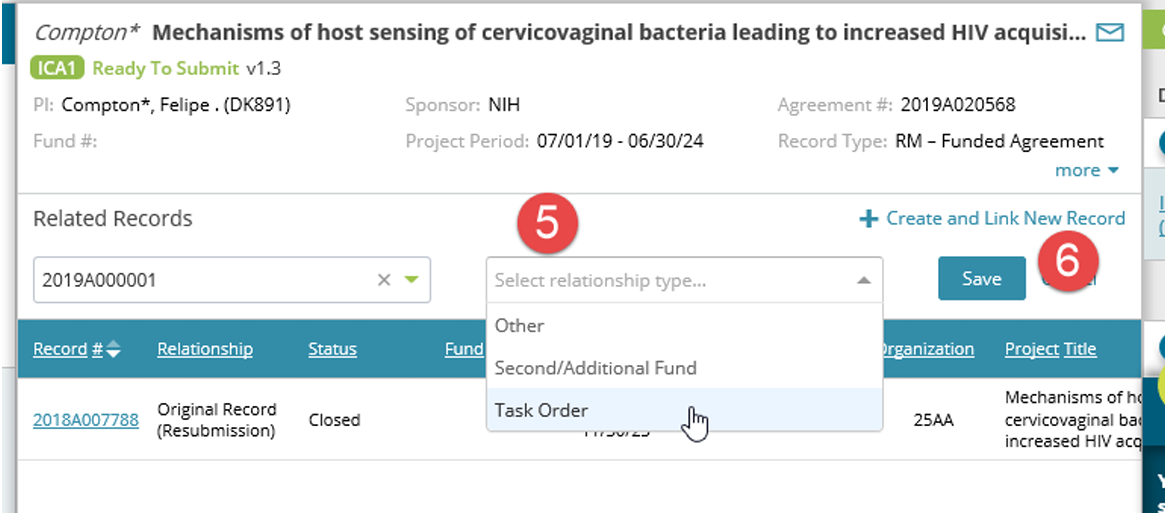
4. To add an additional record you have two options: a. Click '+ Link Existing Record' under the project header. Select the agreement number you want to link. b. Create and link a copy of this record by clicking '+ Create and Link New Record'.
5. Choose the relationship type to define the relationship between the records
6. Click Save the button.
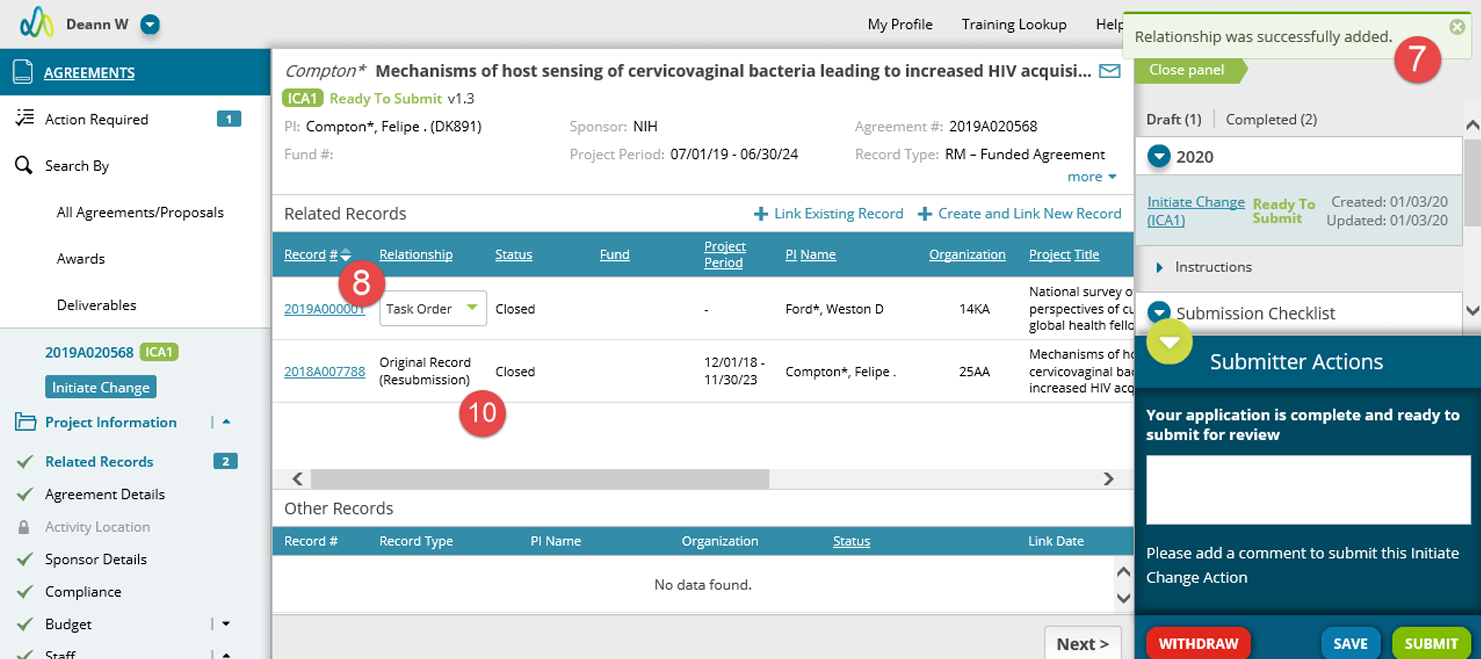
7. You will now be able to see the records for which relationships have been established
8. You can modify the relationship from the dropdown
9. You will be able to remove the relationship by clicking 'X' displayed across the record
10. The Related Records page will also list any relationships formed through the creation of the record, like resubmission, competing renewal or supplement. The record type in parentheses indicates the current record’s relationship to the listed record.