
September 29, 2026
Teams is a great tool for sharing and working on files with others. Here is some information to help you get started with working on files in Teams.
In this Article
Use the OneDrive App
The OneDrive app lets you see all your files across Microsoft 365 – Teams, OneDrive, and SharePoint – in one place. This is especially helpful if you're a member of several teams and can't remember where a particular file was shared or looking for a file someone shared with you.
On the app bar (left navigation), click OneDrive:
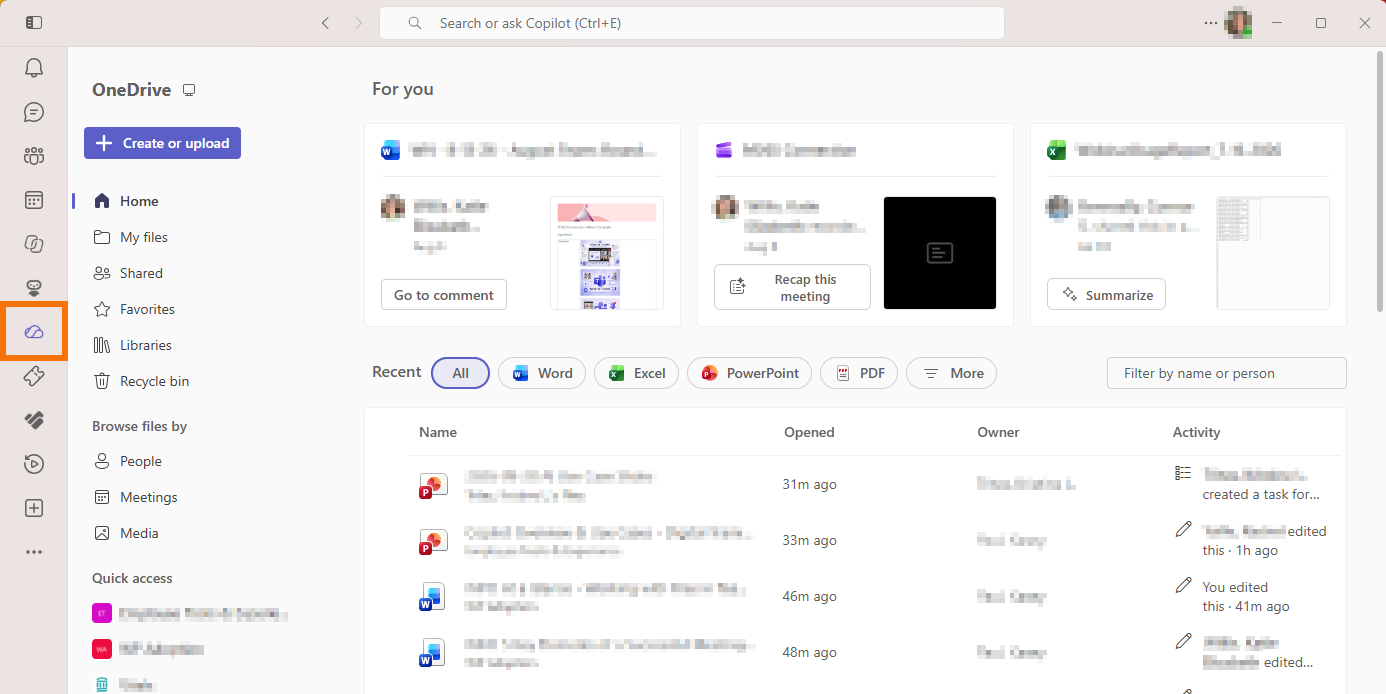
Tip! You may need to expand your window to see the OneDrive app’s left navigation menu.
On the left, files are organized in different groups to help you find them faster:
- Home – Files you’ve recently viewed or edited.
- My files – Content you have stored in your OneDrive.
- Shared – Shows files others have shared with you and files you have created and shared with others.
- Favorites – Find files you marked as a favorite.
- Libraries – View files from your channels and SharePoint sites.
- Recycle bin – View and restore files you deleted.
Below these groups, there are two other options for viewing files:
- Browse files by – People, meetings, and media (i.e., videos and images).
- Quick access – Browse files located in specific channels and SharePoint sites.
Learn more:
Explore the Files List (OneDrive App)
Share Files in Chat
Sharing files in chat is an efficient way to review and work on documents 1:1 or in smaller/informal groups. You can share a file from OneDrive, Teams, SharePoint site, or a location on your computer.
- In a chat, click the paper clip (Attach files).
- Choose Attach cloud files or Upload from this device.
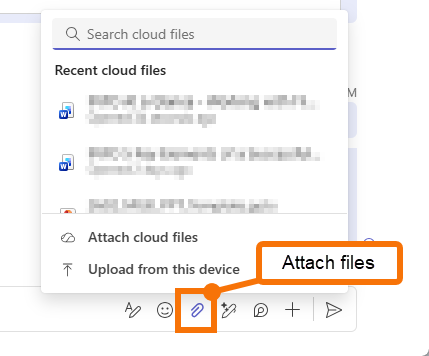
Cloud files
- The file stays in its current location in OneDrive, Teams, or SharePoint.
- Cloud files attached to a chat will not appear in the Shared tab.
Upload from this device
- The file is copied to your OneDrive account in the Teams Chat Files folder.
- You and the chat participants can view and edit the file from the chat message where it was shared or find it in the Shared tab in your chat.
When sharing Microsoft 365 files (Word, PowerPoint, etc.) and some other file types (such as PDFs), users in the chat are given view access by default. If needed, you can adjust permissions before sharing the file.
Learn more:
Send a File, Picture, or Link in Teams
Share Files in a Team's Channel
Files shared in a channel can be seen and edited by anyone with access to that channel. There are three ways to work with files in a channel – in a channel post or conversation, on the Shared tab, and from a Microsoft 365 app (Excel, PowerPoint, and Word).
Channel Post or Conversation
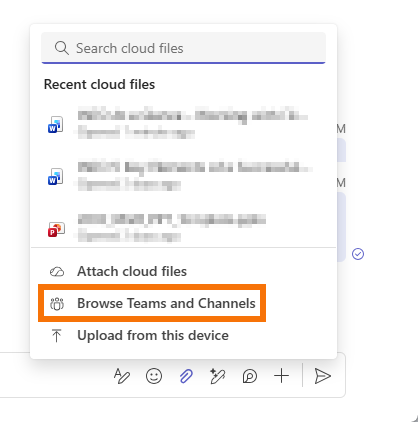
To attach a file to a channel message, follow the same instructions as chat. An additional option, Browse Teams and Channels, can be used to share a file from the channel’s library:
Shared Tab
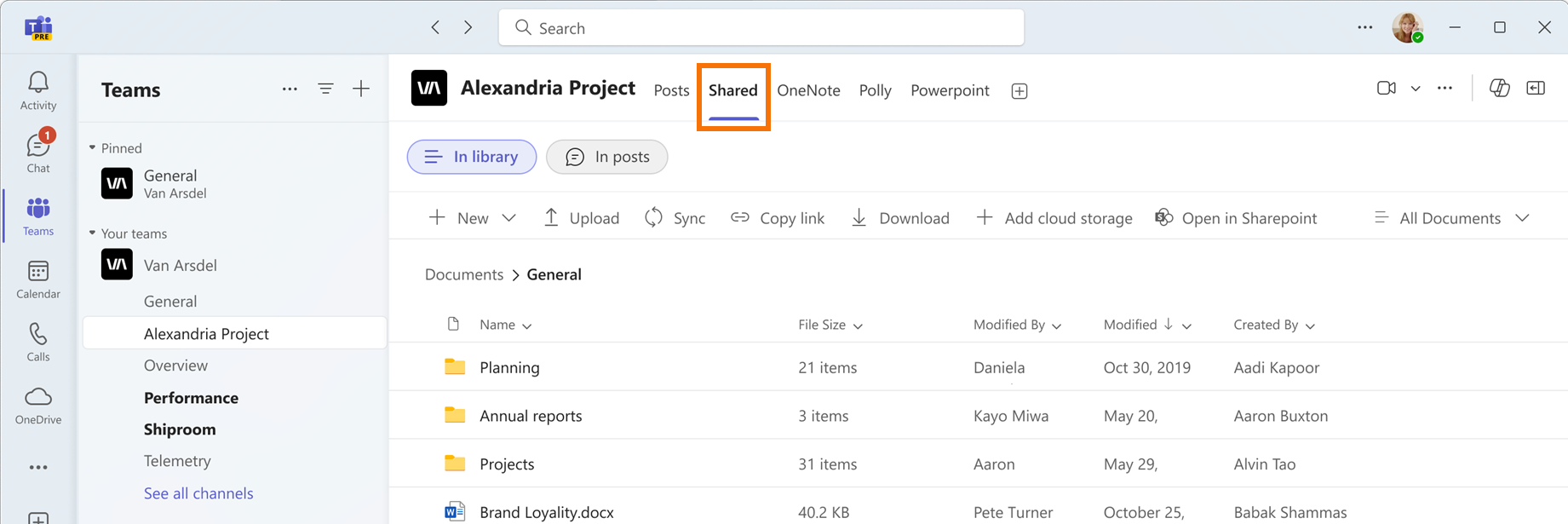
In the channel, click the Shared tab to:
- View, upload, and manage files stored in the channel.
- Create folders to keep content organized.
- Sort files by recently updated, filter by files or links shared in the channel, or search by keyword.
Microsoft 365 Apps
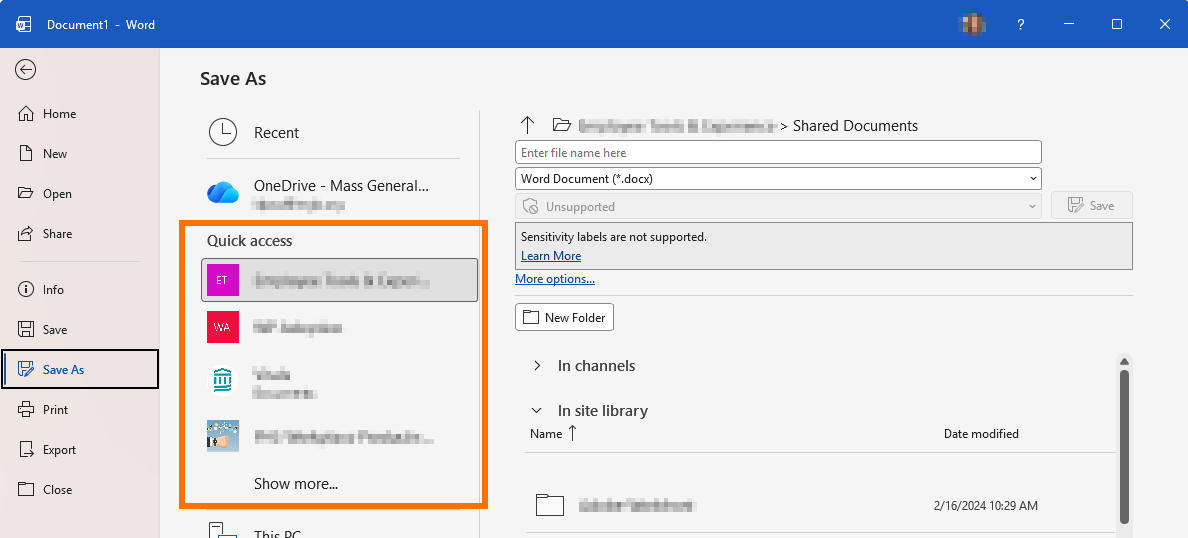
Use this option to save a file directly to a channel's library from Excel, PowerPoint, and Word. When saving, look for your teams under Quick access:
Tip! If you need to limit access to certain files in your team, consider creating a Private channel.
Learn more:
Standard, Private, or Shared Channels in Teams
Know Where to Share
There are a couple of things to keep in mind when sharing files:
Chat
- Since OneDrive is connected to an individual's account, if someone leaves the organization, their files cannot be accessed once their account is disabled.
- If there are important files shared in chat that need to be accessed after someone leaves, be sure to move them to a different location ahead of time.
Channels
- With channels, all the files are stored in the team.
- If someone leaves the organization or the team, any files they shared in a channel remain with the team.
Learn more:
Storing & Sharing Files in OneDrive, Teams, & SharePoint
Adjust Your File Settings
There are a few ways to customize how you work with files throughout Teams.
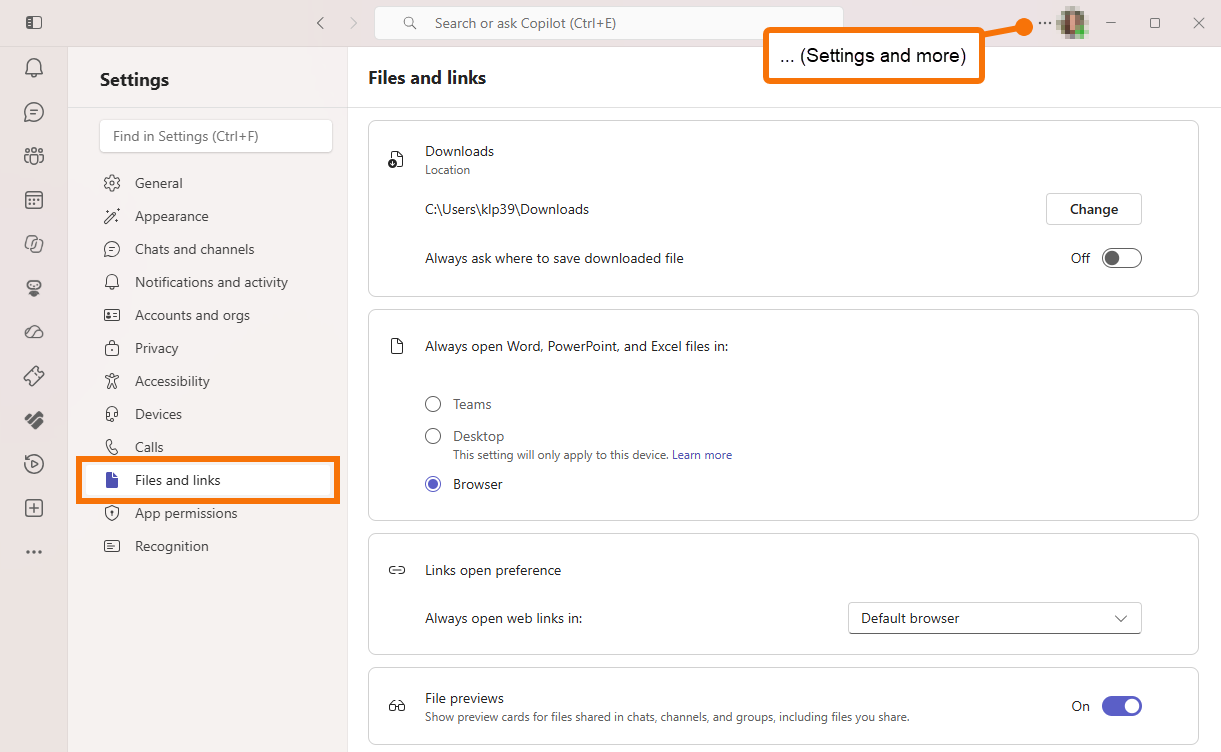
- On the top right, click … (Settings and more), then select Settings.
- Under Settings, click Files and links.
Choose Where to Save Downloaded Files
- By default, files you download from Teams are saved in your device’s Downloads folder.
- You can change this by selecting a custom download location or electing to always get prompted to decide where to save each file.
Choose How Your Files Open
- By default, Word, PowerPoint, and Excel files open in your web browser.
- You can change this to open in the desktop app or directly in Teams.
File Previews
- By default, when sharing files in a chat or channels will show a preview of the file.
- You can toggle this feature off if you prefer a cleaner, minimalized look.
Learn more:
Edit a File & Set Your File Open Preference
Go to: