
June 29, 2026
Note: This is not for PCI users. PCI user's password expires every 90 days to comply with Payment Card Industry (PCI) standards.
Overview
This guide provides instructions for resetting an expired or forgotten Mass General Brigham password. Passwords expire every 365 days. Email reminders are sent 15 days before expiration.
If you haven't already, you will be able to enroll in Okta Verify and the Employee Alert System the next time you change your password.
Remember to always keep your password confidential!
Instructions
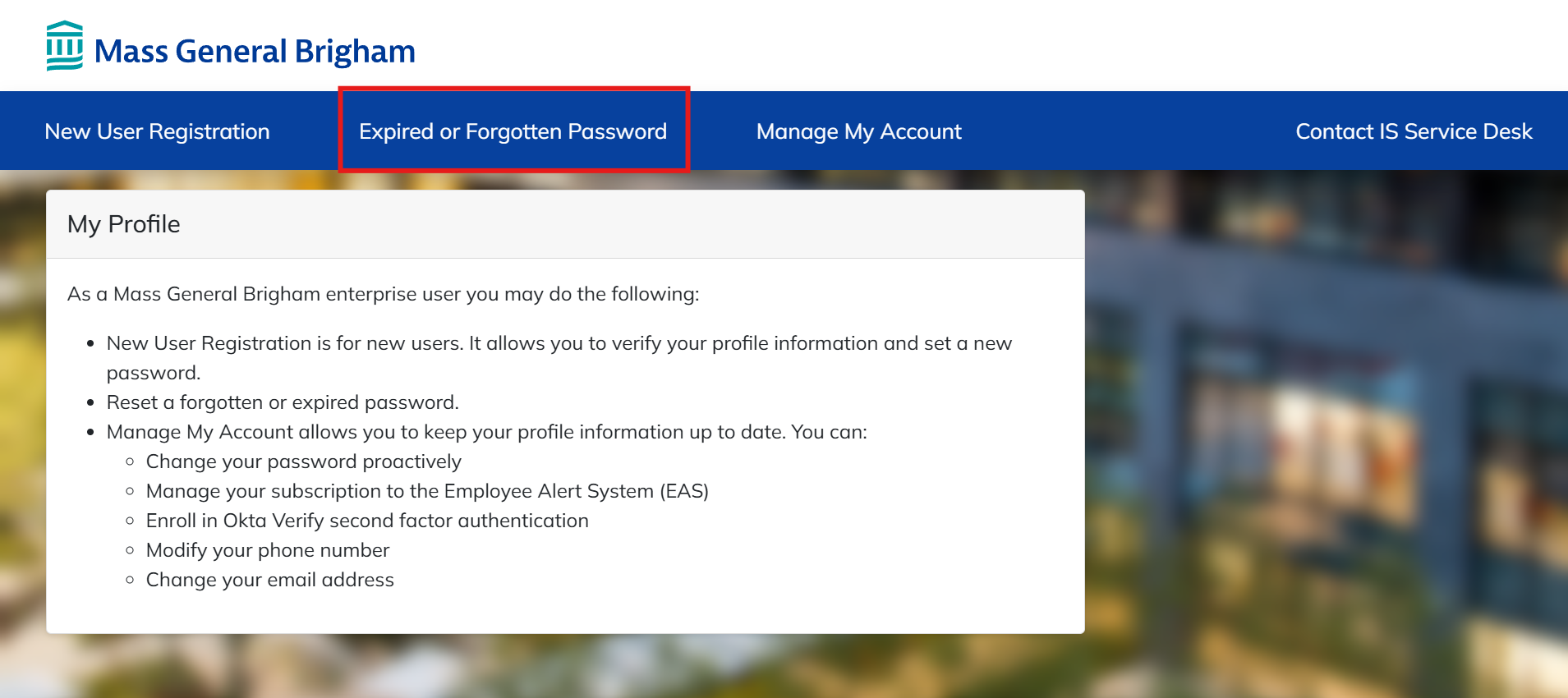
1. Go to https://myprofile.partners.org/
2. Click on Expired or Forgotten Password
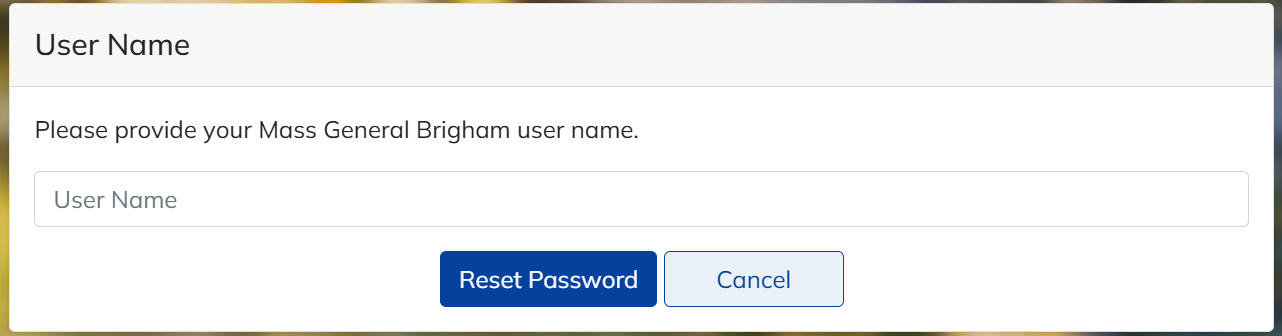
3. Enter your User Name, and the click Reset Password
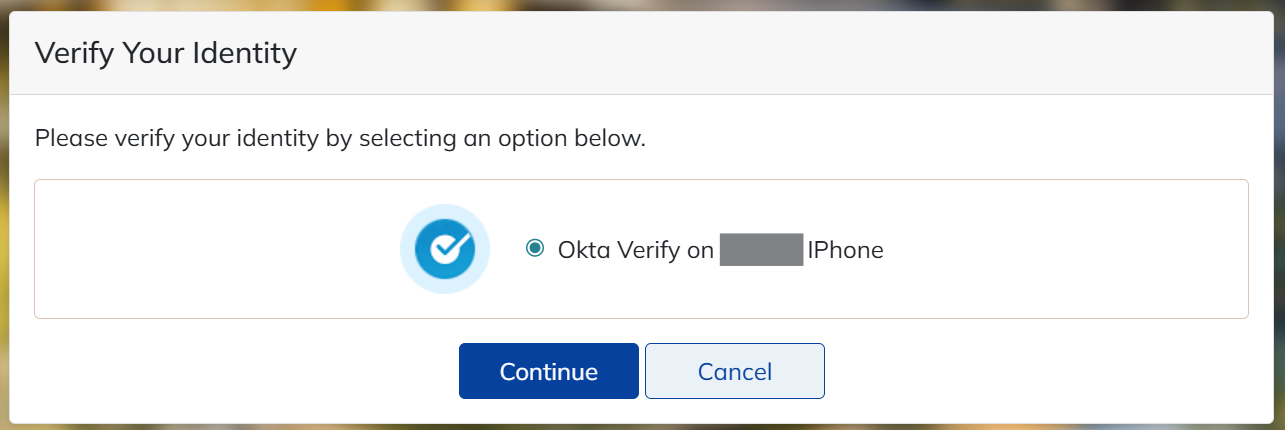
4. Verify your identity (You are required to verify your identity through Okta Verify to reset your password.)
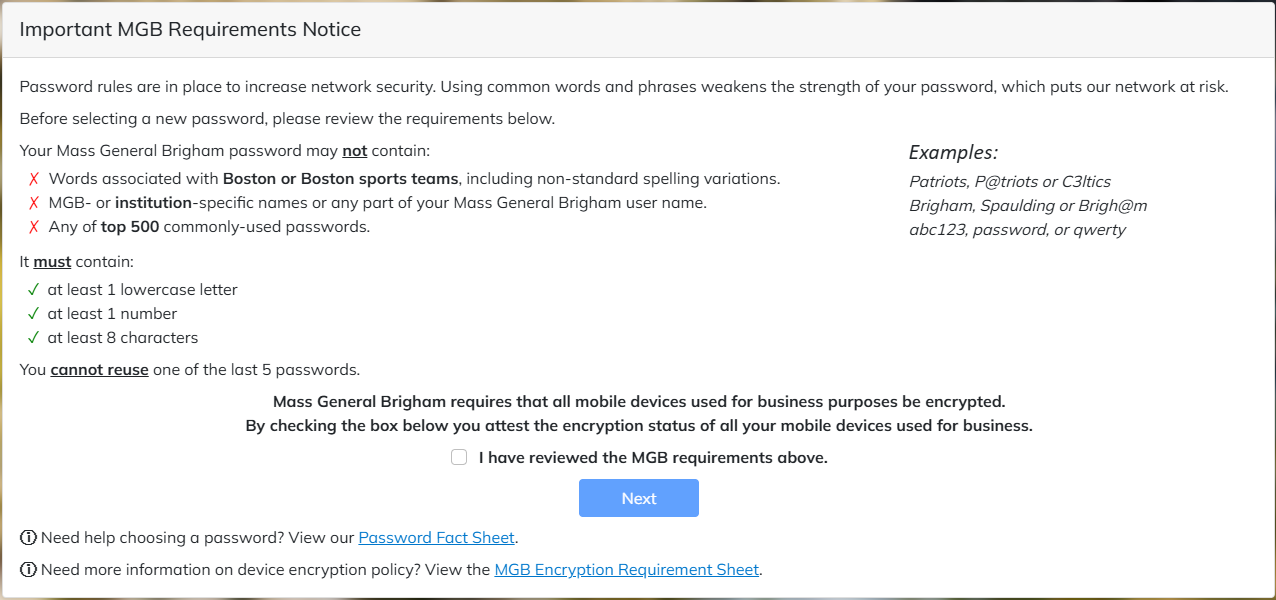
5. Review the rules for creating a strong and secure password. Once you have reviewed, check the box next to "I have reviewed the MGB requirements above." then click Next
6. Enter your new password in the spaces provided
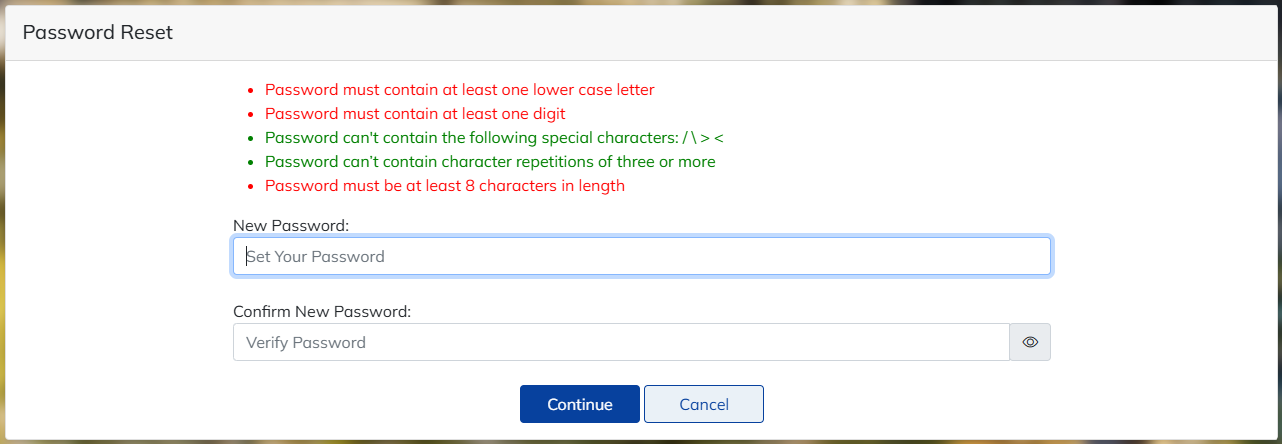
7. Click Continue. Password change is now complete. Click OK to return to the MyProfile home page
You did it! Thank you for taking the time to reset your password and keep our network safe and secure!
Related Articles
How To: Modern Clinical Build: Resetting a Forgotten or Expired Password
How to Update Password on a MGB Build Device Remotely
90 Day Password Policy Update for PCI Users | SD Escalation